Connect a Terminal to the Hub
Set up the Hub so a Pro-series terminal gets wired ethernet without sitting in a dock. Power the Hub, plug in a network cable, scan the QR code under the Hub from the terminal, switch on Ethernet, and unpair with the reset button when the Hub moves.
Overview
The Hub is a small network box. It takes the merchant’s ethernet cable and creates its own short-range wireless network, and a paired terminal uses that network to reach the wired connection. Unlike the Multicomm Base, the Hub does not charge the terminal and has no cradle: it sits wherever the network cable is, on a shelf, under the counter or screwed to a wall, and the terminal stays free to move around within range.
It works with the Pro-series terminals: SurfPrint Pro, SurfPrint Pro K and SurfTouch Pro.
Out of the box the Hub only powers up. The terminal does not know about it until you pair the two, and pairing happens on the terminal, not in the Partner Portal. It takes about a minute and only needs to be done once per terminal and Hub.
This guide is written for the person setting up the counter: a partner installing a merchant, or a merchant following your instructions.
What is in the box
| Item | Note |
|---|---|
| Hub | Model DH10-W, the wireless version |
| Power adapter | 5V 2A, with a fixed USB-C cable |
| EU and UK plug heads | Clip the right one onto the adapter |
| Double-sided tape | Two 3M VHB strips, to fix the Hub to a surface |
| Quick reference guide |
There is no ethernet cable in the box. Use the merchant’s own cable from their router or network switch.
Ports and lights
All the ports sit on one long side of the Hub:
| Port | Use |
|---|---|
| Ethernet (RJ45) | The network cable from the router or switch. 10/100 Base-T. |
| RS232 | Serial connection for a cash register or other counter equipment. |
| 2x USB-A | USB devices, 5V at 500mA each. |
| USB-C | Power only. Connect the adapter that came with the Hub. |
The top of the Hub has a light for each connection, labelled Ethernet (network icon), RS232, USB-1, USB-2 and POWER. The ethernet port itself has a yellow and a green link light, like any network socket.
The reset button sits in a small slot on the long side opposite the ports. A paper clip or SIM tool presses it.
Before you start
- Place the Hub where the network cable reaches it. It does not need to be next to the terminal, but the terminal has to stay within wireless range of it. Avoid putting it inside a metal cabinet or right next to a computer screen or a wireless intercom, which can disturb the signal.
- Plug the power adapter into the Hub’s USB-C port and into the wall. The POWER light comes on.
- Connect the ethernet cable from the router or switch to the Hub’s RJ45 port.
- Turn the Hub over and find the QR code on the label underneath, marked Sweep connection. That is what the terminal scans to pair. If you plan to stick the Hub down or hang it on the wall, pair it first, while the code is still easy to reach.
- Have the terminal nearby, switched on, with the CheckoutX app open.
Note: Pairing is done in the terminal’s device settings, which sit behind the CheckoutX cogwheel. A merchant does not need Partner Portal access to follow these steps.
Most terminals are set to Lock to POS, which keeps the terminal inside the payment app and blocks the device settings. If you cannot reach the cogwheel, switch off Lock to POS for the terminal in the Partner Portal, pair the terminal, then switch it back on. If you cannot change the mode yourself, raise a support ticket in the Partner Portal and we will toggle it for you.
Step 1: Enable the wireless docking station
The terminal treats the Hub as a wireless docking station, so the setting is the same one used for the Multicomm Base.
- In the CheckoutX app, tap the cogwheel to open the device settings.
- Find Wireless docking station settings and open it.
- Switch on the Wireless docking station toggle.
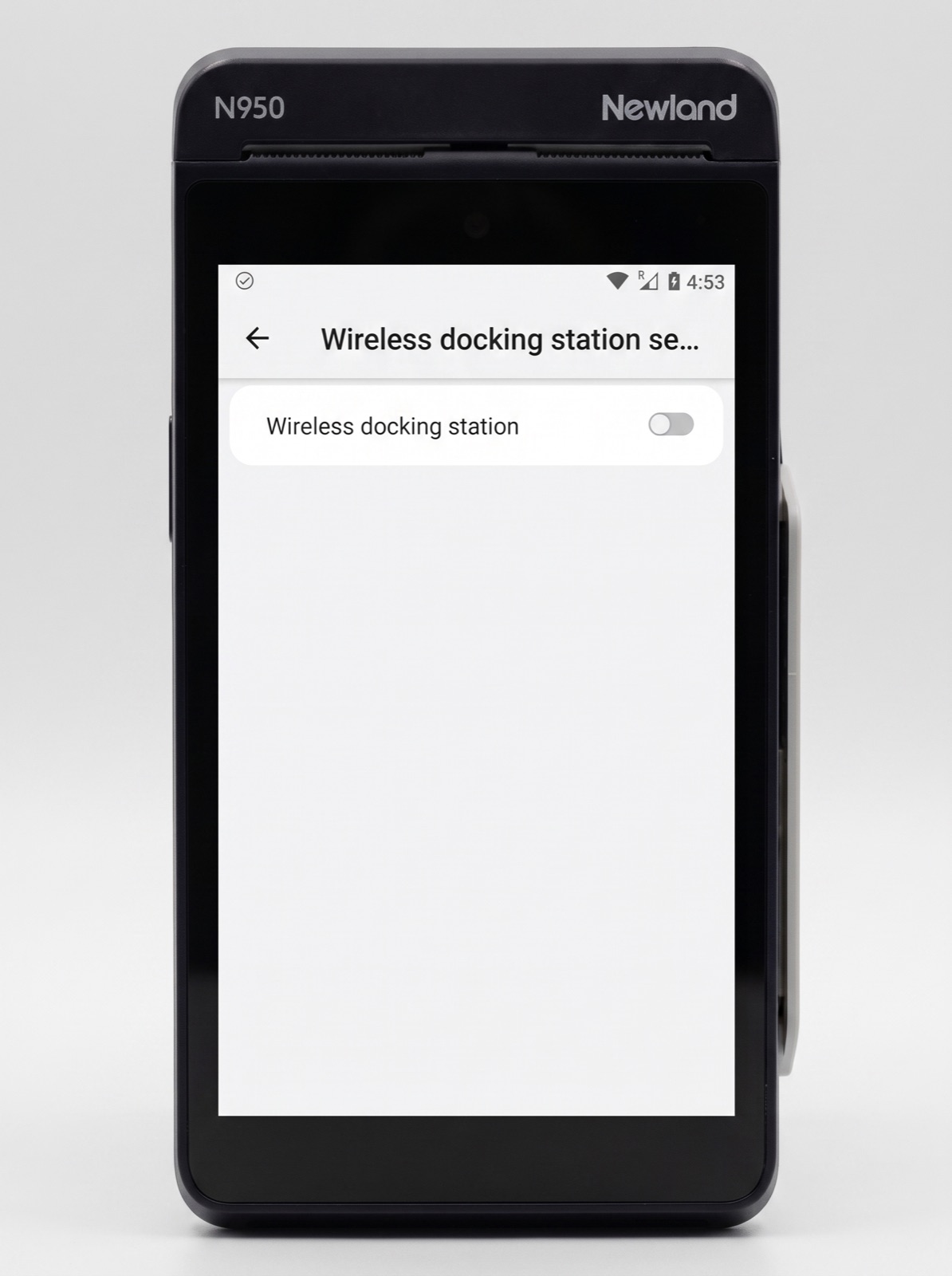
When the toggle is on, the screen expands to show the pairing status and the binding controls. A terminal that has never been paired shows Disconnected.
Step 2: Scan the QR code under the Hub
- Tap Scan bind. The terminal’s camera opens.
- Point the camera at the QR code on the underside of the Hub.
- As soon as the code is read, pairing starts on its own. Wait for the status to change from Disconnected to Connected.
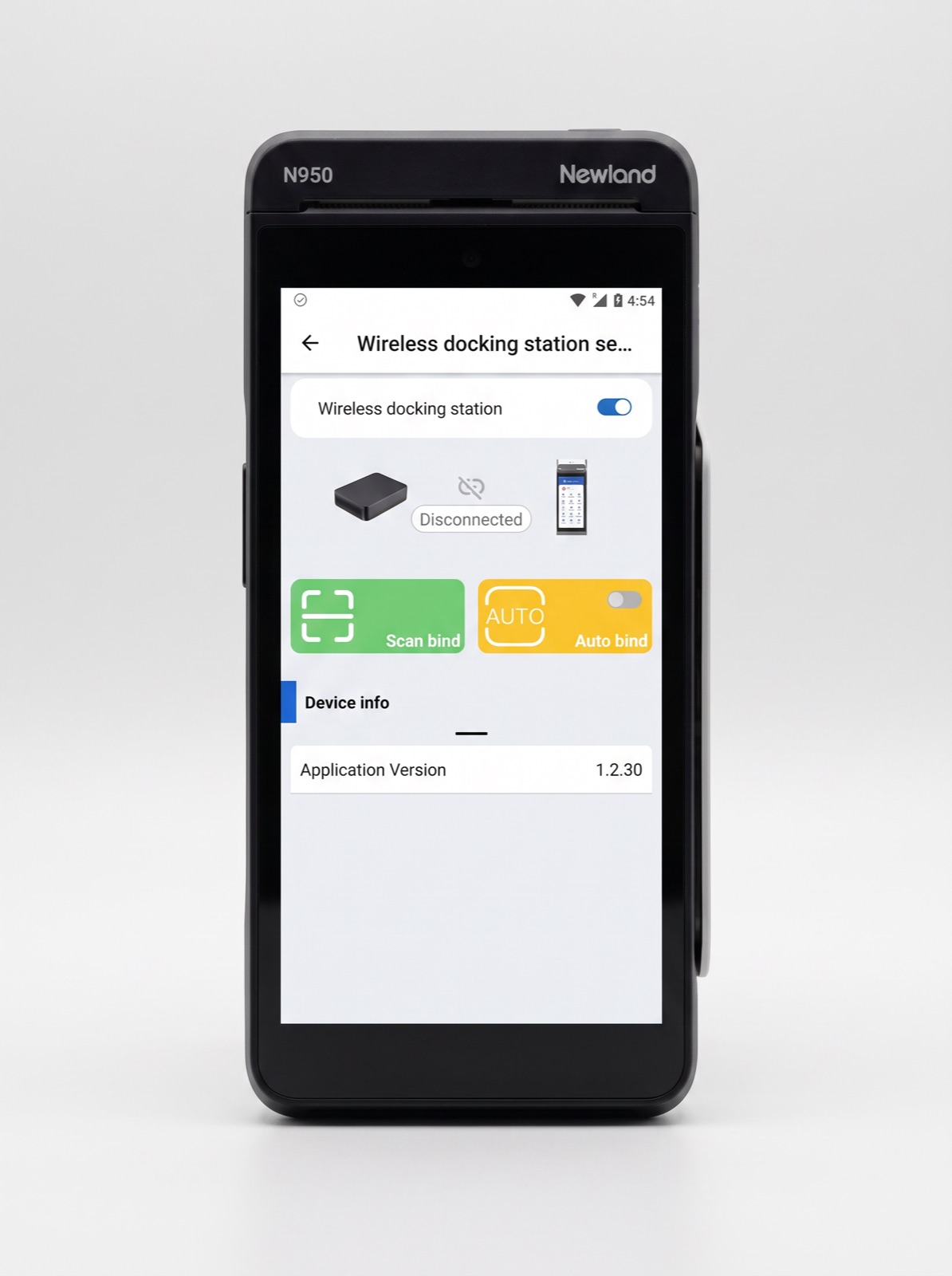
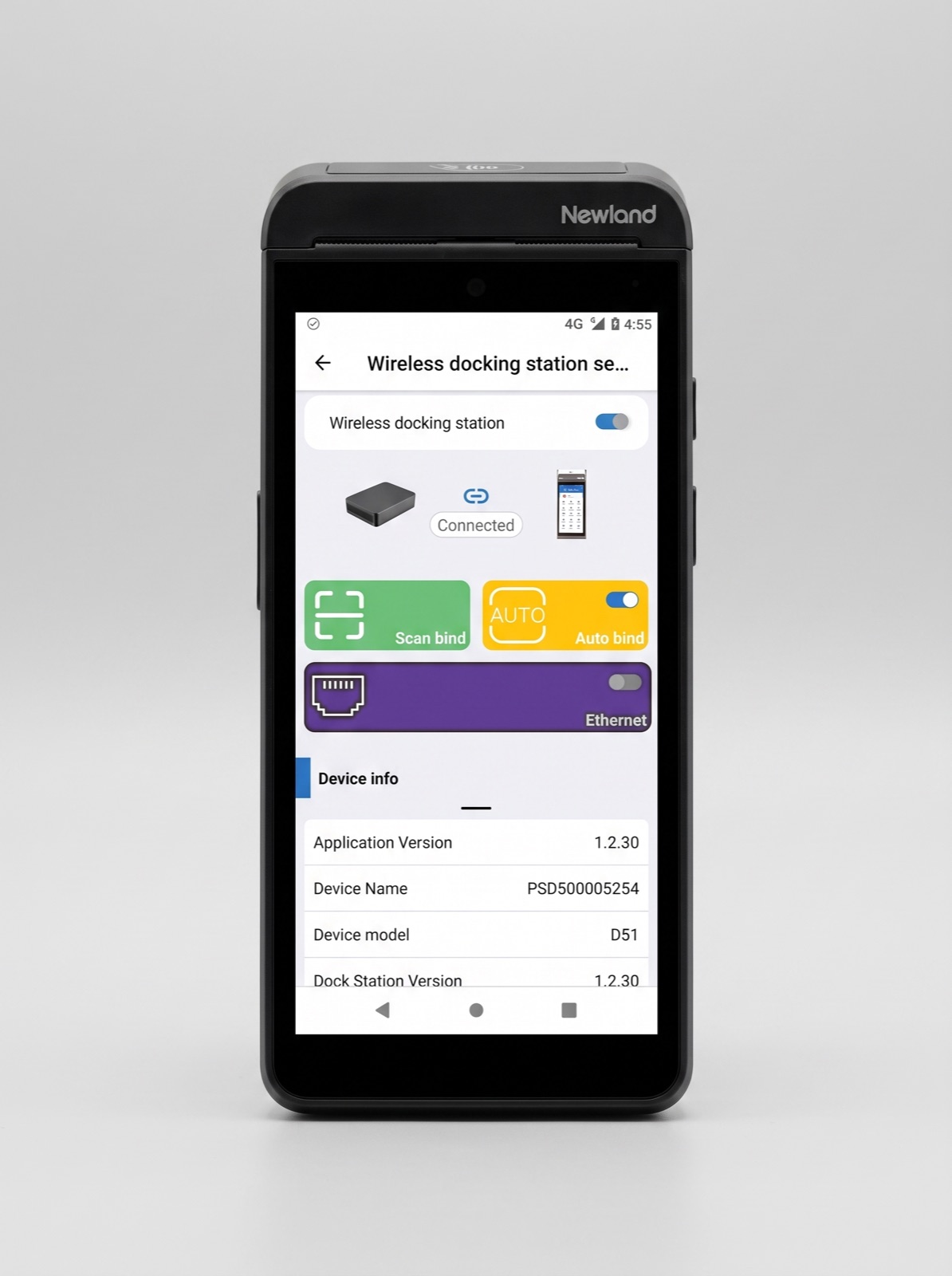
After a successful pairing, Auto bind is switched on. Leave it on so the terminal reconnects to this Hub by itself whenever it is in range.
At this point the terminal and the Hub talk to each other directly, over a link the Hub’s quick reference guide calls Wi-Fi P2P. It carries the pairing, but not internet traffic. That comes in the next step.
Step 3: Enable Ethernet and return to CheckoutX
- Switch on the Ethernet toggle. The terminal asks you to confirm, because its own Wi-Fi is switched off while the Hub’s ethernet is in use. Confirm. The connection mode changes from Wi-Fi P2P to Wi-Fi AP, and the terminal now routes its network traffic through the Hub’s ethernet connection.
- Leave DHCP on unless the merchant’s network requires a fixed address.
- Tap the back arrow to return to the payment application.
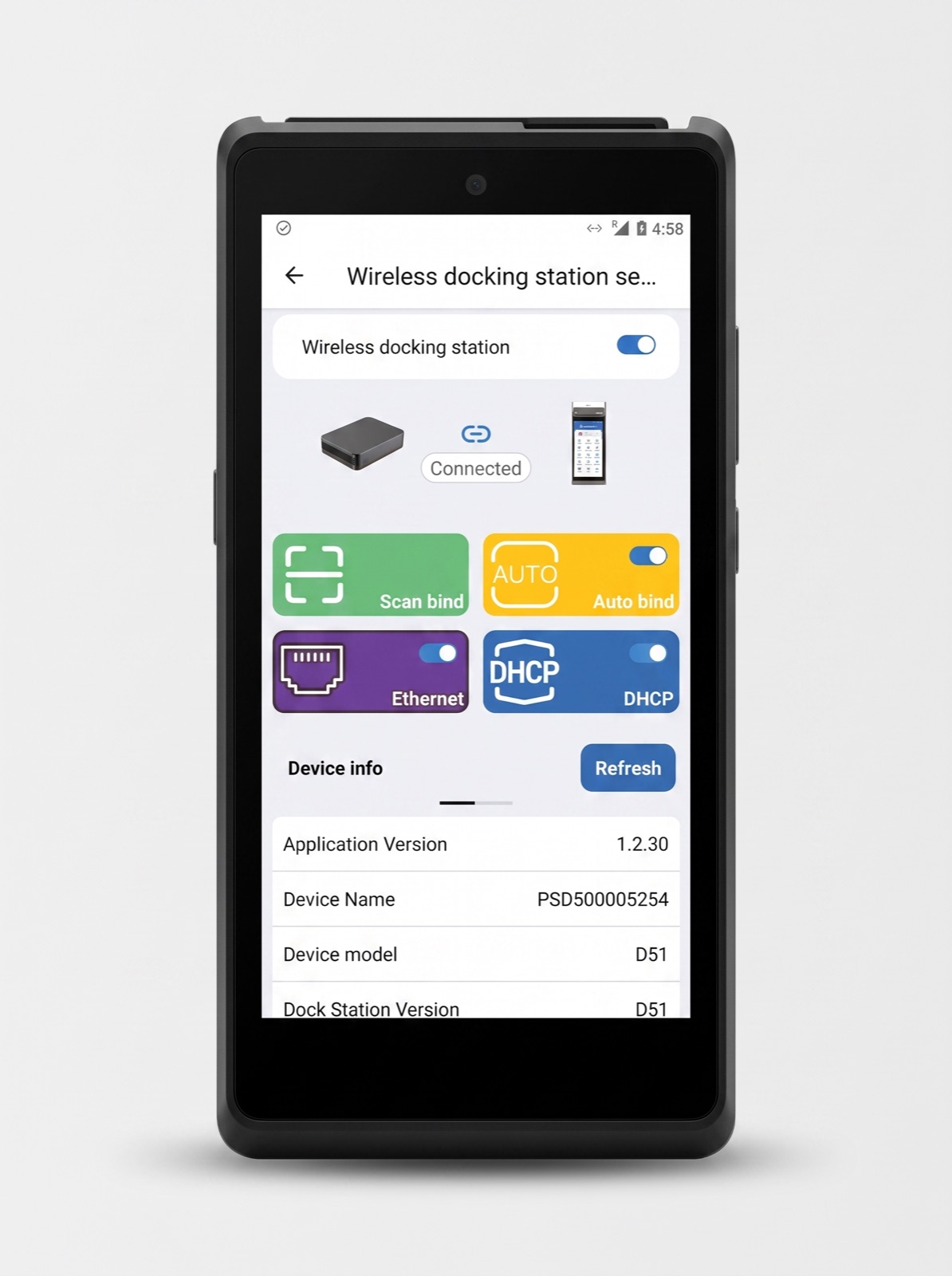
The terminal is now set up. From here on it connects to the Hub whenever it is in range, without any further action.
Mount the Hub
Once the terminal shows Connected with Ethernet on, put the Hub in its final place.
- On a surface: stick the two 3M VHB strips from the box to the underside and press the Hub down on a clean, dry surface, under the counter or on a shelf.
- On a wall: the underside has a keyhole slot. Hang the Hub on a screw with the ports pointing down or sideways so the cables do not pull on it.
Keep the vents on the sides of the Hub clear, and keep it away from heat, damp and dust. It is made for indoor use between -10°C and 40°C.
How the connection behaves
- The terminal moves freely. The Hub never touches the terminal. Payments go over the Hub’s ethernet as long as the terminal is within wireless range.
- Charging is separate. The Hub does not charge the terminal. Use the terminal’s own charger or a charging base.
- One Hub or base per terminal. A terminal pairs with one docking device at a time. Pairing it with a different Hub, or with a Multicomm Base, replaces the previous pairing.
- The terminal’s own Wi-Fi steps aside. While Ethernet is on, the terminal uses the Hub for networking rather than the venue’s Wi-Fi. Switch Ethernet off again to go back to Wi-Fi or 4G.
Unpair or move the Hub
You only need this when the Hub changes hands: a terminal is moving to another counter, or a Hub is being replaced.
- From the terminal: open Wireless docking station settings, tap Scan bind and confirm. The terminal drops the current Hub and is ready to scan a new one.
- From the Hub: press the reset button briefly, for about two seconds. The Hub forgets the terminal.
Hold the reset button down for longer only if you mean to reset the Hub itself: a long press resets it to factory settings, and holding it while plugging in the power starts a firmware update.
Troubleshooting
| Symptom | What to check |
|---|---|
| The cogwheel or device settings will not open | The terminal is set to Lock to POS. Switch it off for the terminal in the Partner Portal, pair, and switch it back on. If you cannot change it yourself, raise a support ticket and we will toggle it for you. |
| The POWER light is off | Check that the adapter is plugged into the Hub’s USB-C port, not one of the USB-A ports, and that the wall socket is live. |
| Status stays Disconnected after scanning | Wipe the QR code under the Hub and scan again in good light. If the Hub was paired with another terminal before, press its reset button for two seconds and scan again. |
| Connected, but the terminal has no network | Check that the ethernet cable is plugged into the Hub and that the yellow and green lights on the port are on. Confirm the Ethernet toggle is on: without it the link between Hub and terminal carries no internet traffic. |
| The terminal falls back to Wi-Fi or 4G | The terminal has moved out of range of the Hub, or something between them blocks the signal. Bring it closer, or move the Hub out of a metal cabinet or away from other electronics. |
| The Wireless docking station setting is missing | The terminal is not a Pro-series terminal, or its software is out of date. Push the latest software from Terminal Management. |
Related
- Hub for specifications and what is in the box.
- Pair a Terminal with the Multicomm Base for the charging dock with ethernet built in, for SurfPrint Pro and SurfPrint Pro K.
- Terminal Management for activating, registering, and updating terminals from the Partner Portal.