Multi-Merchant Groups
Group several merchants at the same address so they can share terminals. Create a group, add new or existing merchants, and activate and register the group's terminals.
Overview
A multi-merchant group ties several merchants together so they can share terminals. A typical case is a food hall or a shared counter, where several businesses take payments on the same device but each keeps its own merchant account and payouts.
A group is anchored to a country and a postal code. To collect payments through the group, a merchant’s store must have the same postal code as the group.
For how shared terminals work in an integration, see the multi-merchant terminals developer guide.
Finding your groups
Open Merchants in the sidebar and click Multi-Merchants at the top. The list shows each group’s name, country, and postal code. Search by name or ID.
Creating a group
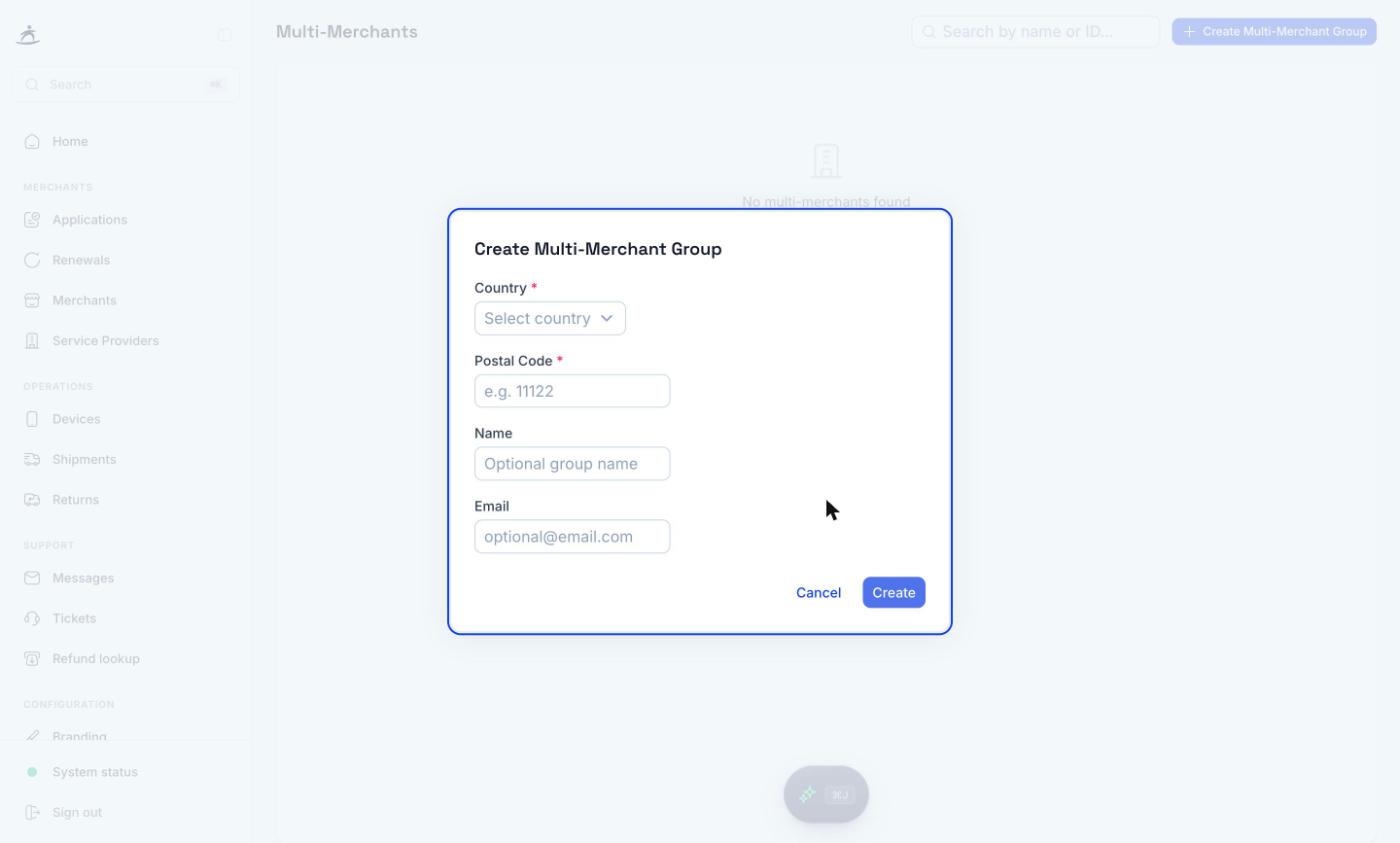
Click Create Multi-Merchant Group.
| Field | Required | Notes |
|---|---|---|
| Country | Yes | Sweden, Denmark, Finland, Norway, Ireland, or United Kingdom |
| Postal Code | Yes | Stores must share this postal code to collect payments through the group |
| Name | No | Makes the group easier to find |
| No |
Click Create. The group gets its own ID and you land on its Info page.
The group page
A group has four tabs.
Info
Multi-Merchant Details shows the group ID, name, country, postal code, and how many merchants are in it.
Set up this group walks you through the two things a new group needs:
- Add a merchant — Add Merchant starts a new application with the group already selected. The merchant joins the group once it’s created.
- Register a terminal — Register Terminal takes you to the group’s Terminals tab.
Merchant Group
The Merchants in Group table lists each member with its merchant ID, number of transactions, total amount, and latest activity.
To add a merchant that already exists, use Add Merchant to Group:
- Search for the merchant (at least three characters).
- Select it and click Add to Group.
Only merchants that aren’t already in a group can be added, and the merchant’s store must be in the group’s postal code.
Remove takes a merchant out of the group. The merchant stays active; only the group link is cleared.
Terminals
The group’s terminals, with ID, name, type, status, and store.
- Activate Terminal — link terminals from your stock to the group by serial number, the same way you activate them to a merchant. See Terminal Management.
- Register Device — register an activated terminal. Enter the 6-digit code from the terminal screen or the device serial number, and a Terminal Name. The name is required for group terminals. If the group has more than one store, pick the store as well.
Stores
The stores that belong to the group, with ID, name, email, and status. Open a store to see its details and online information. Store details are read-only here; edit them from the merchant’s own page.
Groups elsewhere in the portal
- New applications — on the Business step of the application form, switch on Multi-Merchant Group and pick the group. This is the same as starting from Add Merchant on the group’s Info tab. The store’s postal code must match the group’s. See Applications & Merchant Onboarding.
- Devices — when you activate a device from your stock or port terminals in bulk, the merchant picker also finds groups. They’re marked Multi-merchant group.