Applications & Merchant Onboarding
Create and track merchant onboarding applications. Submit new applications, monitor KYB status, and manage signing links for your merchant portfolio.
Overview
The Applications page is where you initiate and track the onboarding process for new merchants. Each application represents a merchant going through the Know Your Business (KYB) verification process before they can start accepting payments.
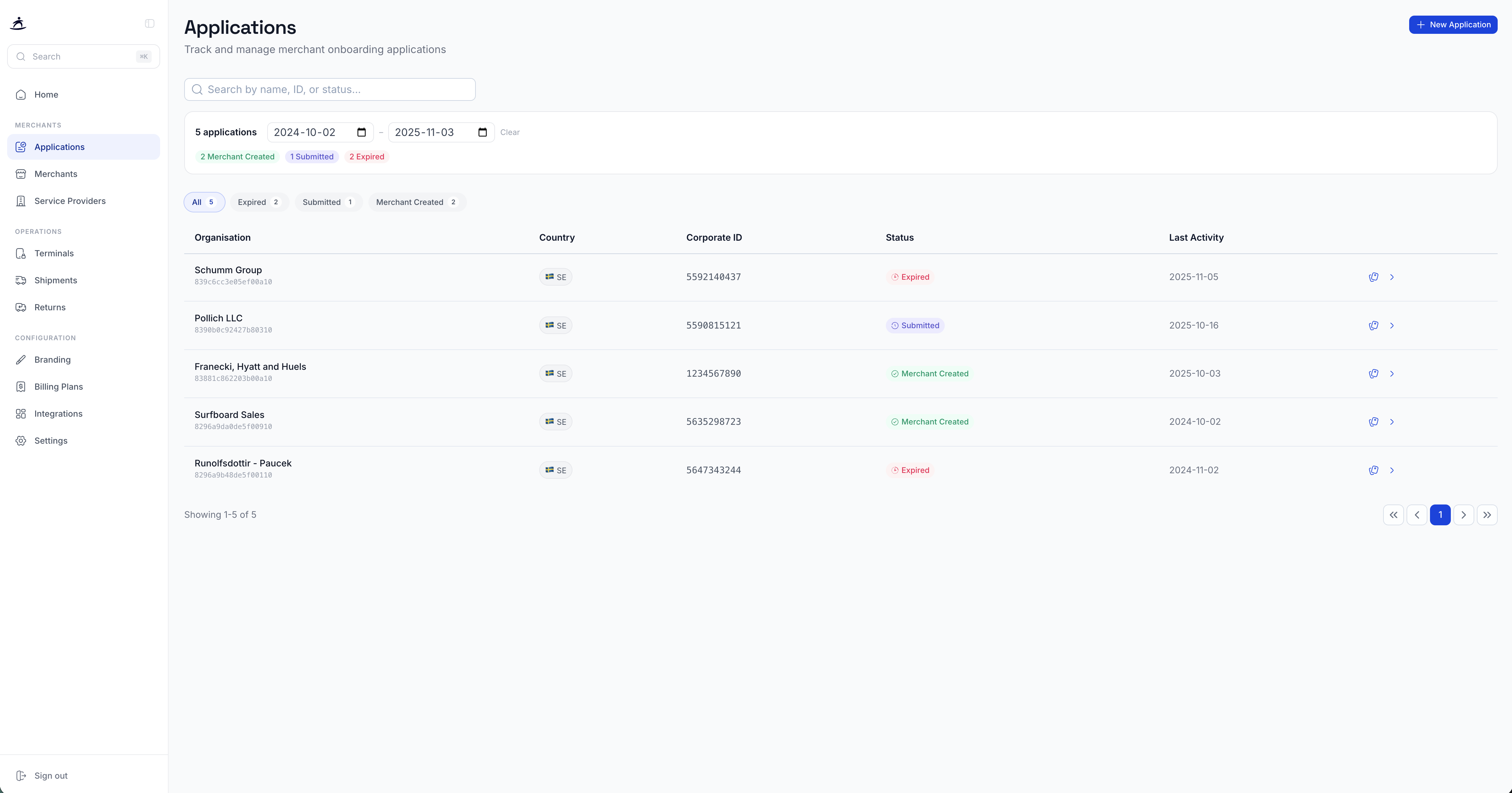
Application List
The applications table displays all your onboarding applications with the following information:
| Column | Description |
|---|---|
| Organisation | The merchant’s business name and application ID |
| Country | Country flag and code where the merchant operates |
| Corporate ID | The merchant’s corporate registration number |
| Status | Current application status |
| Last Activity | Date of the most recent status change |
Filtering Applications
You can filter applications by:
- Date range — use the date pickers to narrow by creation or activity date
- Status tabs — quickly filter by All, Expired, Submitted, or Merchant Created
- Search — type a name, ID, or status in the search bar
Application Statuses
Applications progress through several statuses:
| Status | Description |
|---|---|
| Created | Application has been initiated but the KYB process has not started |
| Submitted | Application has been submitted for KYB review |
| Merchant Created | KYB approved — the merchant account is now active |
| Expired | The application was not completed within the required timeframe |
Creating a New Application
Click the + New Application button in the top right corner to start onboarding a new merchant.
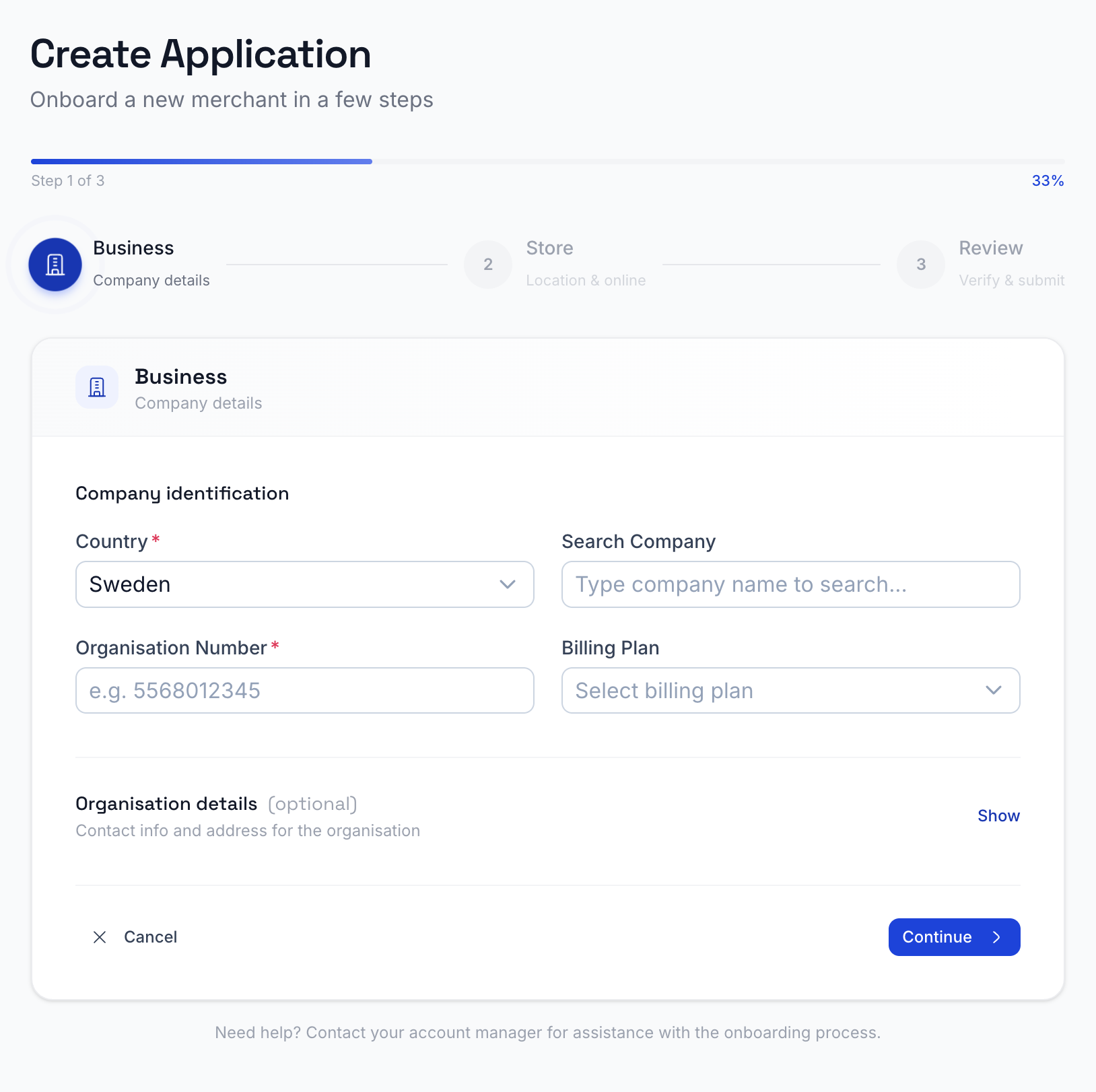
Required Information
To create a new application, you need to provide:
- Country — the country where the merchant will operate
- Corporate ID — the merchant’s official business registration number
- Organisation name — pulled automatically from company registries when available
- Contact details — email and phone number for the merchant
- Store information — at least one store must be configured during onboarding
The system will automatically look up the company details from public business registries based on the corporate ID.
Onboarding Flow
- Fill in the merchant’s business details
- Configure the initial store (name, email, phone) — turn on the Online payments toggle if the merchant should run an online store and receive payments online
- Submit the application
- Share the signing link with the merchant
- The merchant completes the KYB process
- Once approved, the merchant account is created automatically
Application Details Panel
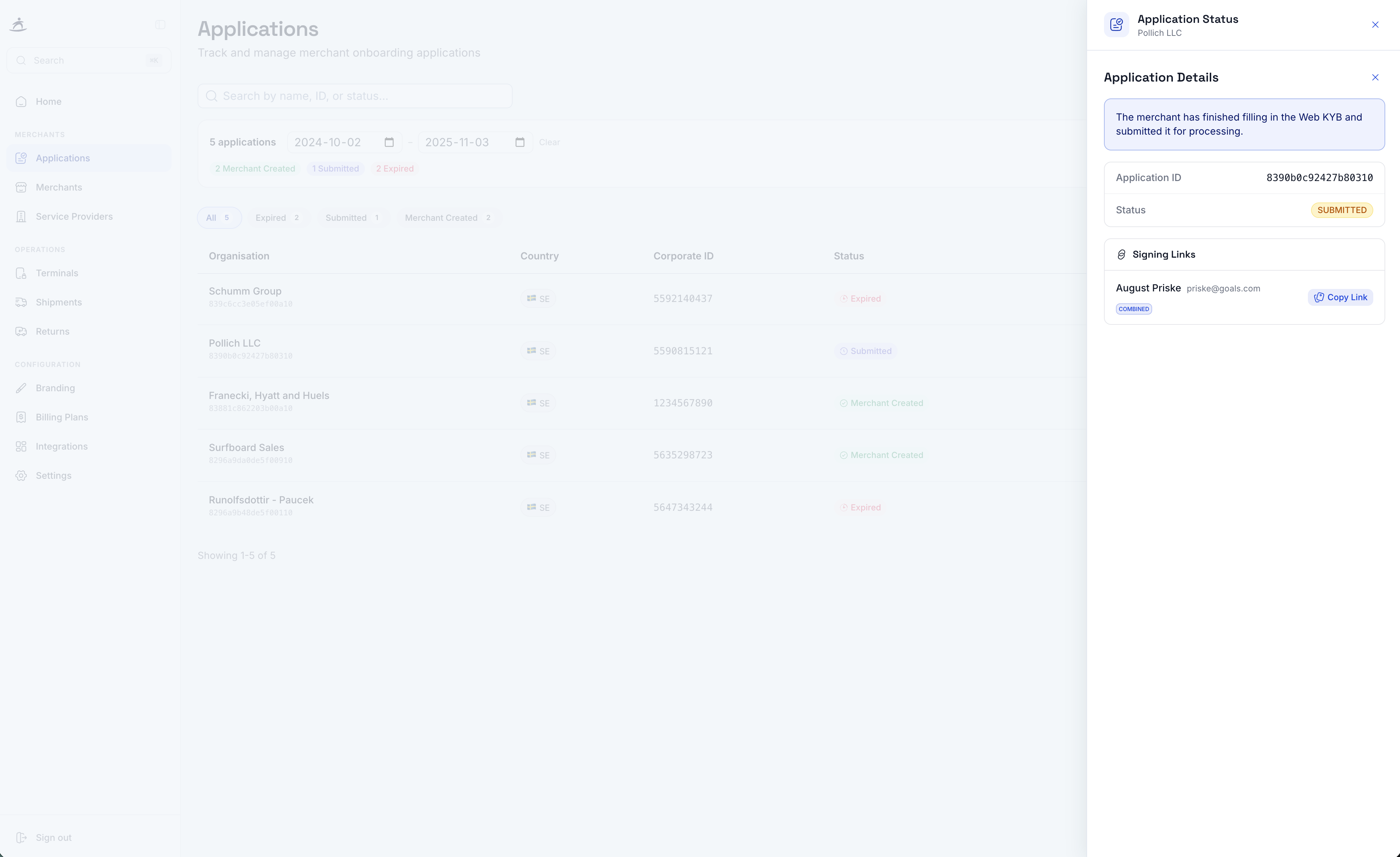
Click on any application row to open the details panel on the right side. This shows:
- Application ID — unique identifier for the application
- Status — current application status with visual indicator
- Merchant ID — assigned after merchant creation (links to the merchant page)
- Store ID — assigned after the store is created
Signing Links
The details panel also shows Signing Links for applications that require KYB completion. Each signing link includes:
- The signing configuration name
- The email address associated with the link
- Whether it’s a Combined or Separate signing flow
- A Copy Link button to share the KYB URL with the merchant
You can share this link directly with the merchant so they can complete their KYB verification process.
Note: The signing link is time-sensitive and valid for 72 hours. Share it with the merchant promptly after creating the application. If it expires, the link can be copied and resent from the application detail panel.
Best Practices
- Follow up on pending applications — check the Submitted tab regularly and reach out to merchants who haven’t completed their KYB
- Monitor expired applications — if applications are expiring, consider reaching out to merchants sooner after creation
- Use date filters — when managing a large portfolio, use date filters to focus on recent applications