Service Providers
Onboard the companies and individuals that should receive a share of your merchants' payments through Surfboard Flow, and link them to merchants.
Overview
A service provider is someone other than the merchant who should receive part of a payment: a platform taking a fee, a franchisor collecting a royalty, or a waiter who should get their tips directly instead of having them paid out to the restaurant, taxed, and shared through payroll. This is Surfboard Flow, the split-payout engine.
Setting up a split has three steps. The Partner Portal handles the first two. The third happens in the order your POS or webshop sends to the API.
- Onboard the service provider — an application is created, the recipient completes verification or signs an agreement, and Surfboard issues a service provider ID
- Link it to a merchant — a service provider can only take a share from merchants it is linked to
- Set the split on the order — your integration names the service provider and its share on each order. See the Service Providers & Split Payouts developer guide
Service providers are only available on some partner agreements. If Service Providers is missing from the sidebar, contact your account manager.
The Service Providers page
Click Service Providers in the sidebar. The page has two tabs, Active Providers and Applications, and a Create Service Provider button.
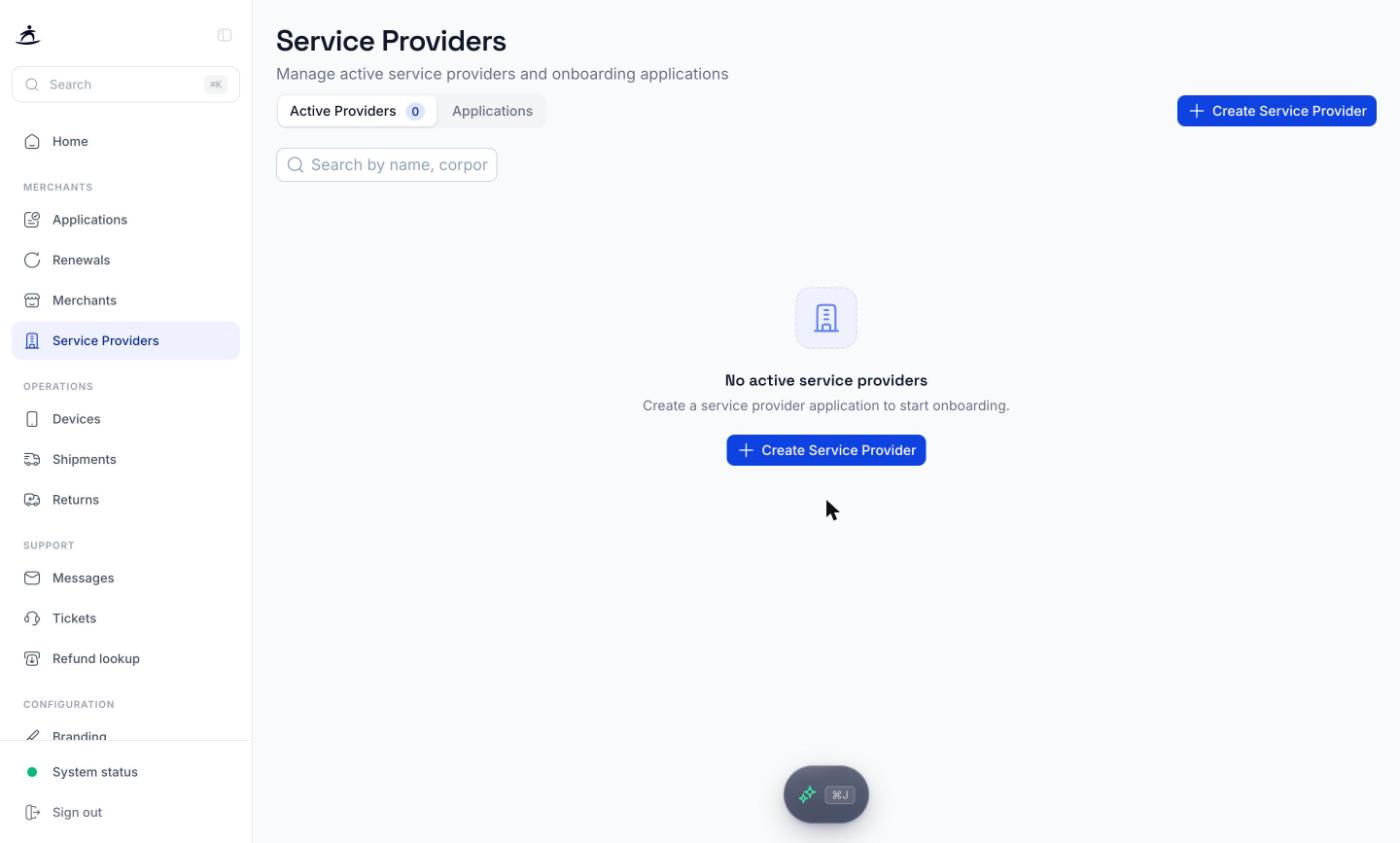
Active Providers
Service providers that have completed onboarding and can be linked to merchants. The tab shows how many there are. Search by name, corporate ID, or email.
| Column | Description |
|---|---|
| Name | Business or person name |
| Corporate ID | Business registration number, or the national ID for an individual |
| Primary contact email | |
| Location | Country |
Click a row to open Service Provider Details: provider ID, corporate ID, name, email, phone, service type, and address.
Each row also has two actions:
- Link to Merchant — pick one of your merchants by ID or name and link the provider to it, without leaving the list
- Copy Service Provider ID — the ID your integration puts on the order in step 3
Applications
Every service provider application and where it sits in onboarding.
| Column | Description |
|---|---|
| Application ID | Identifier of the application |
| Corporate ID | Business registration number |
| Status | Current application status, see below |
| Last Activity | When the application last changed |
Click a row to open the details. They show a description of the current status, and for applications that are submitted or signed, the signing links for each signatory so you can chase a missing signature. While the application is still open you can also copy the onboarding link to resend it. Once the application has moved past that stage, the link can no longer be copied.
Creating a Service Provider
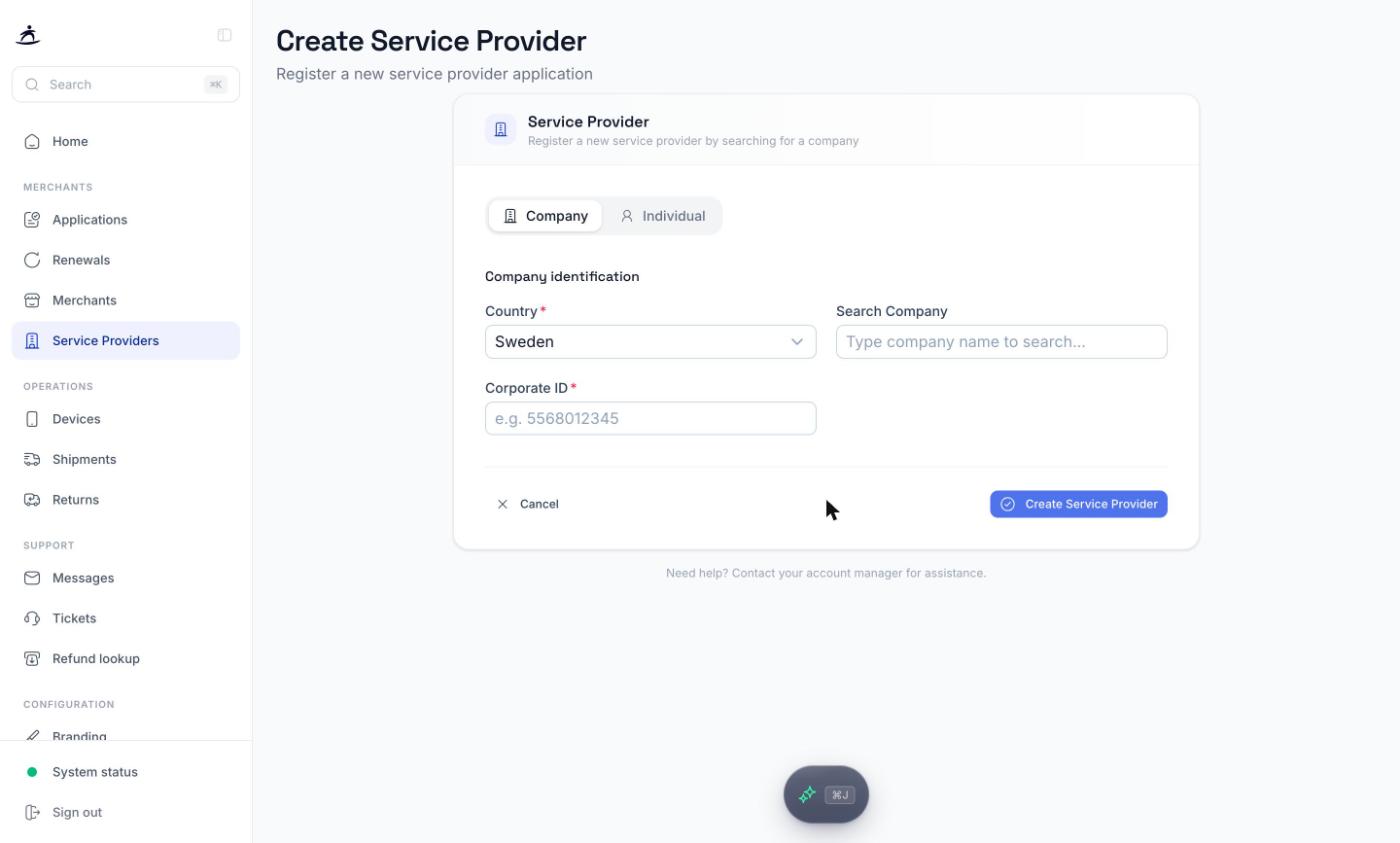
Click Create Service Provider. The form has two modes, Company and Individual, chosen at the top. They use different verification flows, so pick the right one before filling in the fields.
| Mode | Use it for | Verification |
|---|---|---|
| Company | A registered business: a franchisor, a marketplace operator, your own platform entity for a platform fee | Web KYB (Know Your Business), the same hosted flow merchants go through |
| Individual | A private person tied to one merchant: a waiter receiving tips, a stylist, a driver | A signing flow where the person identifies themselves and signs a service provider agreement |
Company
- Select the country the company is registered in
- Search for the company by name. Selecting a result fills in the corporate ID. If nothing is found, type the Corporate ID directly
- Click Create Service Provider
The success screen shows the application ID and an Onboarding Link. Copy it and send it to a signatory at the company. They fill in company details, contact information, and the bank account that will receive payouts, then sign. The link is personal to the application, so share it only with the company.
Individual
- Select the country the person is based in
- Enter their email. The signing invitation is sent here
- Associate with merchant. Pick the merchant this person works for. An individual belongs to one merchant, and is linked to it automatically once approved, so there is no separate link step
- Optionally open Fee configuration if the person should also receive a share of the order amount itself, such as a commission:
- Percentage fee — percentage of each applicable transaction
- Fixed fee — fixed amount per transaction, in minor units:
100means 1.00 - Deduct the applicable transaction fee from the service provider — take Surfboard’s transaction fee out of the person’s share instead of the merchant’s. Leave this off for tips so the tip arrives in full
- Click Start Onboarding
The success screen shows the application status and a Signing Link. The person also receives it by email. Once they have signed and the application is approved, they appear under Active Providers.
For a waiter who should only receive tips, no fee configuration is needed. The tip routing is set on the order, by the POS, as described in the developer guide.
Linking to Merchants
A company service provider must be linked to each merchant it should take a share from. One provider can be linked to many merchants: a franchisor is onboarded once and linked to every franchisee.
There are two ways to link:
- From the Active Providers tab, click Link to Merchant on the provider’s row and pick the merchant
- From the merchant’s page, open the Service Providers tab and click Link Service Provider, then choose one of your active providers and click Link
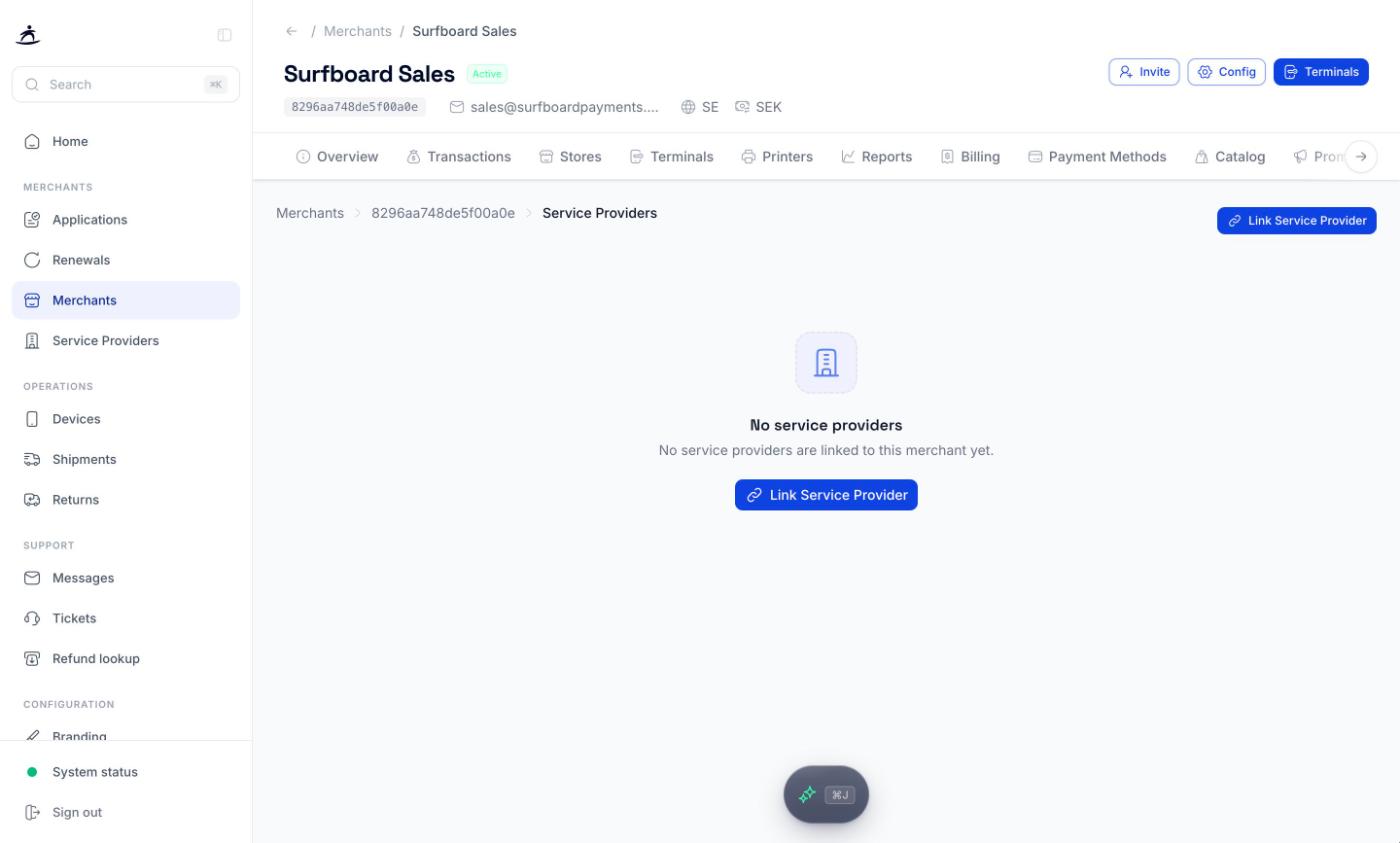
The merchant’s Service Providers tab lists everything currently linked, with the provider ID and status. To stop a provider from taking a share of the merchant’s payments, click Unlink on its row and confirm. Orders already created keep their split.
If your integration names a service provider on an order that is not linked to the merchant, order creation fails with error SP_0001.
Application Status Tracking
Service provider applications follow the same lifecycle as merchant applications.
| Status | Meaning |
|---|---|
| Application Initiated | Application created and the onboarding or signing link generated |
| Application Started | The recipient has opened the link and begun filling in details |
| Application Submitted | Details submitted and awaiting signature or review |
| Application Pending Information | Under review, Surfboard needs more information from the recipient |
| Application Signed | All required signatures collected |
| Application Completed | Approved. The service provider ID has been generated and the provider appears under Active Providers |
| Application Rejected | Reviewed and rejected |
| Application Expired | Applications are valid for 30 days. If nothing happens in that time the application expires and a new one must be created |
Related
- Service Providers & Split Payouts — the developer guide, including how to set the split on the order
- Merchant Management — the merchant’s Service Providers tab
- Surfboard Flow