Messages
Notices and product updates from Surfboard -- settlements, integrations, service changes and launches -- in one inbox. Subscribe a shared mailbox so your team hears about changes the day they are published.
Overview
Messages is where Surfboard talks to you as a partner. When we publish something that affects your portfolio — a settlement change, an integration or API update, planned maintenance, a service change or a new product — it lands here, addressed to your partner account.
You’ll find it in the sidebar under Support → Messages. A badge on the menu item shows how many messages are unread.
Important: Subscribe an email address on the Messages page as soon as your partner account is set up. An inbox only works if someone opens it. With a subscription, every message also goes out by email, so the people who run your integration and your merchant operations hear about a change when we publish it, not the next time somebody logs in.
Reading messages
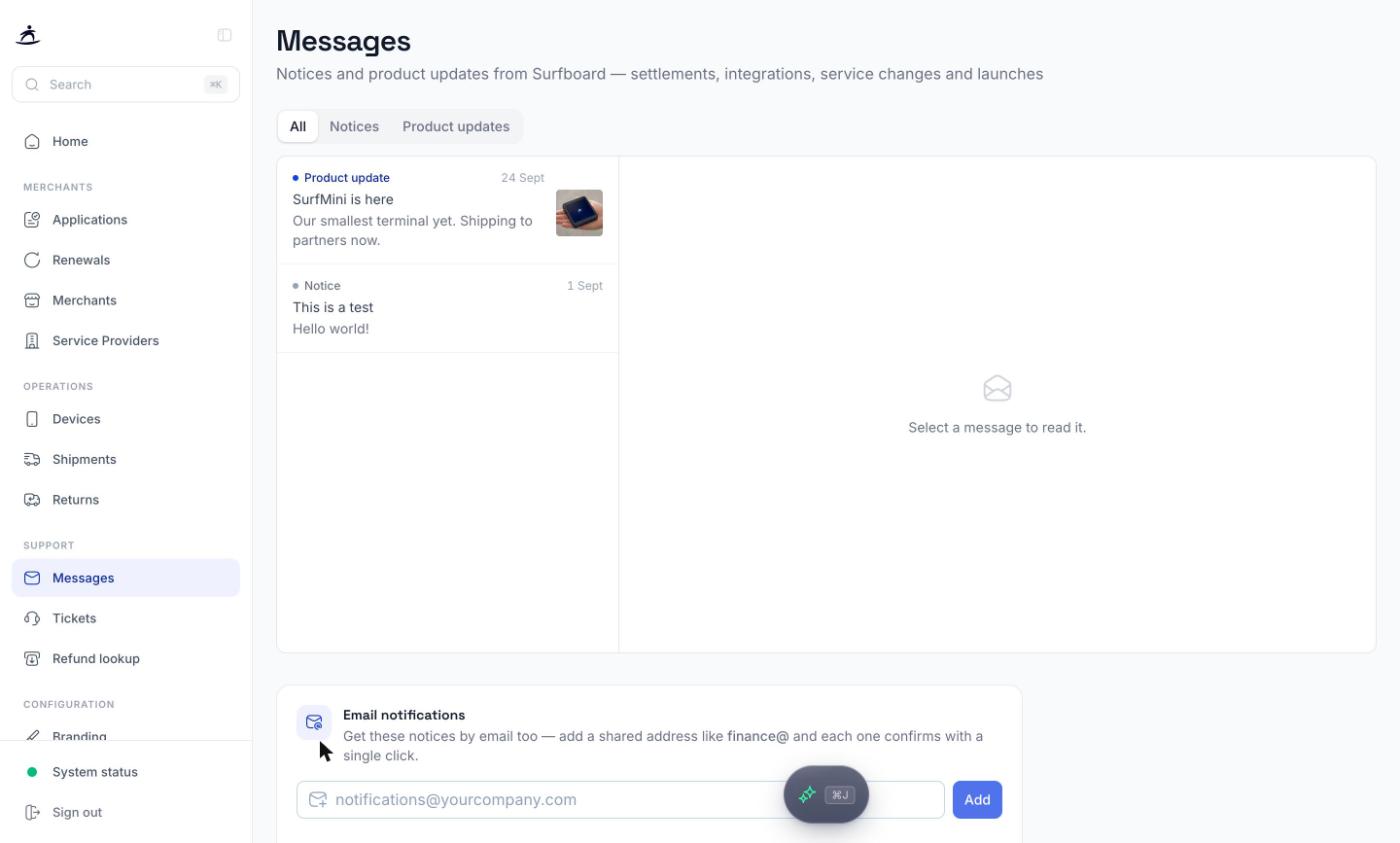
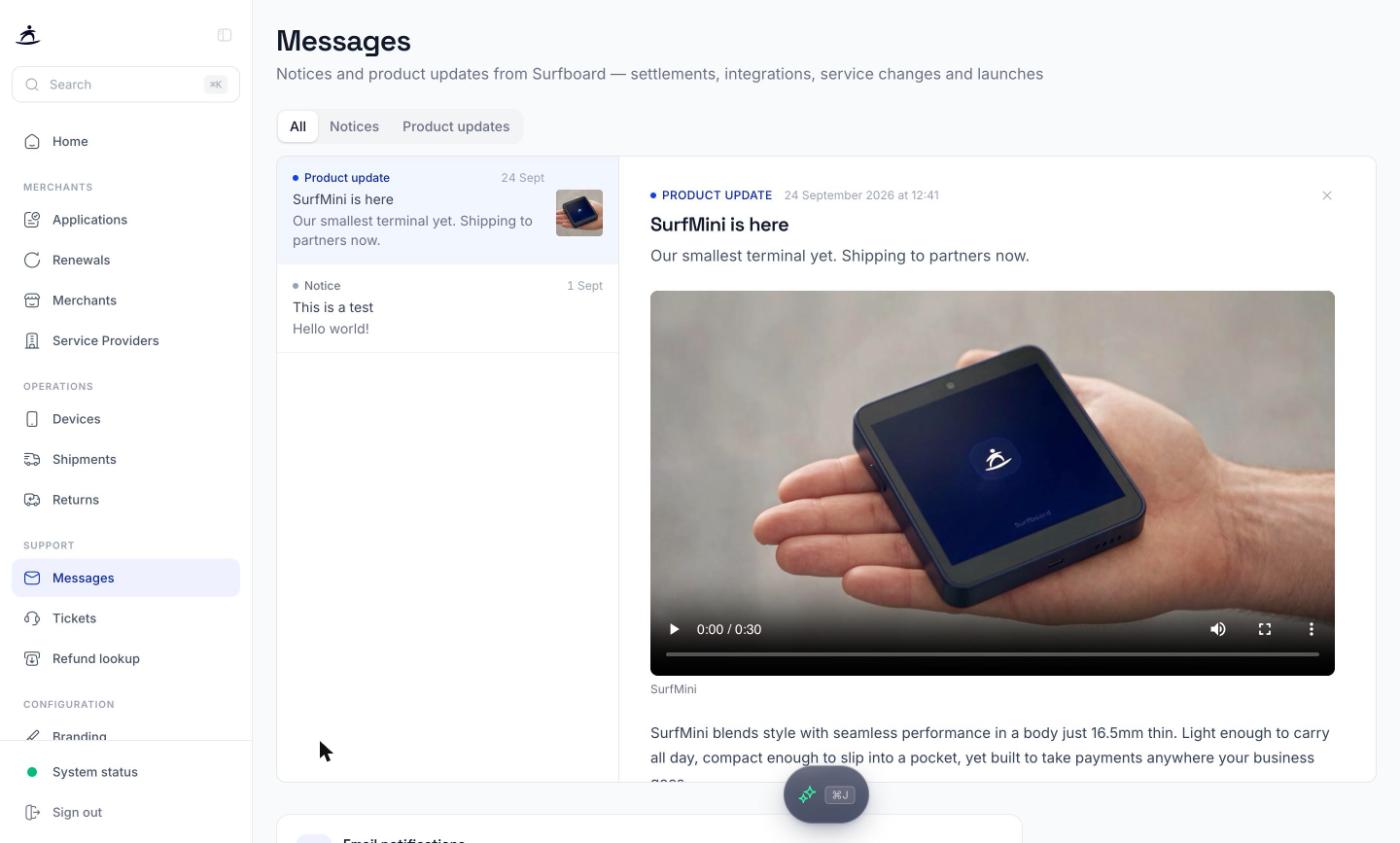
The list shows every message sent to your partner account. Each one has a kind, a date, a title and a short summary, and an unread dot until you open it. Product updates may also have a thumbnail.
| Kind | What it is |
|---|---|
| Product update | A launch or new feature, such as a new terminal |
| Notice | An operational notice, such as a settlement or integration change |
| Warning | A notice that needs your attention |
| Critical | A notice with significant impact on you or your merchants |
When you have both notices and product updates, filter the list with All, Notices or Product updates.
Click a message to open it in the reading pane on the right. Messages can include images or video, formatted text and a link to the relevant page, guide or documentation. Opening a message marks it as read.
Banner at the top of the portal
Important unread messages also appear as a banner across the top of every page: red for critical, amber for warnings, blue otherwise. Product updates are marked New. Click Read message (or See what’s new for a product update) to open it. Some banners can be dismissed with the close button, which marks the message as read.
Subscribe to email notifications
Below the inbox is the Email notifications card. Every address added here receives each message as an email, in addition to it appearing in the portal.
- Open Support → Messages and scroll to Email notifications.
- Enter the address — the placeholder suggests
notifications@yourcompany.com— and click Add. - We send a confirmation link to that address. Until it’s clicked, the address shows as Pending and receives nothing.
- Once confirmed, the status changes to Active and emails start with the next message.
If the confirmation email didn’t arrive, click Resend next to the pending address. To stop emails to an address, remove it from the list.
Which address to use
Subscriptions belong to your partner account, not to an individual user, and the address does not need to be a portal login. Use shared mailboxes so a message survives holidays and staff changes:
- finance@ for settlement and payout notices
- integrations@ or your engineering on-call address, so API and integration changes reach the people who maintain your connection
- support@ or your merchant-facing team, who are the ones merchants call when a terminal behaves differently
You can add several.
Tip: Nothing is subscribed by default. A new partner account starts with an empty list, so if you skip this step, messages only live in the portal.
Messages in your own systems
To show messages in your own back office, or to forward them to your merchants automatically, use the Messages API. The link at the bottom of the Messages page takes you there. See Developers: BIN Ranges & Messages API.
Messages vs. notifications
Messages are notices from Surfboard to you. The Notifications tab under Settings is different: those are alerts about events in your own portfolio — merchant onboarding, terminal registration, file transfers — delivered by email, Slack or SFTP. Set up both.
Live incidents and outages are not sent as messages. They are shown on System status and at status.surfboardpayments.com.
Why it matters
As a partner you sit between Surfboard and your merchants. When we change a settlement schedule, retire an API version, or schedule maintenance, your merchants will ask you first. A subscribed shared mailbox means your team already knows.