Developers: BIN Ranges & Messages API
Find the BIN range IDs you can price in a billing plan or block on an order, and create API keys to pull Surfboard notices into your own systems with the Messages API.
Overview
Developers in the sidebar has two tabs:
- BIN ranges — card number ranges you can price in a billing plan or block on an order
- Messages API — API keys and reference for fetching Surfboard notices from your own systems
BIN ranges
A BIN range is a named set of card number ranges, for example all Discover cards or a specific domestic card programme. Each range has an ID.
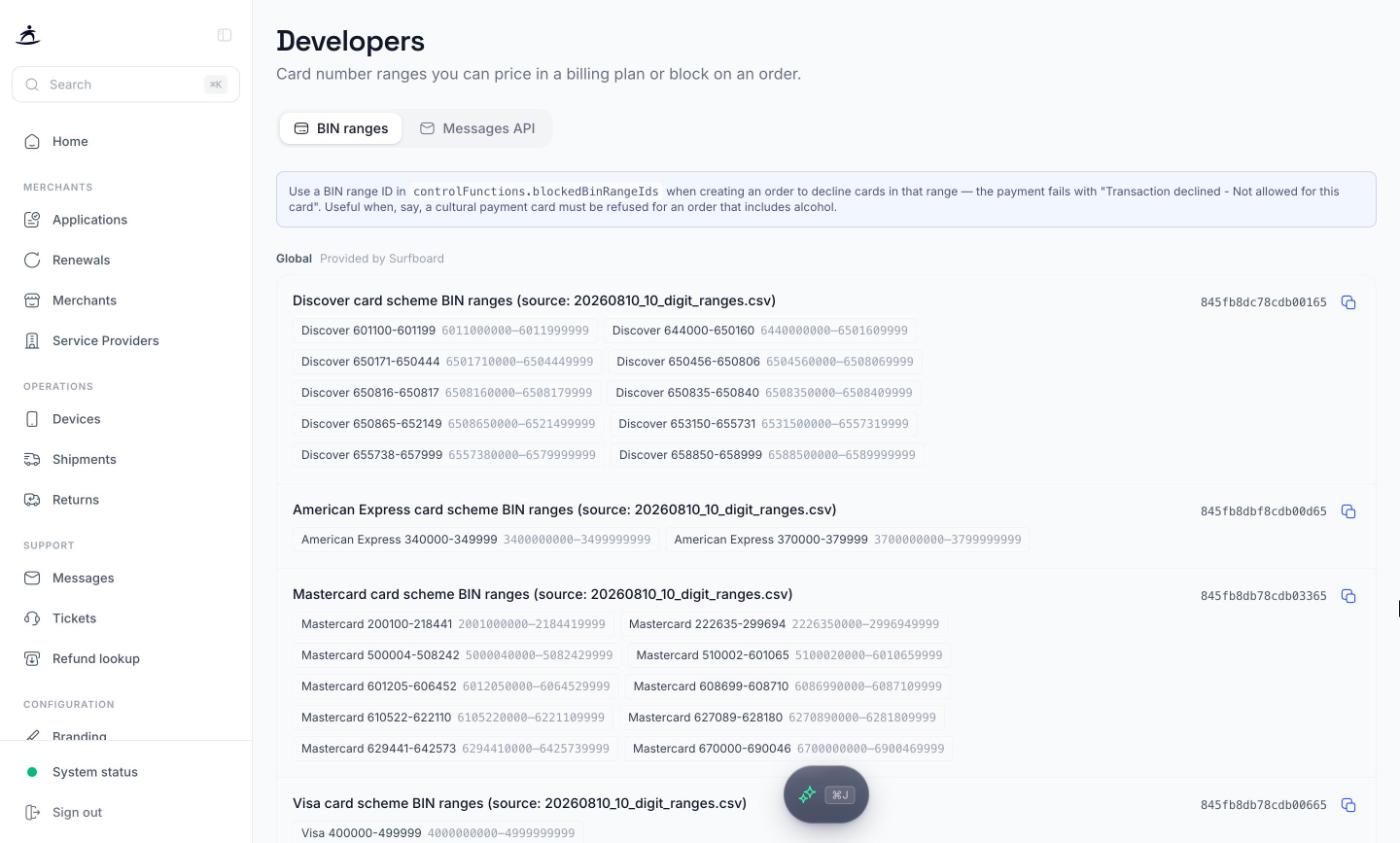
Ranges are listed in two groups:
| Group | What it holds |
|---|---|
| Your BIN ranges | Ranges configured for your partner account |
| Global | Ranges provided by Surfboard, such as the card scheme ranges |
Each range shows the card number ranges it covers and its ID. Click the copy icon to copy the ID.
Block cards on an order
Pass one or more BIN range IDs in controlFunctions.blockedBinRangeIds when your integration creates an order. A card in a blocked range is declined with Transaction declined - Not allowed for this card.
A typical use is refusing a cultural payment card for an order that includes alcohol.
Price a BIN range
In a billing plan, BIN ranges appear under Custom BIN ranges in the pricing table. A price set for a range takes precedence over the card brand price for cards that fall inside it.
Note: BIN ranges are configured by Surfboard. To add one for your account, talk to your account manager.
Messages API
The Messages API gives your systems the same notices and product updates you see on the Messages page, limited to what Surfboard marks as shareable. Use it to show notices in your own back office, or to pass them on to your merchants through your own channels.
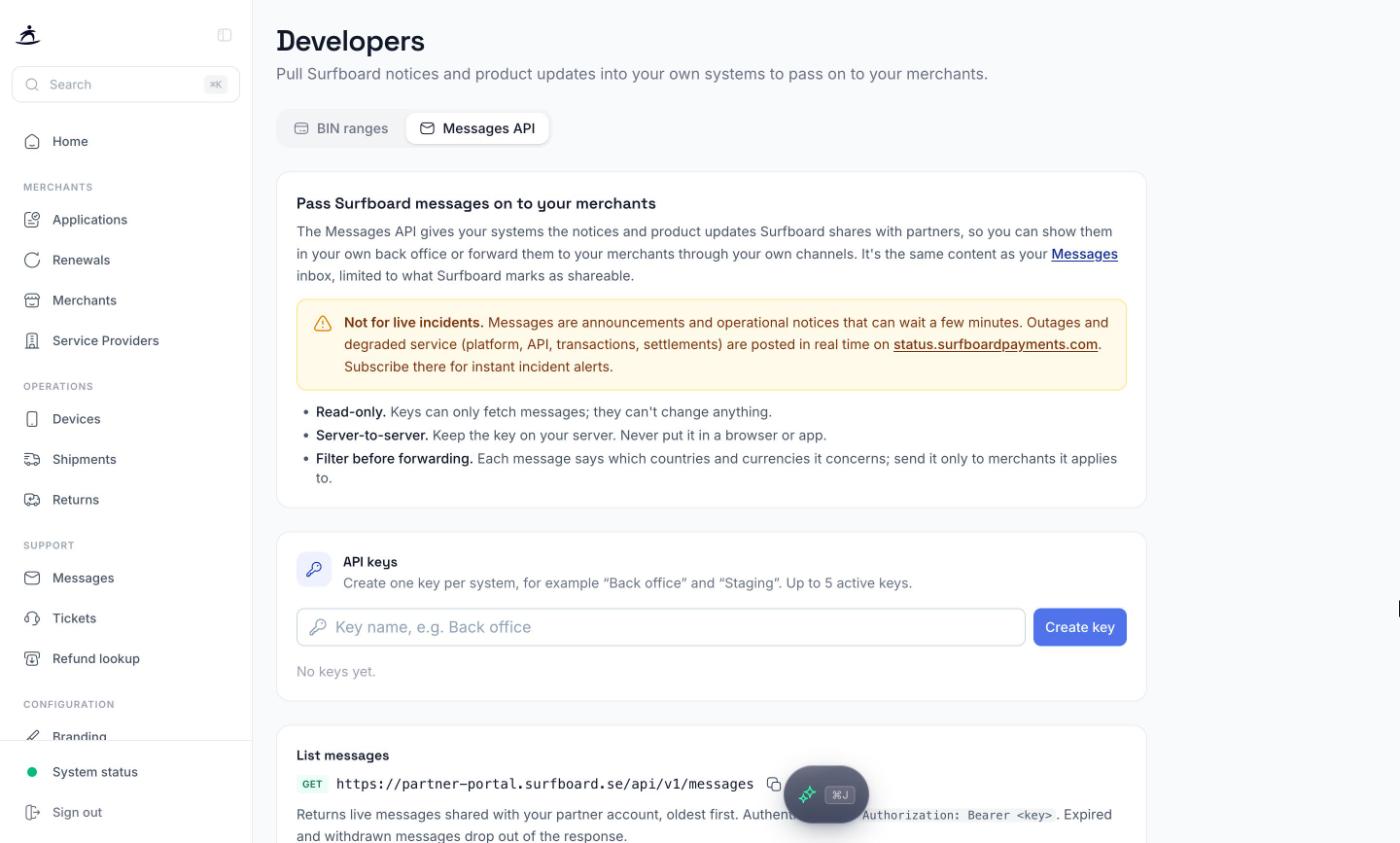
Keep in mind:
- Read-only. Keys can only fetch messages.
- Server to server. Keep the key on your server. Never put it in a browser or an app.
- Filter before forwarding. Each message says which countries and currencies it concerns. Send it only to merchants it applies to.
- Not for live incidents. Outages and degraded service are posted in real time on status.surfboardpayments.com. Subscribe there for incident alerts.
API keys
Create one key per system, for example “Back office” and “Staging”. You can have up to 5 active keys.
- Enter a name under API keys and click Create key.
- Copy the key. It is shown only once.
- Click I’ve stored it.
The list shows each key’s prefix, who created it and when it was last used. To revoke a key, click Revoke, then Confirm revoke within a few seconds.
Fetching messages
The page shows the full endpoint for your portal. It is a GET request to /api/v1/messages, authenticated with your key as a Bearer token. It returns live messages shared with your partner account, oldest first. Expired and withdrawn messages drop out of the response.
| Parameter | Description |
|---|---|
since | Optional. ISO 8601 timestamp. Only messages published after it. |
limit | Optional. 1-100, default 50. When the response says there are more, call again from where it left off. |
curl "<endpoint shown on the page>?since=2026-10-01T00:00:00Z&limit=50" \
  -H "Authorization: Bearer <your key>"
The page also has a Node.js incremental sync example, a sample response and a table of message fields.
| Status | Meaning |
|---|---|
400 | Invalid since or limit parameter |
401 | Missing, invalid or revoked key |
429 | More than 10 requests a minute for this key. Wait for the time in the Retry-After header. |
503 | The API is temporarily unavailable. Retry later. |
Good practice: poll every 5 minutes, store the timestamp for your next since, and upsert by message ID, since a message can be delivered more than once.
Related
- Messages — the same notices in the portal and by email
- Billing Plans — pricing custom BIN ranges