Terminal Configuration & Tips
Set how terminals behave: display language, network, sleep and restart, PIN locks, and tipping. Configure defaults for your whole portfolio, then override them per merchant, store, or terminal.
Overview
Terminal settings control what the terminal screen shows, how it gets online, when it sleeps and restarts, and which PINs protect it. Tip settings control whether customers are offered a tip at checkout.
Both can be set at several levels. A setting made at a more specific level overrides the broader one:
| Level | Where | Applies to |
|---|---|---|
| Partner | Settings → Terminal defaults | Every terminal in your portfolio |
| Merchant | Merchant → Config button, or Configuration → Terminal Defaults | All terminals of that merchant |
| Store | Store page → Configuration tab | All terminals in that store |
| Terminal | Terminal page → Configuration tab | That terminal only |
Terminal beats store, store beats merchant, merchant beats your partner defaults. Leave a setting empty at a level to inherit it from above.
After you save, terminals pick up the change within about 30 seconds.
Partner defaults
Open Settings and choose the Terminal defaults tab. These settings are the starting point for every terminal you manage.
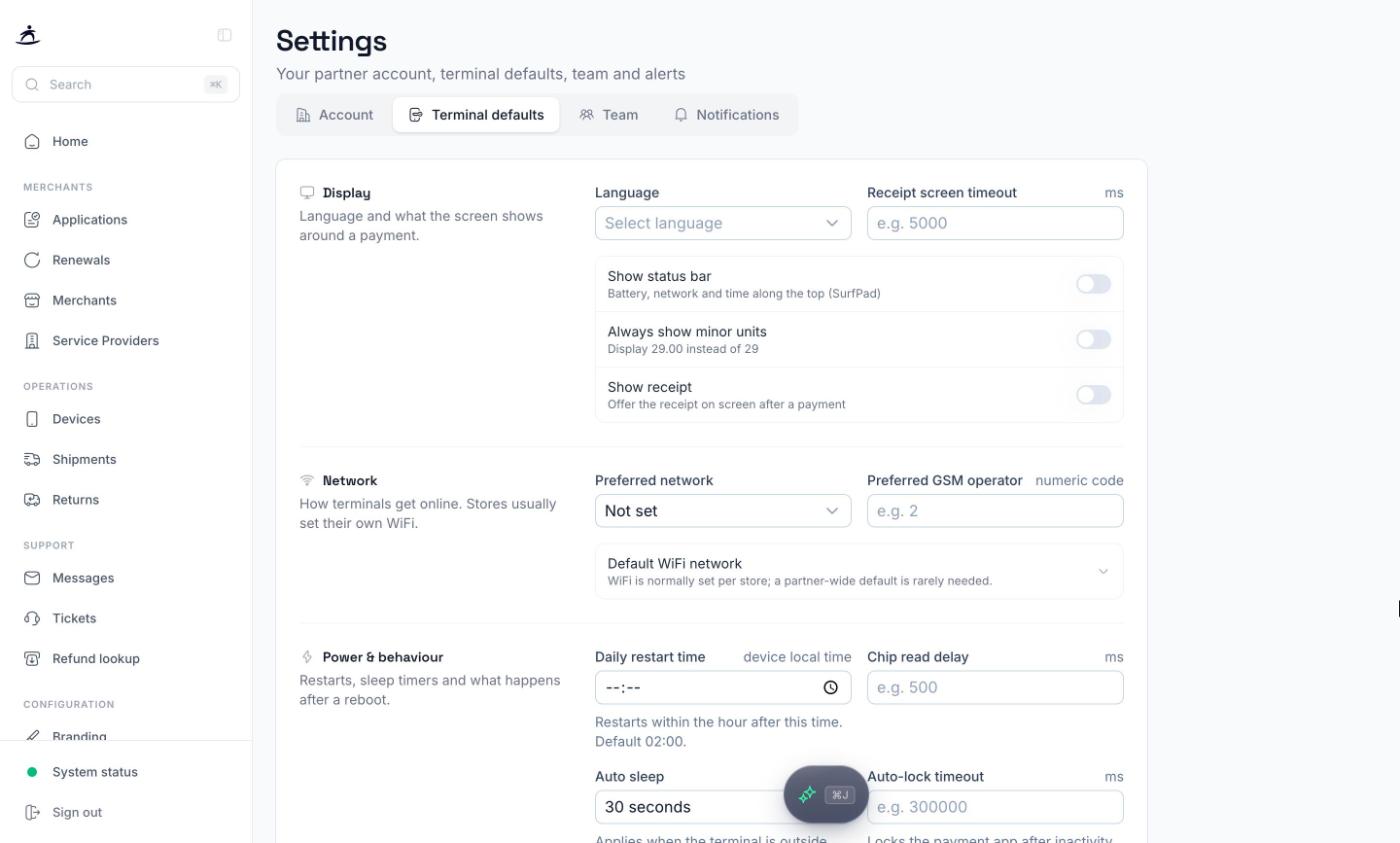
The page is grouped into Display, Network, Power & behaviour, and Security. Click Save changes to apply, or Discard to drop your edits. Fields you leave blank are not changed.
Tip: WiFi is normally set per store, since each location has its own network. A partner-wide default WiFi network is rarely needed.
Merchant settings
On a merchant’s page, click Config in the header to open Merchant Terminal Settings. Changes here apply to all of that merchant’s terminals unless a store or terminal overrides them.
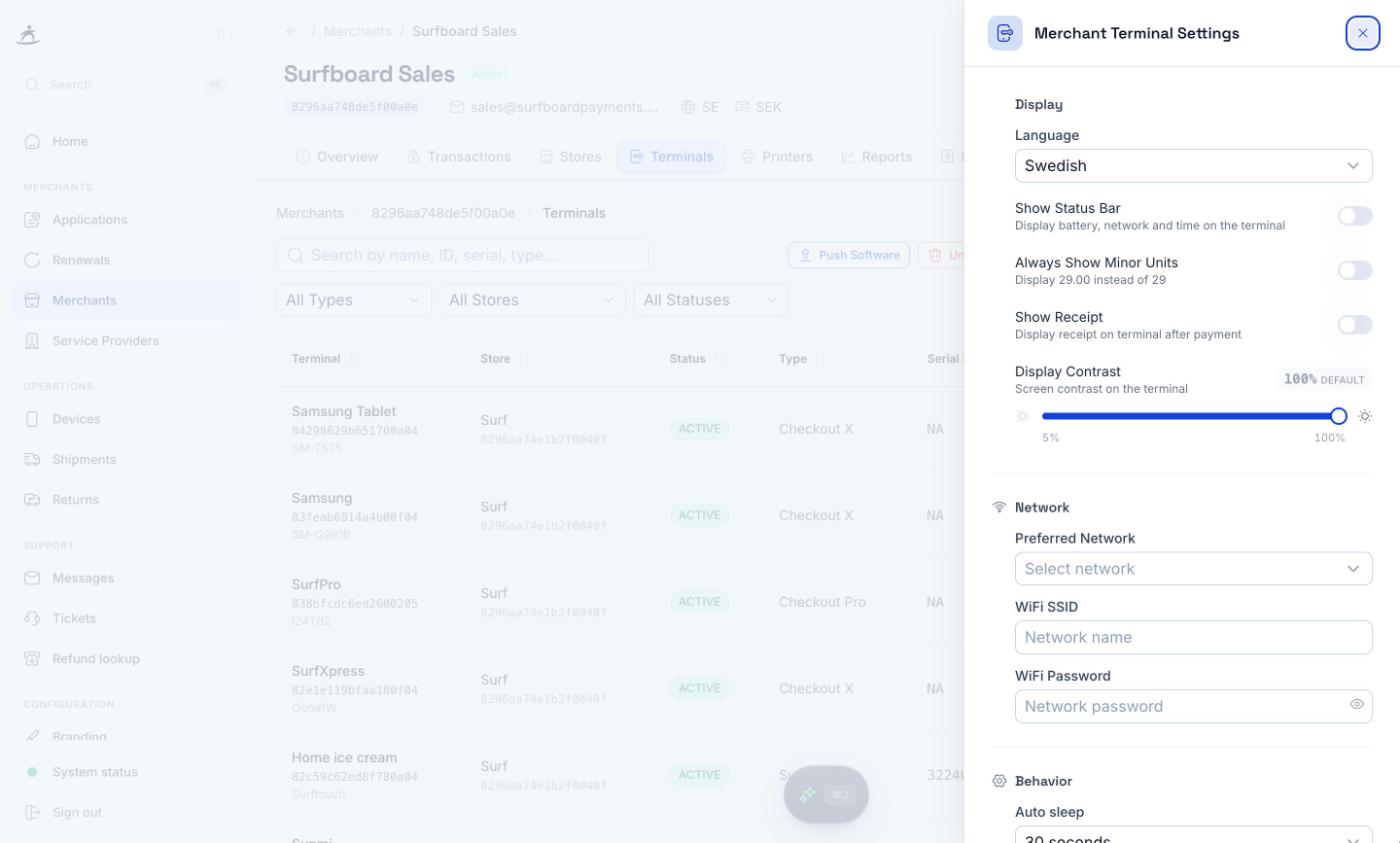
The merchant’s Configuration tab also has a Terminal Defaults sub-tab with the same purpose. On Danish merchants it adds Card Scheme Preference, which chooses whether co-badged cards are processed as Dankort (domestic) or through the international scheme.
Store and terminal settings
- Store: open the store from the merchant’s Stores tab and choose the Configuration tab (or click Configure). It shows Tips Configuration next to Terminal Configuration.
- Terminal: open the terminal and choose its Configuration tab. The layout is the same, scoped to that one terminal.
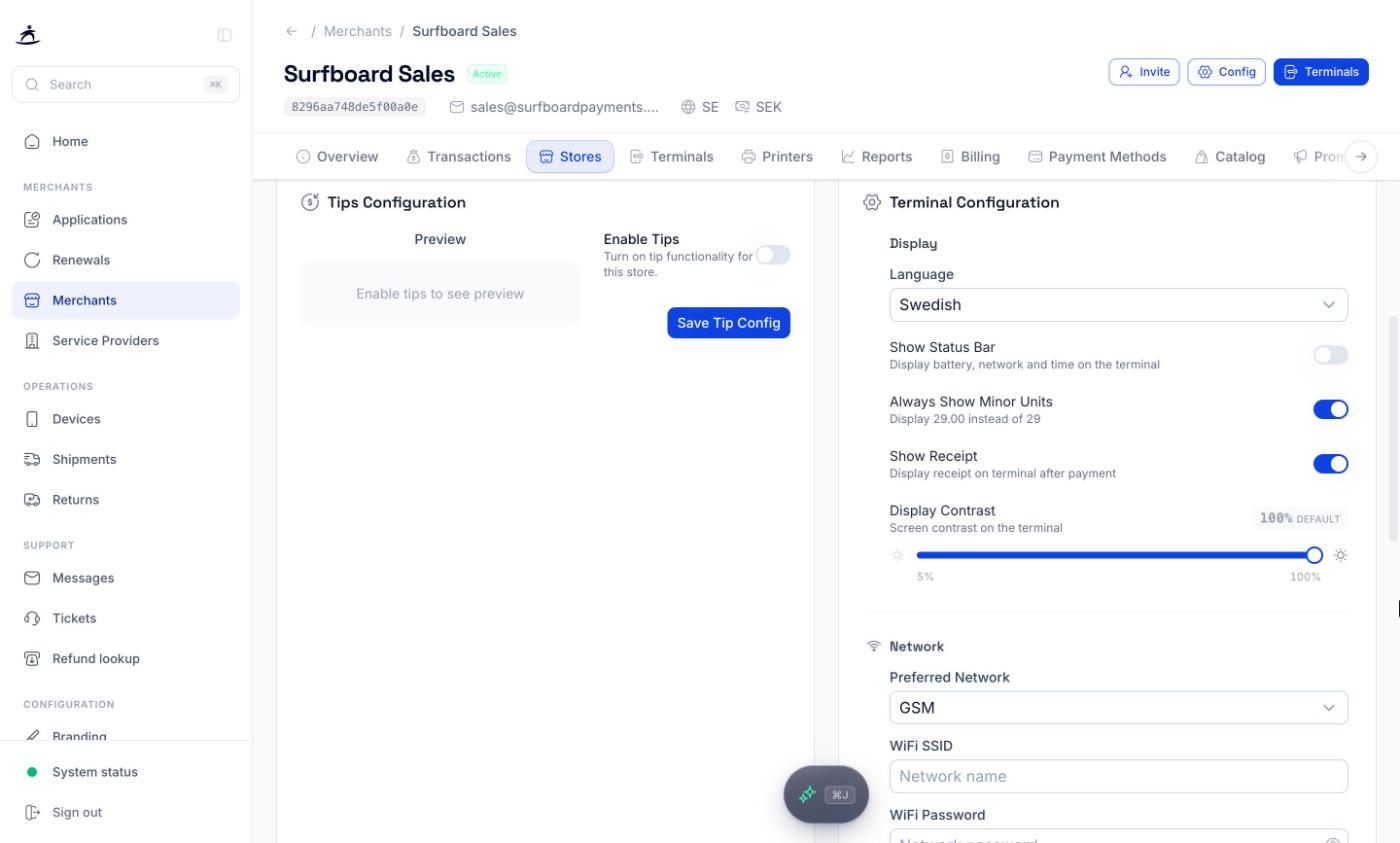
Click Save Configuration to apply terminal settings at that level.
Terminal settings reference
Display
| Setting | What it does |
|---|---|
| Language | Language shown on the terminal: English, Swedish, Danish, or Finnish. Norwegian is also offered in the merchant Config panel and on stores and terminals. |
| Show Status Bar | Shows battery, network, and time along the top of the screen. |
| Always Show Minor Units | Displays 29.00 instead of 29. |
| Show Receipt | Offers the receipt on screen after a payment. |
| Display Contrast | Screen contrast from 5% to 100%. Shown as default when not set. |
| Receipt screen timeout | How long the receipt stays on screen, in milliseconds. |
Network
| Setting | What it does |
|---|---|
| Preferred Network | Not set, WiFi, or GSM (mobile data). |
| WiFi SSID / WiFi Password | The WiFi network the terminal joins. |
| Preferred GSM operator | The mobile operator to prefer, as a numeric code. |
Behaviour
| Setting | What it does |
|---|---|
| Auto sleep | 15 seconds to 30 minutes. Applies when the terminal is outside CheckoutX, for example on the home screen or in a partner app. CheckoutX keeps the screen awake while it is open. |
| Preferred Restart Time | The terminal restarts once a day within an hour of this time. The default is 02:00. |
| Auto Reboot | Restarts the terminal on that schedule. |
| Open POS on Reboot | Launches the POS app automatically after the terminal restarts. |
| Chip read delay | Delay before reading a chip card, in milliseconds. |
| Auto-lock timeout | Locks the payment app after inactivity, in milliseconds. Needs a device PIN. |
Security
| Setting | What it does |
|---|---|
| PIN Lock | Requires a PIN to unlock the terminal. |
| Device PIN | A 4-digit PIN staff must enter to close the payment app, open settings, or reach the home screen. It does not affect payments. Android terminals only. |
| Refund Lock / Refund PIN | A 4-digit PIN required before a refund can be made on the terminal. Android terminals only. |
PINs are encrypted in your browser before they are sent to the terminal. In Settings → Terminal defaults, leave a PIN field blank to keep the current PIN.
Tips
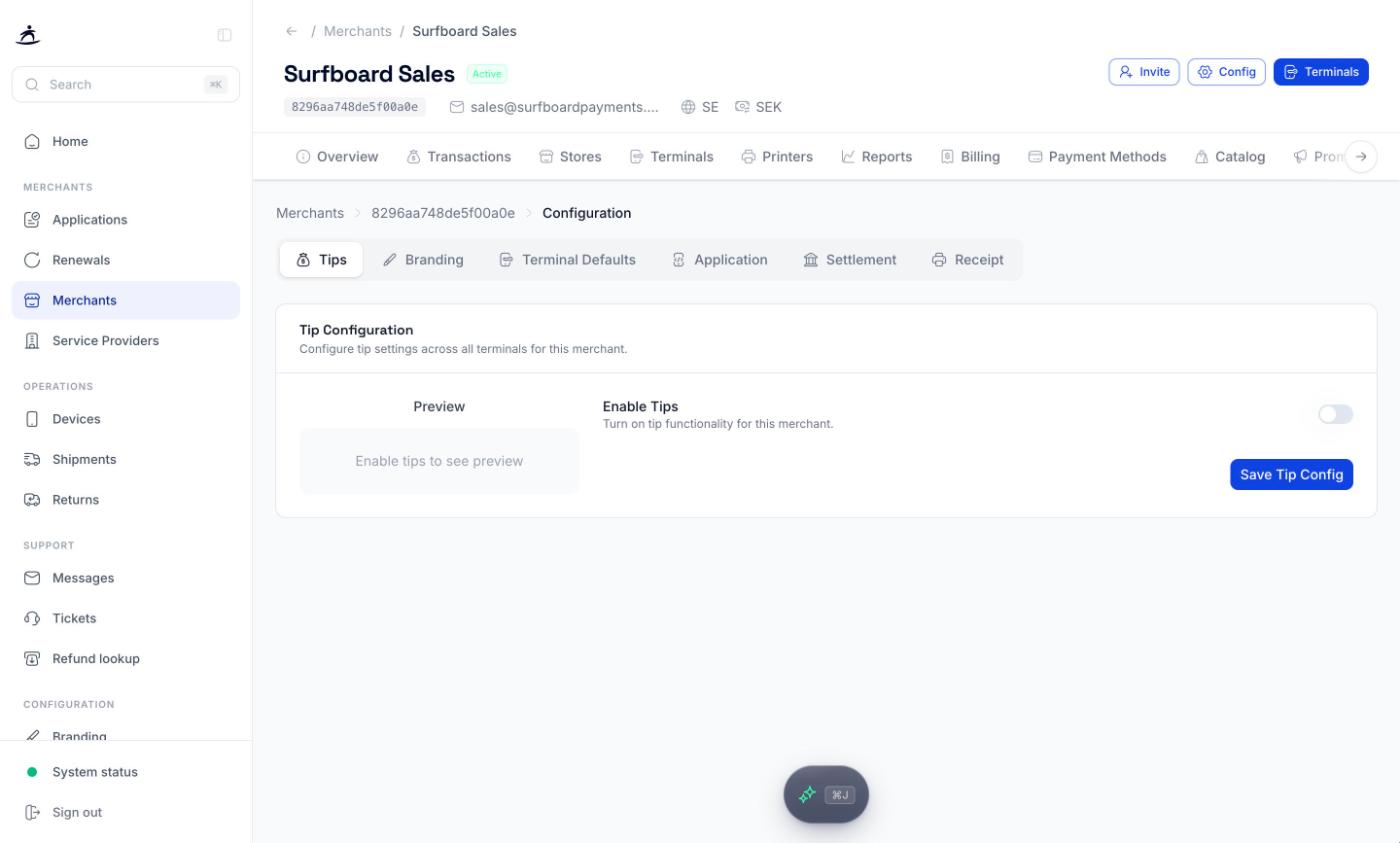
Tipping can be set for a whole merchant, a store, or a single terminal:
- Merchant: Configuration tab → Tips
- Store: store page → Configuration tab → Tips Configuration
- Terminal: terminal page → Configuration tab
| Setting | Description |
|---|---|
| Enable Tips | Turns tipping on or off at this level. |
| Display Format | Show tip options as a Percentage or a fixed Amount. |
| Preset Tip Levels | Up to three preset options, each between 1 and 99. The defaults are 10, 20, and 25. |
| Allow Custom Amount | Lets the customer enter their own tip. You can pre-set a Default Custom Amount. |
| Show Calculated Amount | Shows the calculated tip value under each preset. |
The Preview shows how the tip screen will look, including the custom amount and Pay without tips options. Click Save Tip Config to apply.
POS app features
Which features merchant staff see in the POS app (today’s sales, product catalogue, transaction history, product creation) is set on the merchant’s Configuration tab under Application. The app must be restarted before changes take effect. See Merchant Management.