Cash Registers (ECR)
Add and declare cash registers for your merchants, view register and control-unit details, check transactions and reports, and run daily open, close, and end-of-day operations from the partner portal.
Overview
The Cash-Register tab lets you manage a merchant’s cash registers (ECR) directly from the partner portal. From here you can add and declare registers, view their details and control-unit information, check transactions and reports, and run daily operations like opening and closing shifts.
This guide walks through everything you can do with a merchant’s cash registers, end to end.
Important (Swedish merchants): Registering a cash register is mandatory under Swedish government regulations. A Swedish merchant without a connected cash register is not compliant with local tax law.
Getting to the Cash-Register tab
Click the Merchants tab in the sidebar, select your merchant, then choose the Cash-Register sub-tab.
This tab is the home for all cash-register management. It shows every cash register under the merchant and is where you perform all cash-register actions — adding registers, viewing details, checking transactions and reports, and operating shifts.
Add a cash register
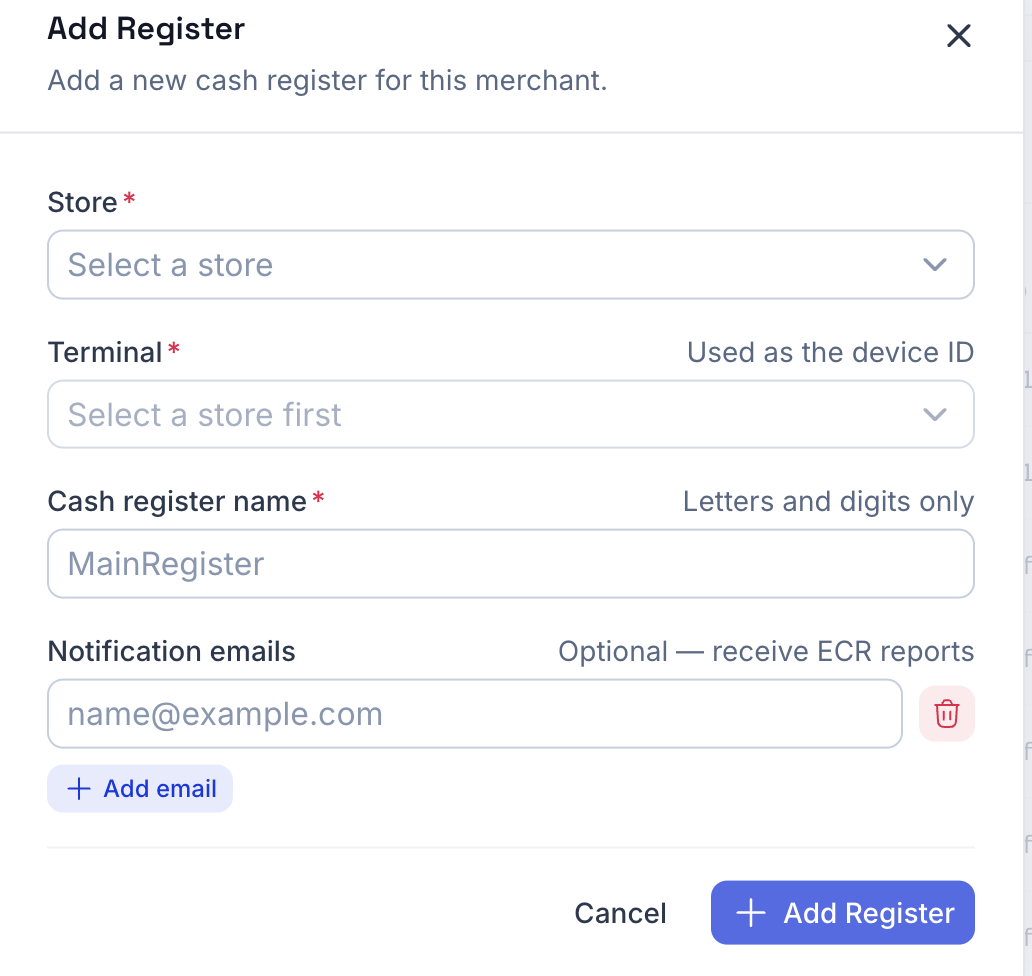
Click + Add Register in the top right of the Cash Registers panel, then complete the form:
| Field | Required | Notes |
|---|---|---|
| Store | Yes | The store the register belongs to. |
| Terminal | Yes | The terminal to use; this is used as the device ID. Select a store first to populate the list. |
| Cash register name | Yes | Letters and digits only. |
| Notification emails | No | Addresses that will receive ECR reports. Use + Add email to add more. |
Then click + Add Register to create it.
Note: A charge applies for every cash register created under the merchant.
Declare with Skatteverket
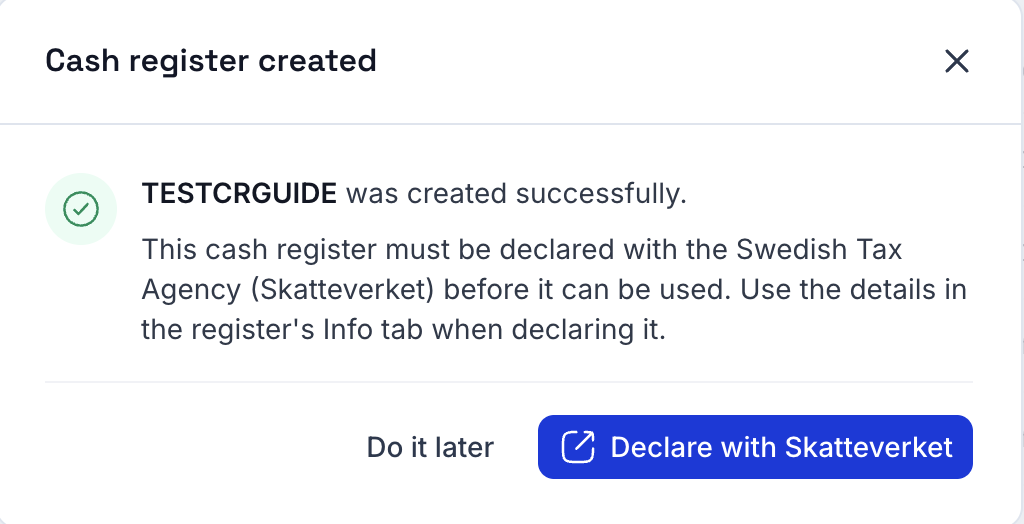
After the register is created, a Cash register created dialog confirms success. The register must be declared with the Swedish Tax Agency (Skatteverket) before it can be used, using the details in the register’s Info tab.
- Click Declare with Skatteverket to declare it now, or
- Click Do it later to declare it from the Info tab afterward.
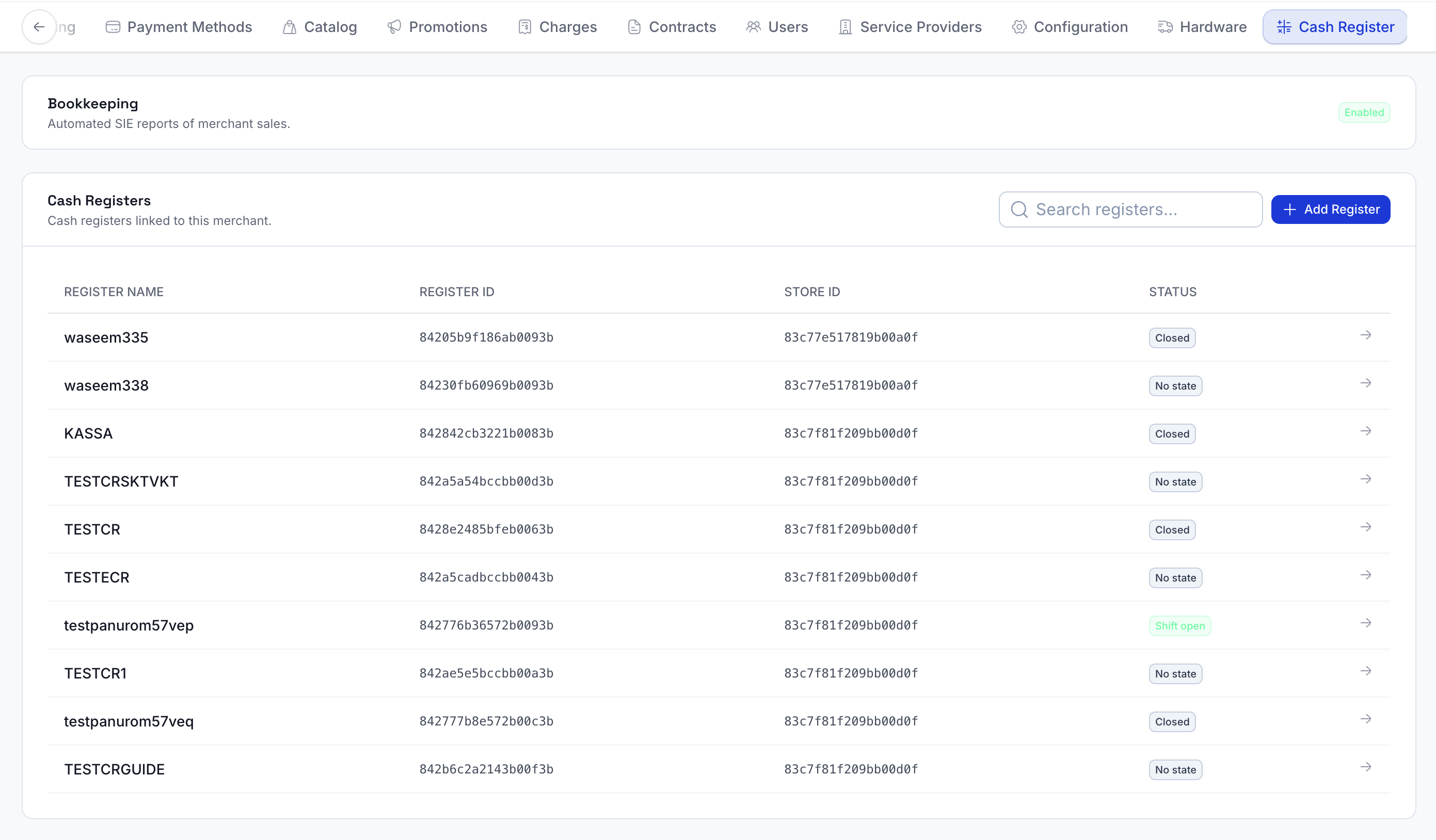
View the cash-register list
The Cash Registers panel lists every cash register linked to the merchant. Each row shows the register name, register ID, store ID, and current status (for example, Closed or No state). After a cash register is added it’s visible here. Click any row to open that register’s details.
View cash-register info
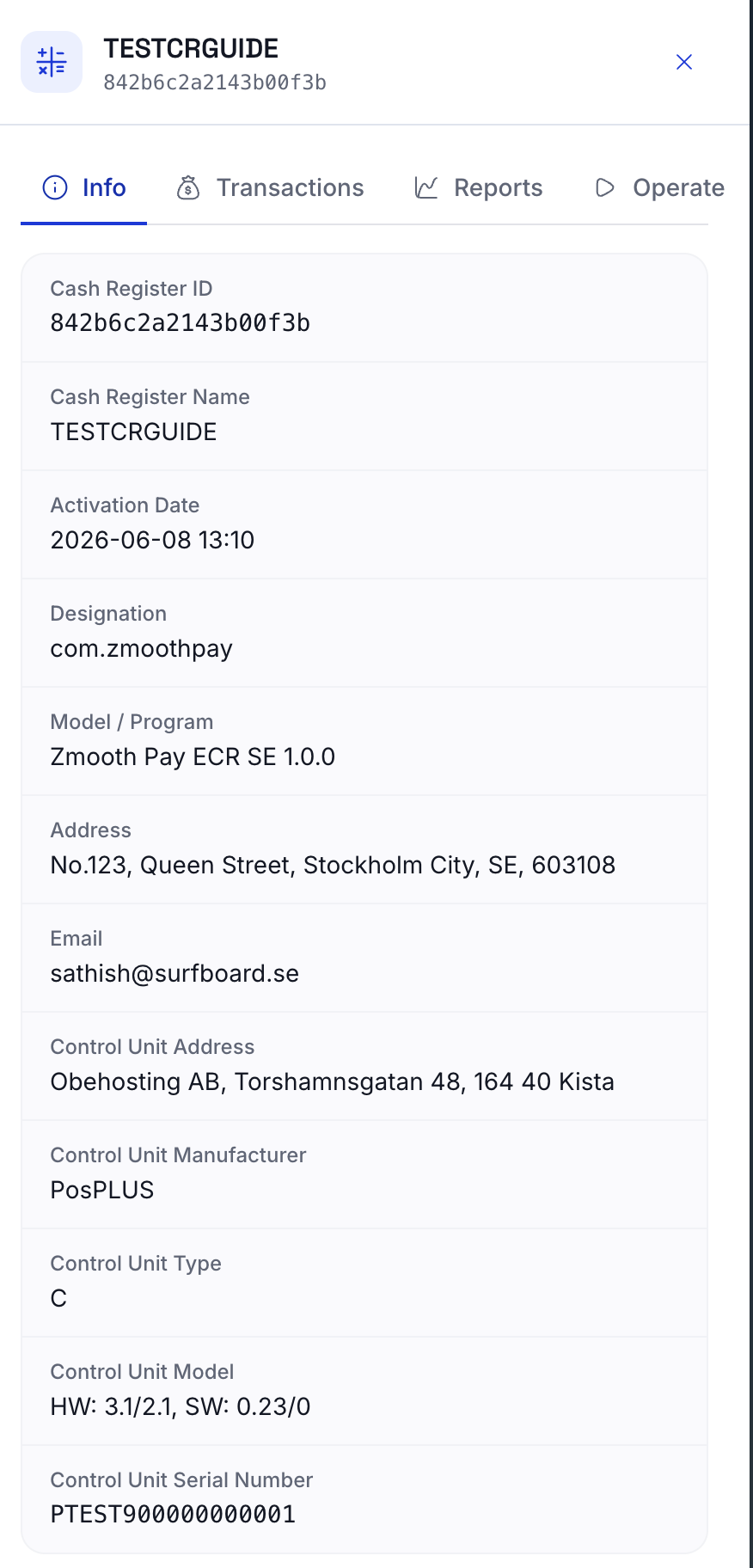
Selecting a register opens a side panel with four tabs: Info, Transactions, Reports, and Operate. The Info tab shows the register and control-unit details:
- Cash register details — Cash Register ID, Cash Register Name, Activation Date, Designation, Model / Program, Address, and Email.
- Control unit details — Control Unit Address, Manufacturer, Type, Model, and Serial Number.
These are the details you use to declare the cash register with Skatteverket.
Notification recipients
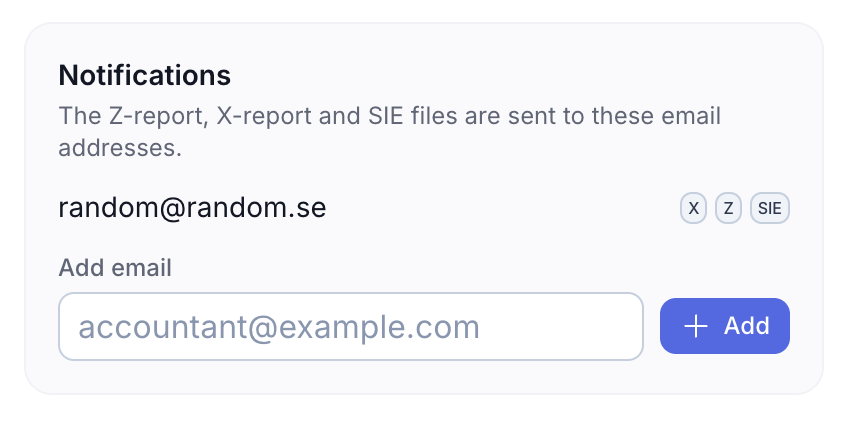
The Notifications section of the Info tab lists the additional email addresses that receive this register’s ECR reports (Z-report, X-report, and SIE files). The merchant’s configured email always receives the reports by default — the addresses listed here receive them in addition to it.
To add another recipient, enter the address in the Add email box and click + Add.
Note: Emails can only be added here — they cannot be removed. If an address is entered by mistake, write to Surfboard to have it removed.
Scheduled End of Day
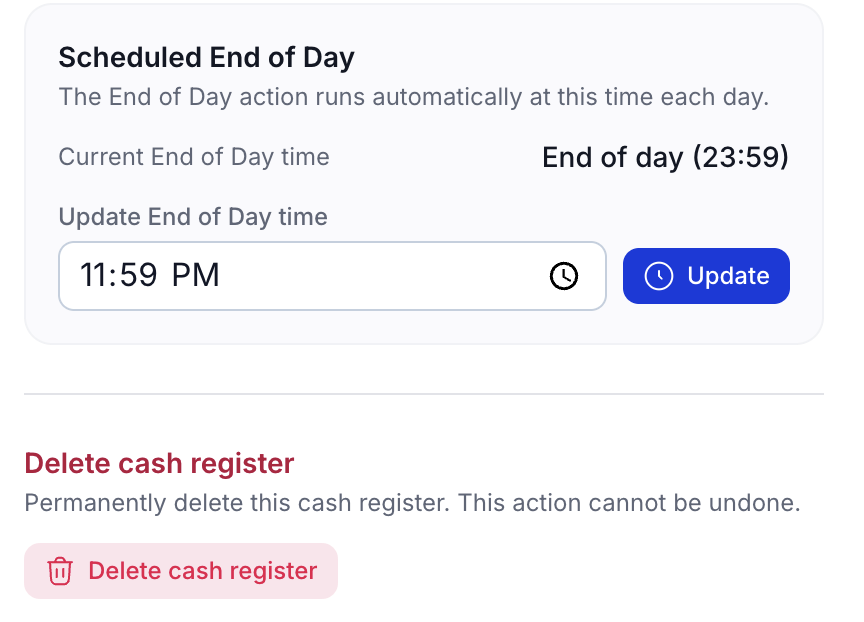
Further down the Info tab, the Scheduled End of Day section shows when the End of Day action runs automatically each day (default End of day (23:59), Swedish time). To change it, enter a new time under Update End of Day time and click Update.
Delete a cash register
At the bottom of the Info tab, Delete cash register permanently removes the register.
Warning: This action cannot be undone.
Transactions
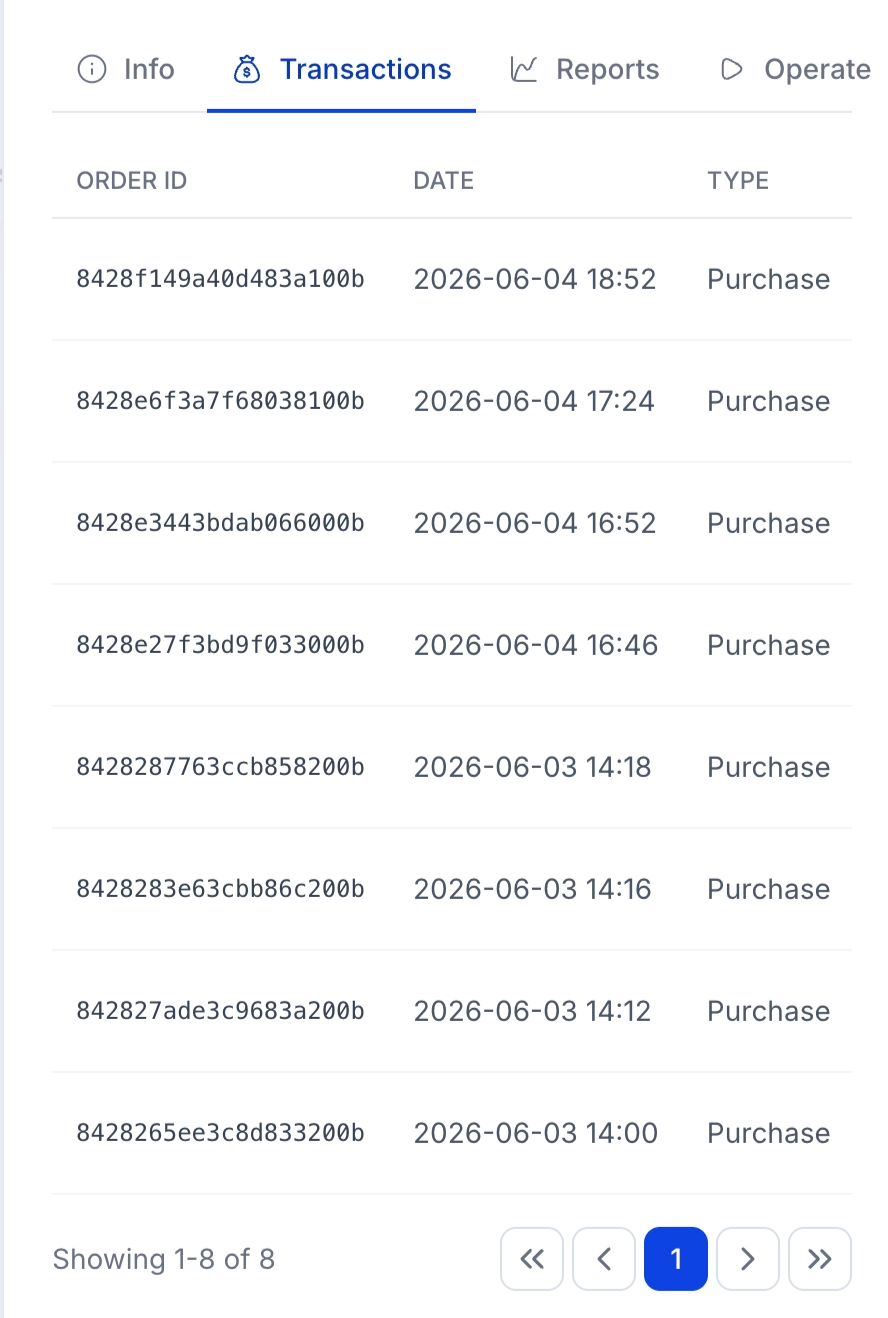
The Transactions tab lists the transactions made on this cash register. Each row shows the Order ID, Date, and Type (for example, Purchase). Use the pagination controls at the bottom to move through the list.
Reports
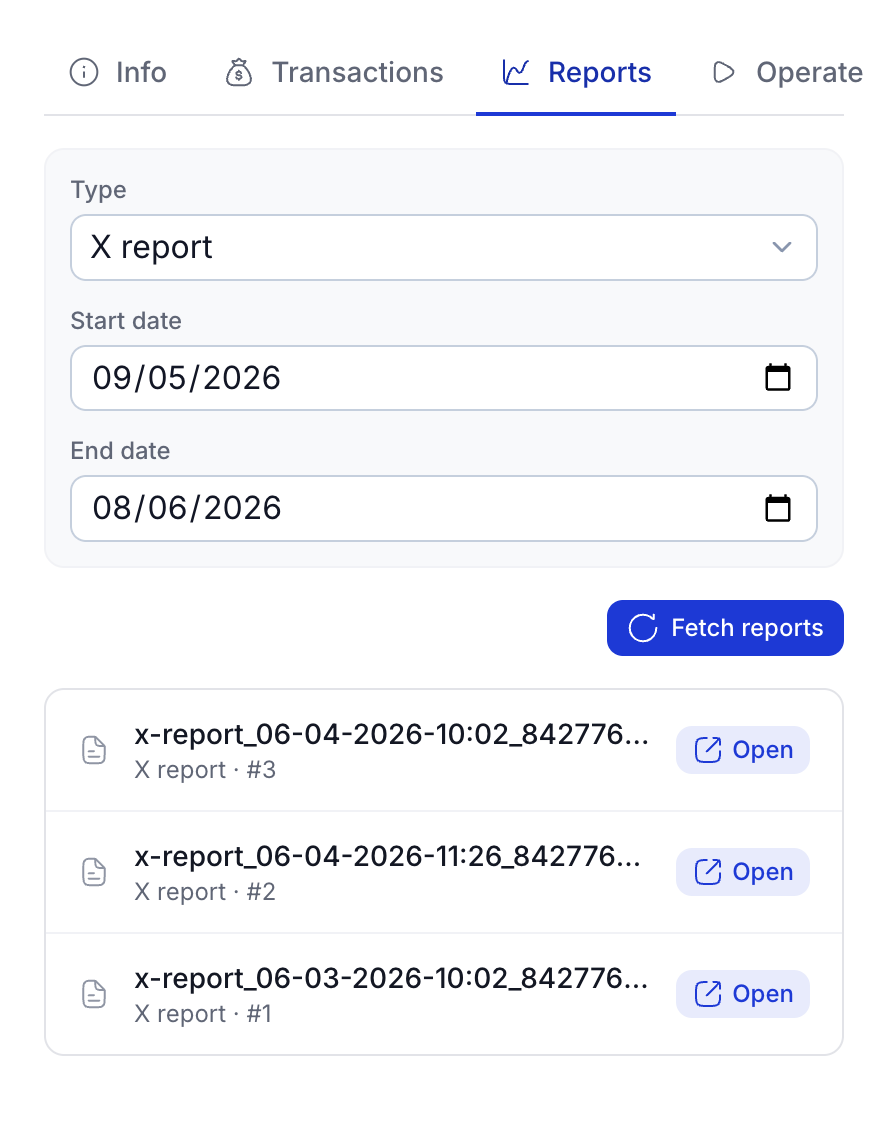
The Reports tab fetches the reports generated for this cash register. Set the query parameters at the top, then click Fetch reports:
- Type — Z report, X report, or Journal Memory.
- Start date and End date — the date range to fetch.
Matching reports appear in a list below. Click Open on a report to view it.
Operate
The Operate tab is where you run the register’s daily operations. The actions available depend on whether a shift is currently open or closed.
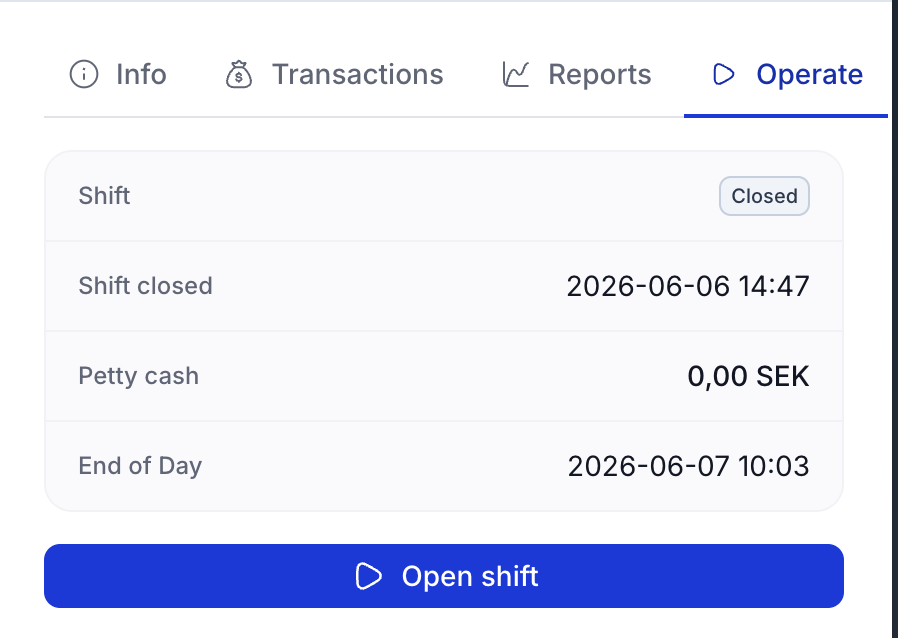
When the shift is closed
The tab shows the last shift’s summary — Shift status (Closed), Cashier, Shift closed time, Petty cash, and End of Day time — with an Open shift button. Click Open shift to start a new shift so the register can accept payments.
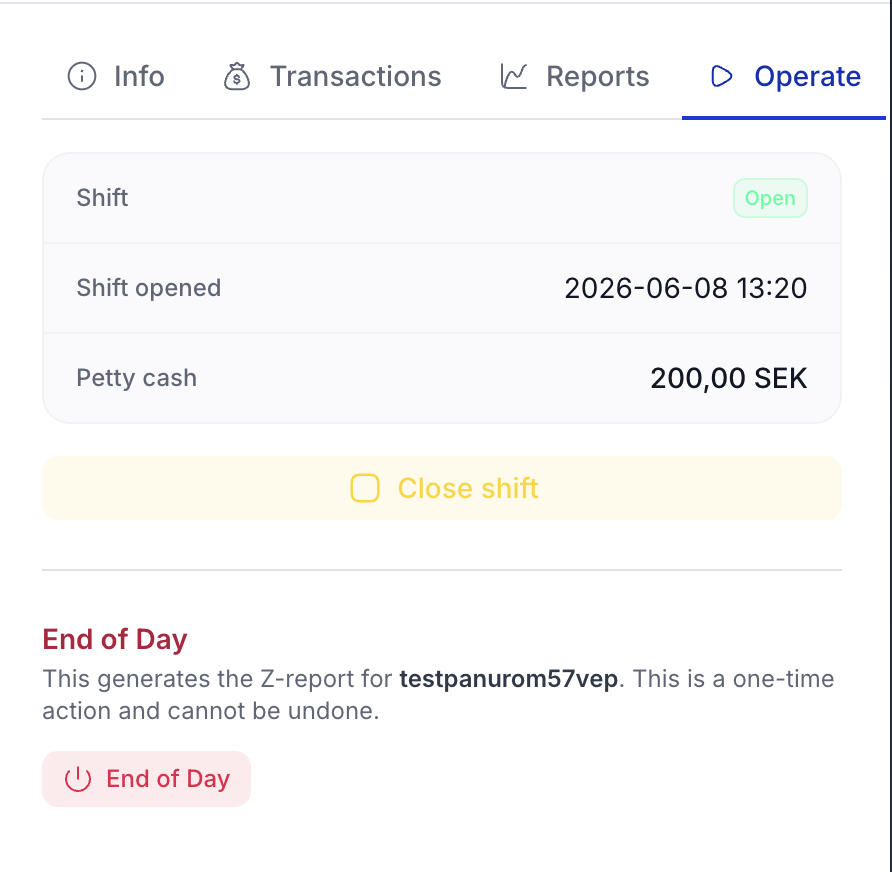
When the shift is open
The tab shows the current shift — Shift status (Open), Shift opened time, and Petty cash — with two actions:
- Close shift — closes the current shift.
- End of Day — generates the Z-report for the register.
Warning: End of Day is a one-time action and cannot be undone. Once called, the cash register cannot accept payments for the rest of the day.
Bookkeeping
On the cash-register tab there is a Bookkeeping block. Tap Enable bookkeeping if you want the merchant to receive SIE reports. SIE reports are generated on a per-merchant level and are sent out for every pay-out we send to the merchant.
