Product Catalog & Promotions
Build a store's product catalog for the POS app, with variants, inventory, and related products, and create promotions that show on terminal receipts and screens.
Overview
Two tabs on the merchant page help merchants sell more from the terminal:
- Catalog — the products a store sells, so staff can pick items in the POS app instead of keying in amounts.
- Promotions — campaigns with a headline, text, and image, shown on terminal receipts and screens.
Open the merchant from Merchants and click the tab.
Product catalog
Catalogs are per store. Pick the store with the Store selector at the top.
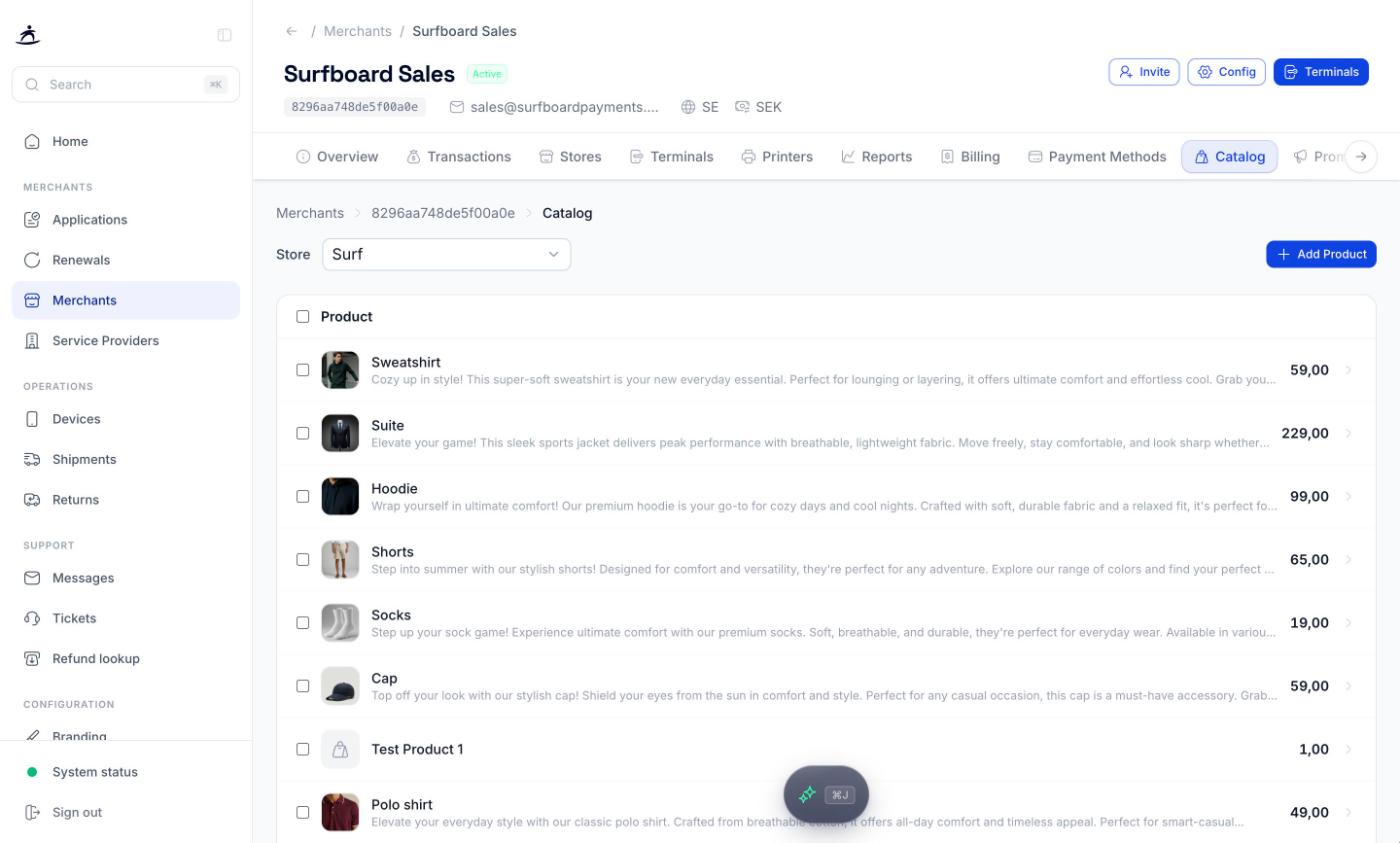
If the store has no catalog yet, you’ll see No product catalog with a Create Catalog button. Create it first, then add products.
Adding a product
Click Add Product. The Details tab:
| Field | Required | Notes |
|---|---|---|
| Name | Yes | |
| Type | Yes | Product or Service |
| Unit Type | Yes | Fixed, Variable, or Free Amount |
| Selling Price | Yes | |
| Cost Price | No | |
| Category | Yes | |
| Unit | No | Pieces, or a unit of mass, volume, length, area, power, or time |
| VAT % | No | |
| Barcode | No | |
| HSN Code | No | |
| Description | Yes | Generate with AI writes a draft for you |
| Product Images | Yes | At least one. Upload a PNG, JPEG, or SVG (up to 2 MB each) or Paste URL |
Click Create Product.
Variants, inventory, and related products
Open an existing product to see three more tabs:
- Variants — Add Variant for sizes, colours, and so on. Give each a Variant Name, and optionally a Price Override and an attribute and value.
- Inventory — shows the current stock. Update Stock with Stock Up or Stock Down, a quantity, and a unit, then Update Inventory.
- Related — Link Products to suggest items that go together, then Link Selected.
Click Save Changes after editing details.
Deleting products
Tick the products to remove and click Delete. The products are deleted straight away, without a confirmation step, so check your selection first.
Showing the catalog in the POS app
The catalog only appears in the merchant’s POS app when Show Product Catalogue is on under Configuration → Application. Enable Product Creation lets staff add products from the app themselves. The app needs a restart to pick up the change. See Merchant Management.
Promotions
A promotion is a short campaign shown on the merchant’s terminal receipts and screens: a headline, a line of text, an image, and optionally a link.
The tab shows how many promotions are active, with a card for each. Deactivated promotions are listed separately.
Creating a promotion
Click Create Promotion.
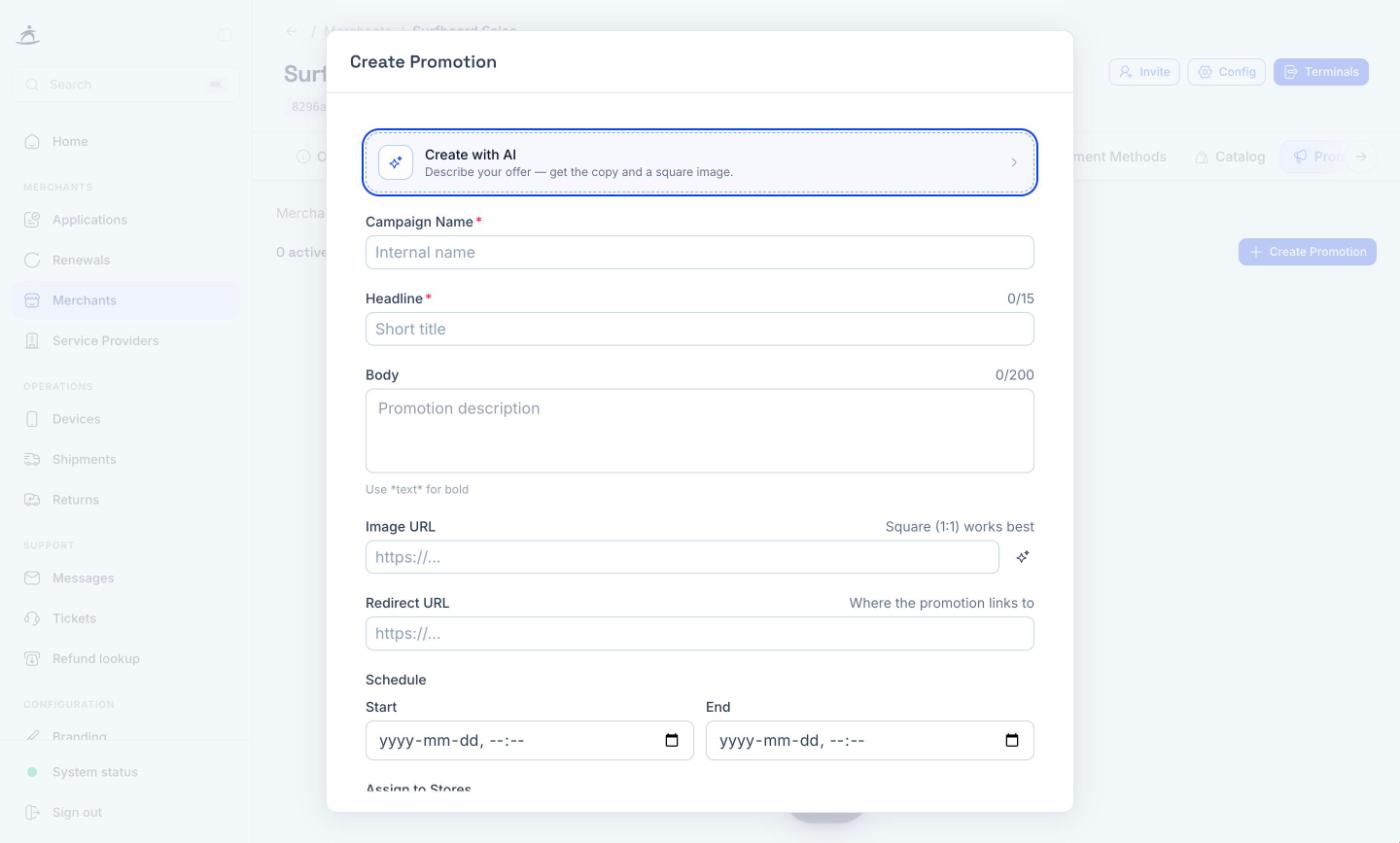
Create with AI is the quickest start. Describe what you’re promoting, pick a style (Photographic, Bold graphic, Minimal, Illustrated, or Festive), optionally add a reference image and choose whether to put the headline in the image, then Generate. You get suggested wording and a square image; Refine or regenerate until you’re happy, then Use this to fill in the form.
Or fill in the fields yourself:
| Field | Required | Notes |
|---|---|---|
| Campaign Name | Yes | Internal name, not shown to customers |
| Headline | Yes | Up to 15 characters |
| Body | No | Up to 200 characters. Wrap text in *asterisks* for bold |
| Image URL | No | A square (1:1) image works best. The sparkle button generates one |
| Redirect URL | No | Where the promotion links to |
| Schedule | No | Start and End date and time |
| Assign to Stores | The stores whose terminals show the promotion |
Click Create Promotion.
Editing and deactivating
Open a promotion card to edit it and Save Changes. To stop showing a promotion, deactivate it and confirm. It moves to the deactivated list.