Search, Assistant & System Status
Find any merchant, page, transaction or ID with global search, ask the Surfboard assistant about the portal and your data, and check whether Surfboard and its dependencies are running normally.
Overview
Three tools are available on every page of the Partner Portal:
- Global search — jump to a merchant, a page or a transaction, or paste an ID to find what it belongs to
- The Surfboard assistant — ask questions in plain language and get answers from the documentation and your own data
- System status — see whether Surfboard, and the services it depends on, are running normally
Global Search
Open search with the Search box at the top of the sidebar, or press ⌘K (Mac) / Ctrl+K (Windows) from anywhere. Press Esc to close it.
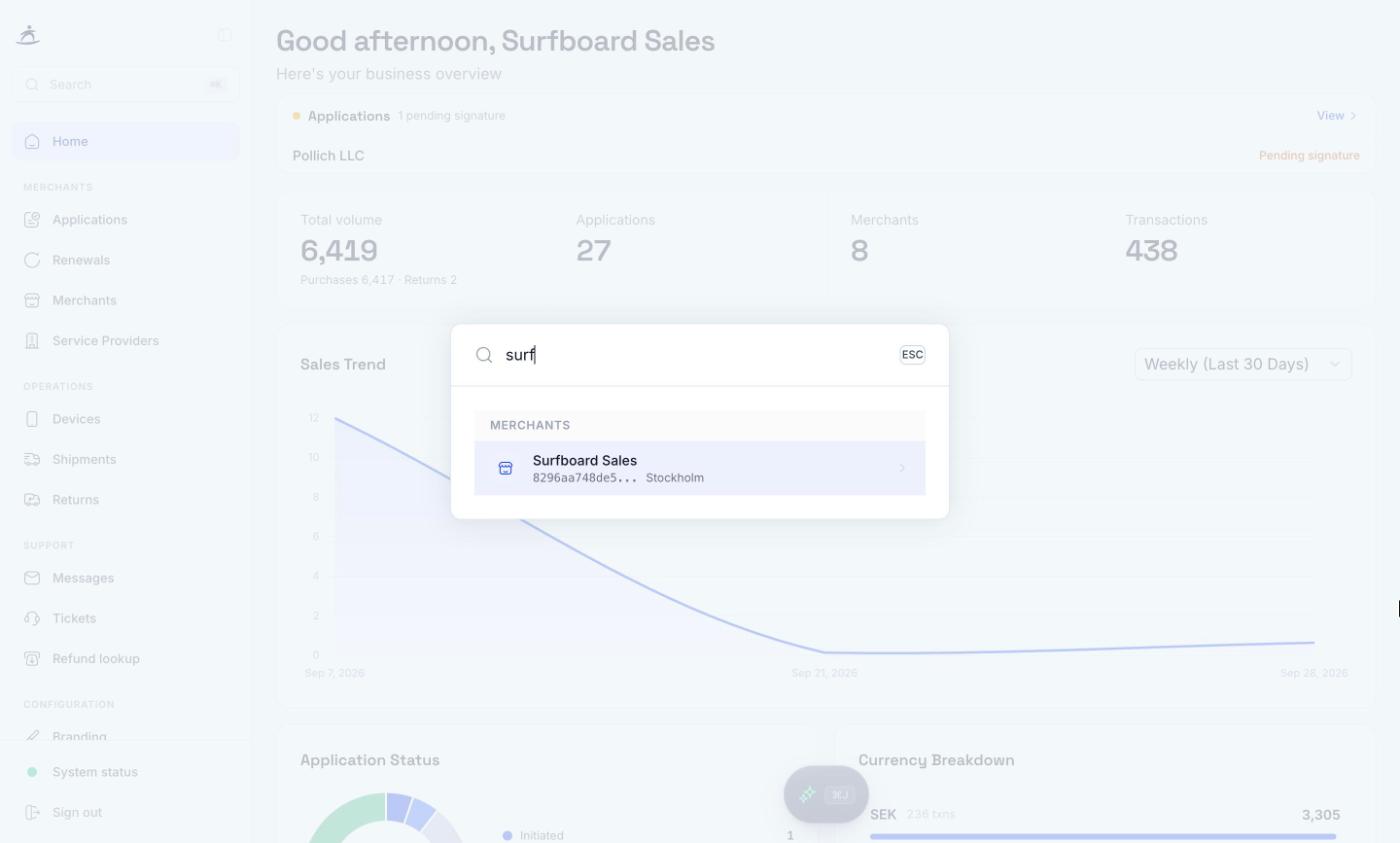
Start typing; results appear after two characters. They’re grouped into sections:
| Section | What you get |
|---|---|
| ID lookup | Shown when what you typed looks like a terminal, store, transaction or order ID |
| Navigation | Portal pages, such as Applications, Devices, Shipments or Settings |
| Merchants | Merchants matching the name, ID or email |
| Actions | Shortcuts, such as Create Application |
| Transactions | Matching transactions, with card brand or method, type, masked card number, RRN, date and amount |
Use the arrow keys to move through results and Enter to open one.
With an empty search box, you’ll see your five most recent searches (Clear removes them) and a few quick links.
Looking up an ID
Paste a terminal, store, transaction or order ID and search tells you what it is. These IDs belong to a merchant, so search needs to know which one:
- On a merchant’s page, it looks under that merchant.
- Otherwise it uses the merchant your last successful lookup was under.
- If neither applies, it asks you to pick the merchant. You can type a merchant name or paste a merchant ID.
If nothing is found, choose Look this ID up under a different merchant to try another one.
Searching transactions
Transaction search starts at three characters. On a merchant’s page it searches that merchant’s transactions; elsewhere it searches across your portfolio. Selecting a hit opens the transaction’s detail page.
The Surfboard Assistant
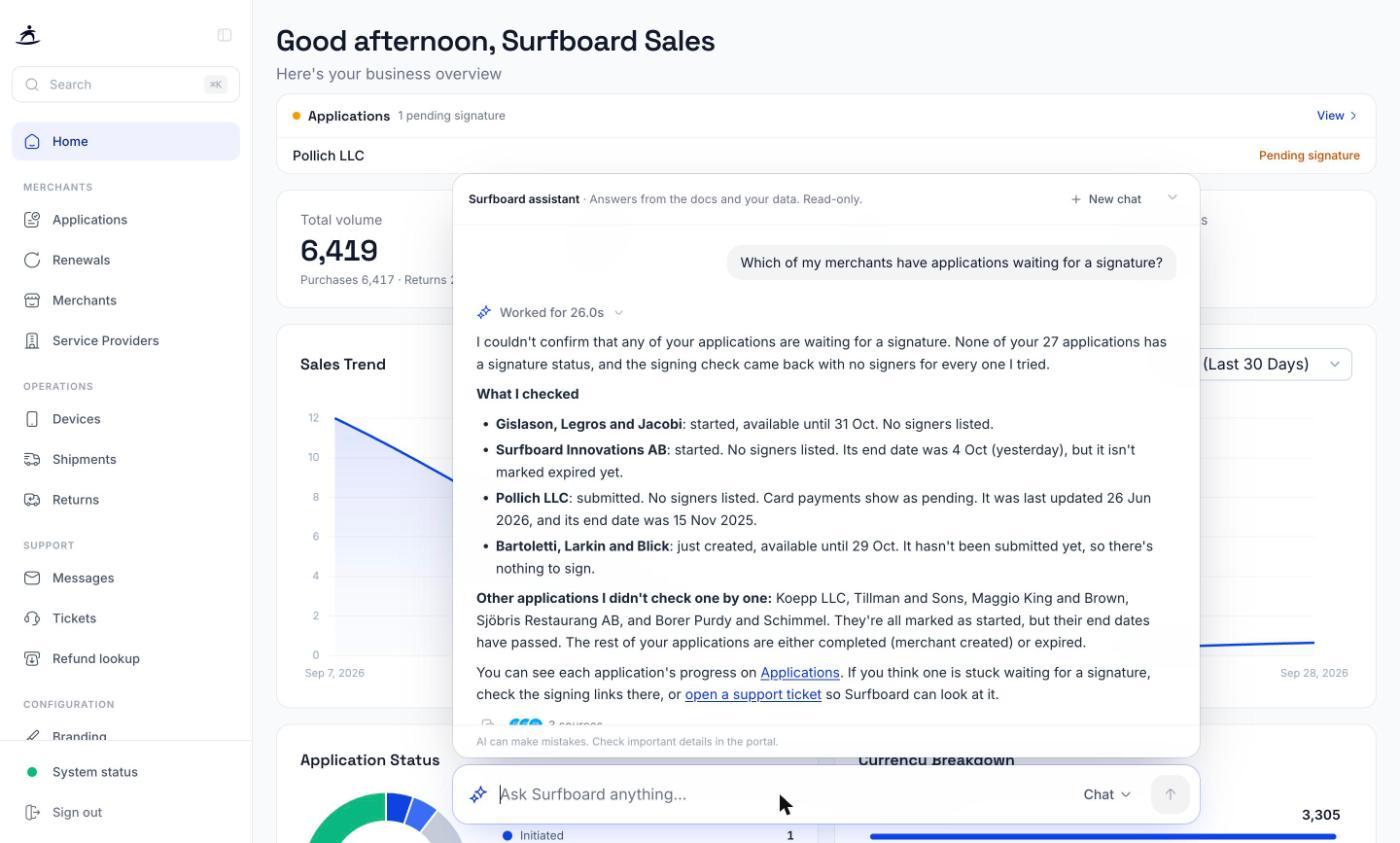
The assistant answers questions about how the portal works and about your own merchants, terminals, transactions, refunds, settlements and tickets. It’s at the bottom of every page: the Ask Surfboard anything… box, which shrinks to a small ⌘J pill while you scroll or work.
Asking a question
- Click the box, or press ⌘J (Mac) / Ctrl+J (Windows).
- Type your question and press Enter. Shift+Enter adds a new line.
- While it works, the assistant shows what it’s checking, for example looking up applications or loading transactions. Use the stop button to cancel.
- The answer appears in the conversation sheet, with a list of the sources it used and a button to copy the answer.
Use New chat to start over, and the hide button (or Esc) to close the sheet. A Chat button on the composer reopens it and shows a dot when an answer finished while the sheet was closed.
It knows which page you’re on
On a merchant, store, terminal, transaction or ticket page, the assistant knows what you’re looking at. The placeholder changes to, for example, Ask about this transaction…, and a chip shows the record. It also suggests questions for the page, such as:
| Page | Suggested questions |
|---|---|
| Transaction | ”What happened to this transaction?”, “Has this been refunded?”, “When will this be settled?” |
| Merchant | ”Why hasn’t this merchant been paid out yet?”, “Were there any refunds this week?” |
| Store | ”Which terminals are in this store?”, “How do I register a terminal in this store?” |
| Terminal | ”What’s the status of this terminal?”, “What were its latest transactions?” |
| Ticket | ”Summarize this ticket”, “What’s the latest on this ticket?” |
| Anywhere else | ”How do I register a new terminal?”, “How do refunds work?” |
What it can and can’t do
- It’s read-only. It can look things up, but it can’t change anything: it won’t create refunds, register terminals or edit settings. It will tell you where in the portal to do it.
- It sees what you can see. It works with your login, so it has no access beyond your own partner account.
- Check important details. As the footer says, AI can make mistakes. Check important details in the portal. Before acting on an amount, status or date, open the record it links to.
- The conversation is kept while your browser tab is open. Very long conversations eventually ask you to start a new chat.
If you don’t see the assistant box at the bottom of the page, it isn’t enabled for your account.
System Status
Click System status at the bottom of the sidebar. The dot next to it shows the overall state at a glance.
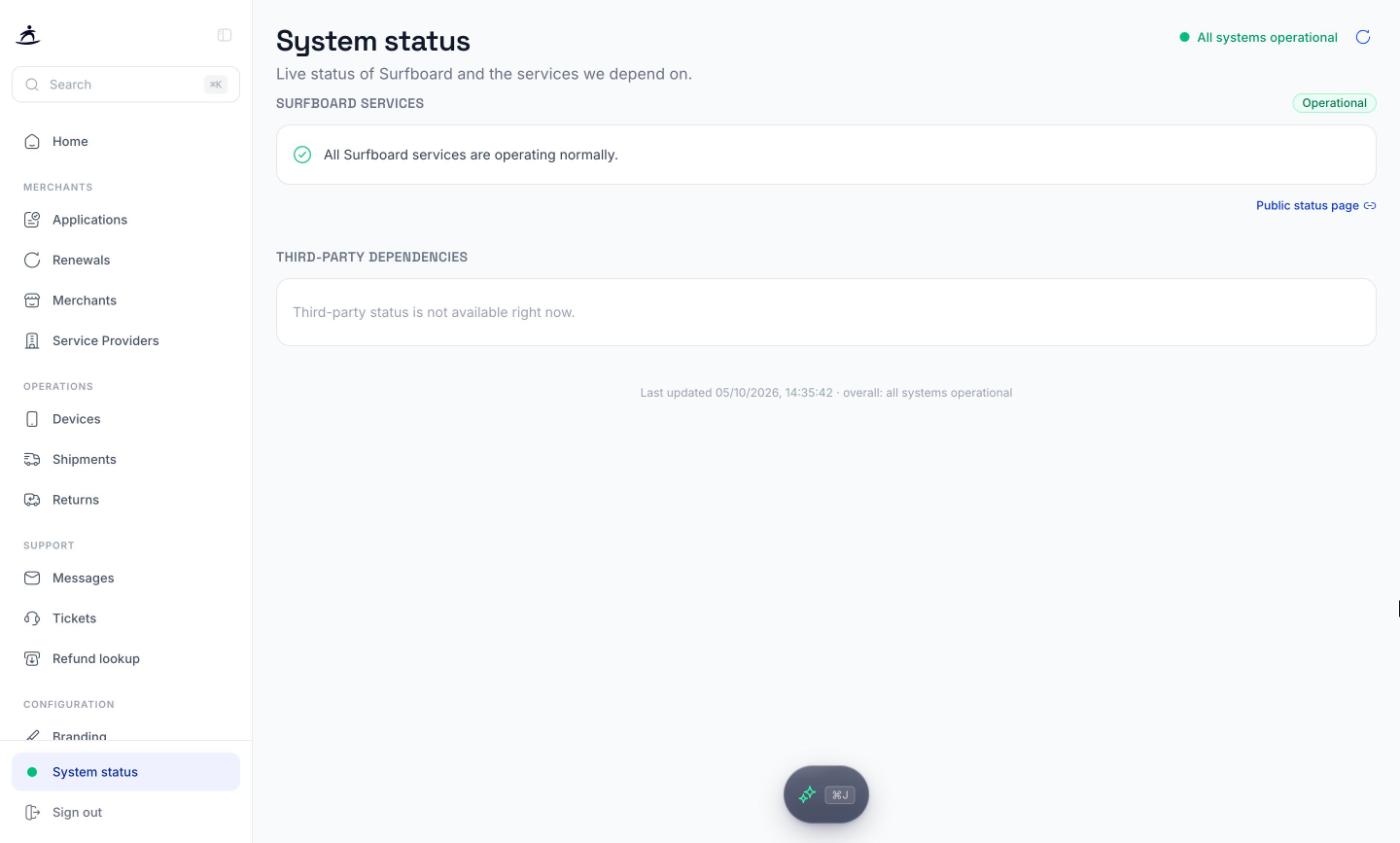
The page has two parts:
- Surfboard services — Surfboard’s own platform, with a badge (Operational, Degraded, Disruption or Maintenance). During an incident you’ll see its title, severity, when it started, and the updates posted so far. Public status page opens the public page at status.surfboardpayments.com.
- Third-party dependencies — the external services Surfboard relies on, with their own status and any active incidents.
The page refreshes every minute while it’s open; the refresh button at the top forces an update.
The status banner
If Surfboard’s own service has an incident, a banner appears at the top of every portal page:
| Heading | Meaning |
|---|---|
| Service disruption | Something is down |
| Degraded performance | Things work but are slower or partly failing |
| Scheduled maintenance | Planned work |
Use View details to open the System status page, Status page for the public incident page, or dismiss the banner. A dismissed banner comes back if the incident gets worse or a new one starts. Problems with third-party services don’t trigger the banner; check the System status page for those.
The messages banner
Important notices from Surfboard can also appear as a banner at the top of the portal until you’ve read them: red for critical, amber for warnings, blue for information and product updates. Click it to open the message. See Messages.