Stores
Create and edit a merchant's stores, set up online payments and domain verification, configure tips and terminals per store, register terminals, and deactivate a store.
Overview
A store is a place where a merchant takes payments: a shop, a restaurant, a kiosk, or a webshop. Every terminal belongs to a store, and many settings (tips, terminal configuration, branding, payment methods) can be set per store.
Stores live on the merchant’s page. Open the merchant from Merchants and click the Stores tab.
The store list
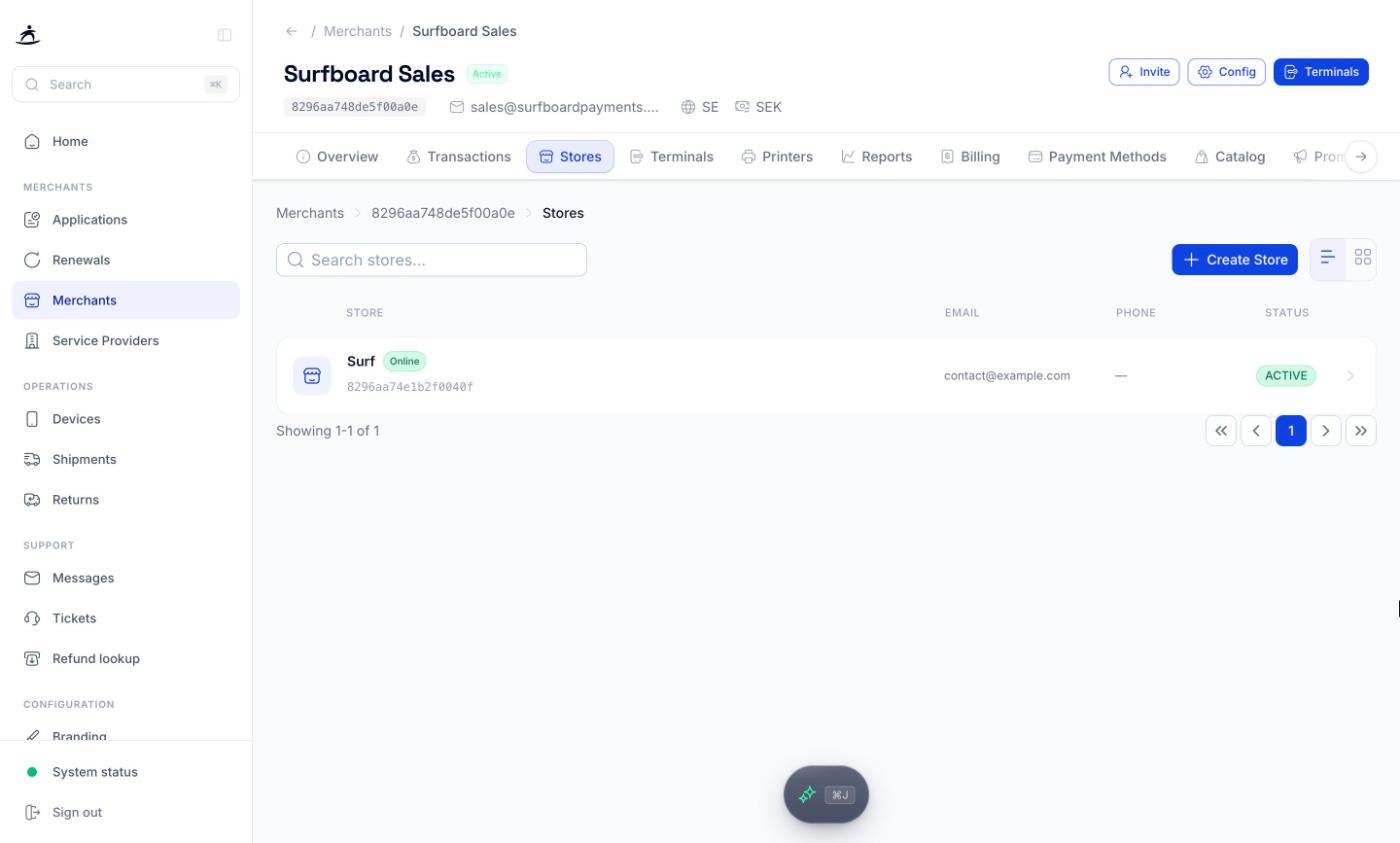
Each row shows the store name, an Online badge if the store takes online payments, the store ID, email, phone, and status. Search by name, ID, or email, and switch between list and grid with the toggles on the right. Click a store to open it.
Creating a store
Click Create Store.
Store Information
| Field | Required | Notes |
|---|---|---|
| Store Name | Yes | Up to 30 characters |
| Yes | ||
| Phone Number | No | Pick the country dial code, then the number |
Address
| Field | Required | Notes |
|---|---|---|
| Address Line 1 | Yes | |
| Address Line 2, Address Line 3 | No | |
| Care Of | No | Up to 30 characters |
| Postal Code | ||
| City | Yes | Up to 30 characters |
| Country | Yes | Sweden, Denmark, Finland, Norway, Ireland, or United Kingdom. Defaults to your partner country |
Online Payments
Switch on Enable online payments if the store should accept payments through a webshop. Then fill in:
| Field | Required | Notes |
|---|---|---|
| Webshop URL | Yes | |
| Payment Page URL | No | Only needed for Surfboard SDK integrations |
| Terms & Conditions URL | Yes | |
| Privacy Policy URL | Yes | |
| Google Pay Merchant ID | No |
Click Create Store. The confirmation shows what happens next:
- Store created
- Surfboard review — we verify and approve the store details
- Acquirer onboarding — typically takes 20-30 minutes once approved
The store page
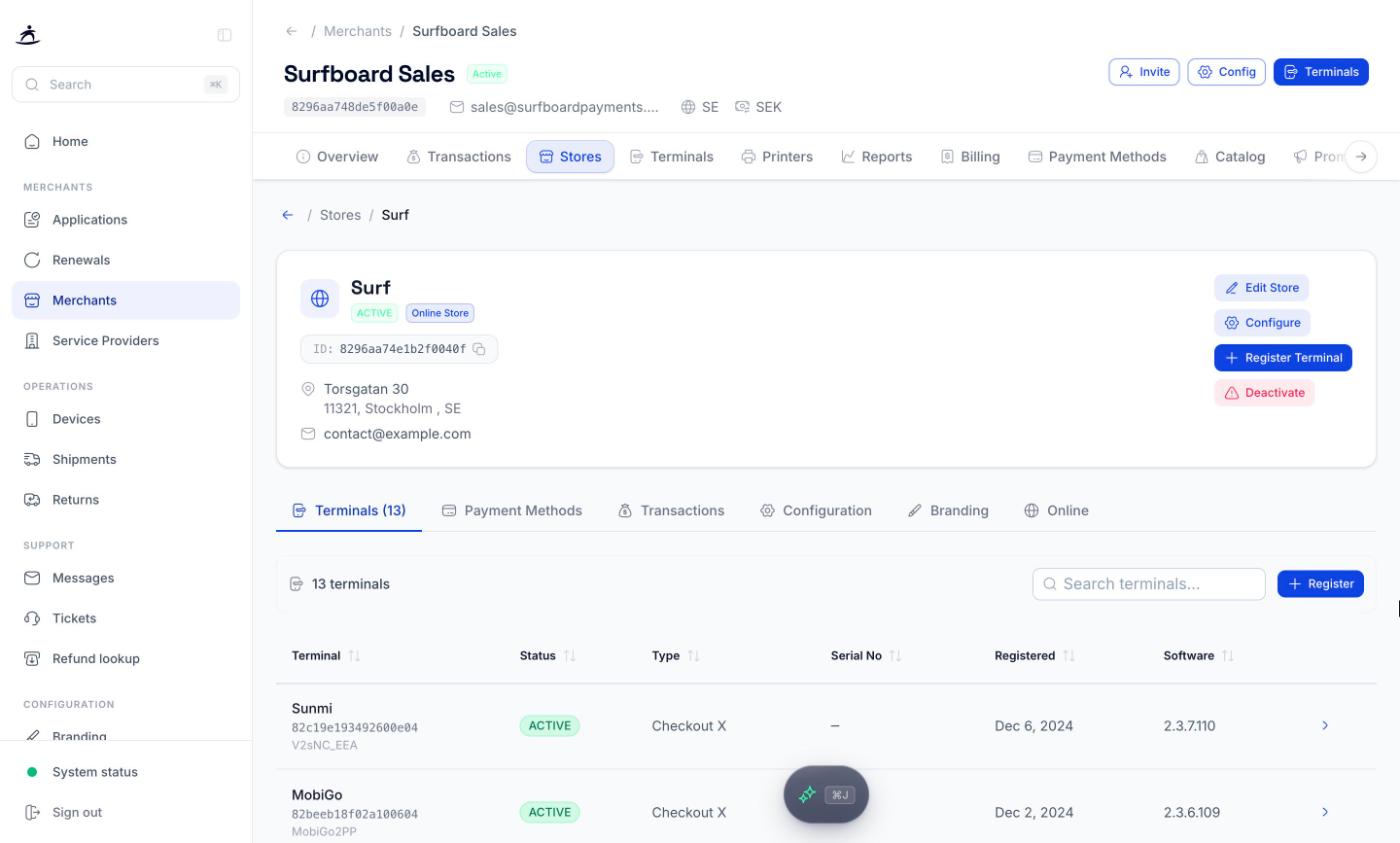
The header shows the store name, status, an Online Store badge for online stores, the store ID (with a copy button), address, email, and phone. Four actions sit on the right:
- Edit Store — change contact details and address.
- Configure — jumps to the store’s Configuration tab.
- Register Terminal — register a terminal to this store.
- Deactivate — stop the store from accepting payments.
Editing a store
Edit Store opens the same form as when creating a store, with a few limits:
- Changing the name, email, phone, or address sends the update to the acquirer. Some acquirers apply it automatically; others are updated manually by our team, so it can take a few working days.
- Postal Code and Country can’t be changed here. Contact support to change them.
- Address Line 2, Address Line 3, and Care Of can be changed but not emptied once set. Contact support to remove them.
- The webshop, payment page, terms, and privacy policy URLs can only be edited before the online onboarding review starts. The Google Pay Merchant ID can be updated at any time.
Click Update Store to save.
Deactivating a store
A store can only be deactivated when it has no terminals left. If terminals are still registered, the dialog tells you how many, and you need to move them first with Change Store on each terminal (see Terminal Management).
When the store is empty:
- Click Deactivate.
- Under When, choose:
- Immediately — the store stops accepting payments as soon as you confirm.
- On a date — the store keeps trading until the date you pick. The date must be tomorrow or later.
- Type the store name to confirm.
- Click Deactivate store or Schedule deactivation.
Warning: A deactivated store can no longer take payments. Check with the merchant before you do this.
Store tabs
Terminals
Every terminal registered to the store, with status, type, serial number, registration date, and software version. Search by name, ID, or serial. Register opens the same dialog as Register Terminal in the header. Click a terminal to open it.
Payment Methods
The payment methods for this store. It works like the merchant’s Payment Methods tab, scoped to the store. Apple Pay is only offered here, and only for stores set up with a self-hosted payment page.
Transactions
The store’s transactions, with the same list, filters, and Analytics view as the merchant’s Transactions tab. See Transactions & Reporting.
Configuration
Two panels that override the merchant-level settings for this store only:
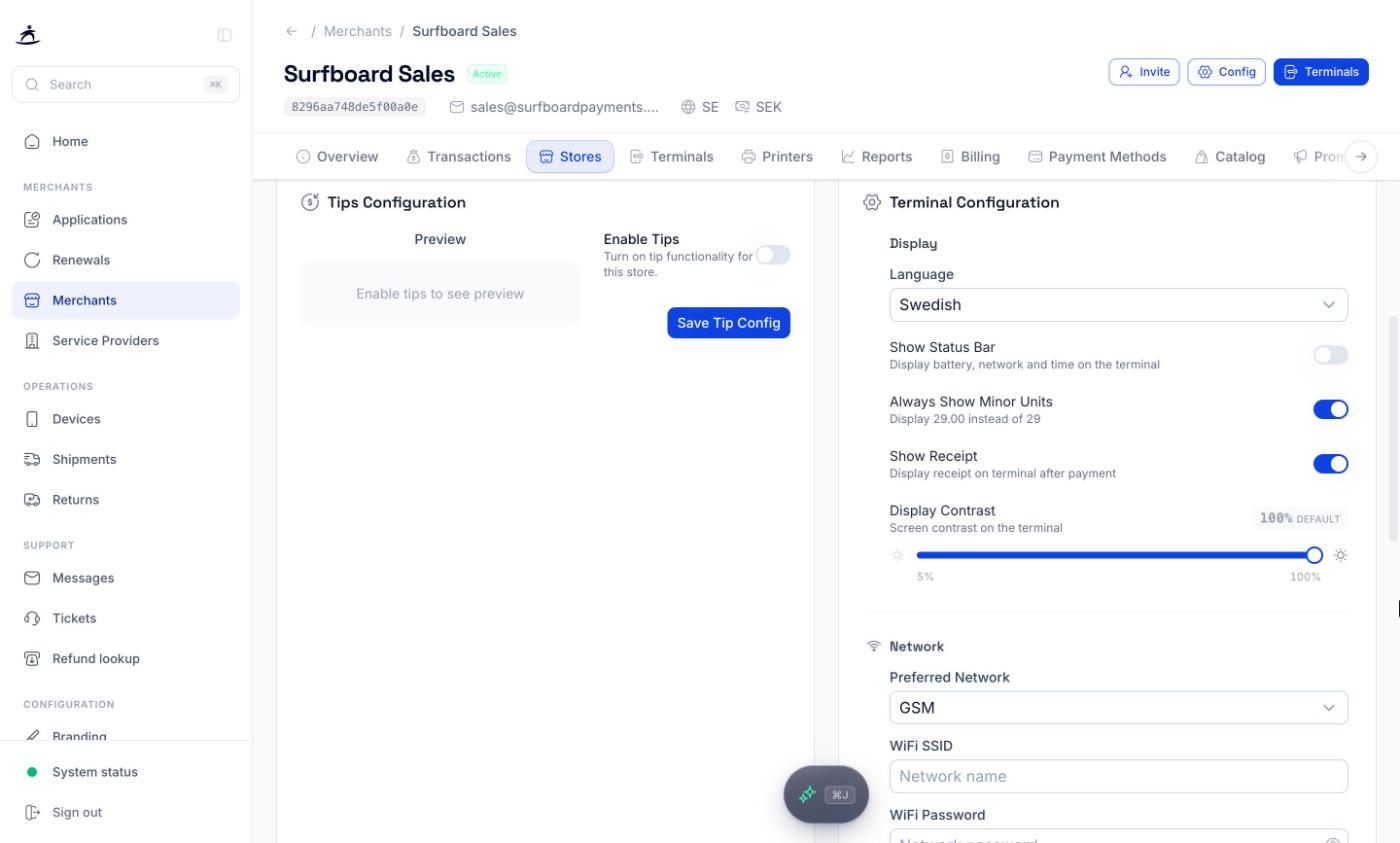
- Tips Configuration — Enable Tips, then choose Display Format (Percentage or Amount), up to three Preset Tip Levels (1-99, default 10, 20, 25), Allow Custom Amount with an optional default, and Show Calculated Amount. A preview shows what customers will see. Click Save Tip Config.
- Terminal Configuration — display, network, behaviour, and security settings for the store’s terminals. See Terminal Configuration.
Branding
Colours, button shape, font, logo, and icon for this store’s checkout. A store without its own branding inherits the merchant’s. Set it here to override, or Remove Branding to go back to the merchant’s. See Branding.
Online
What you see depends on whether the store takes online payments.
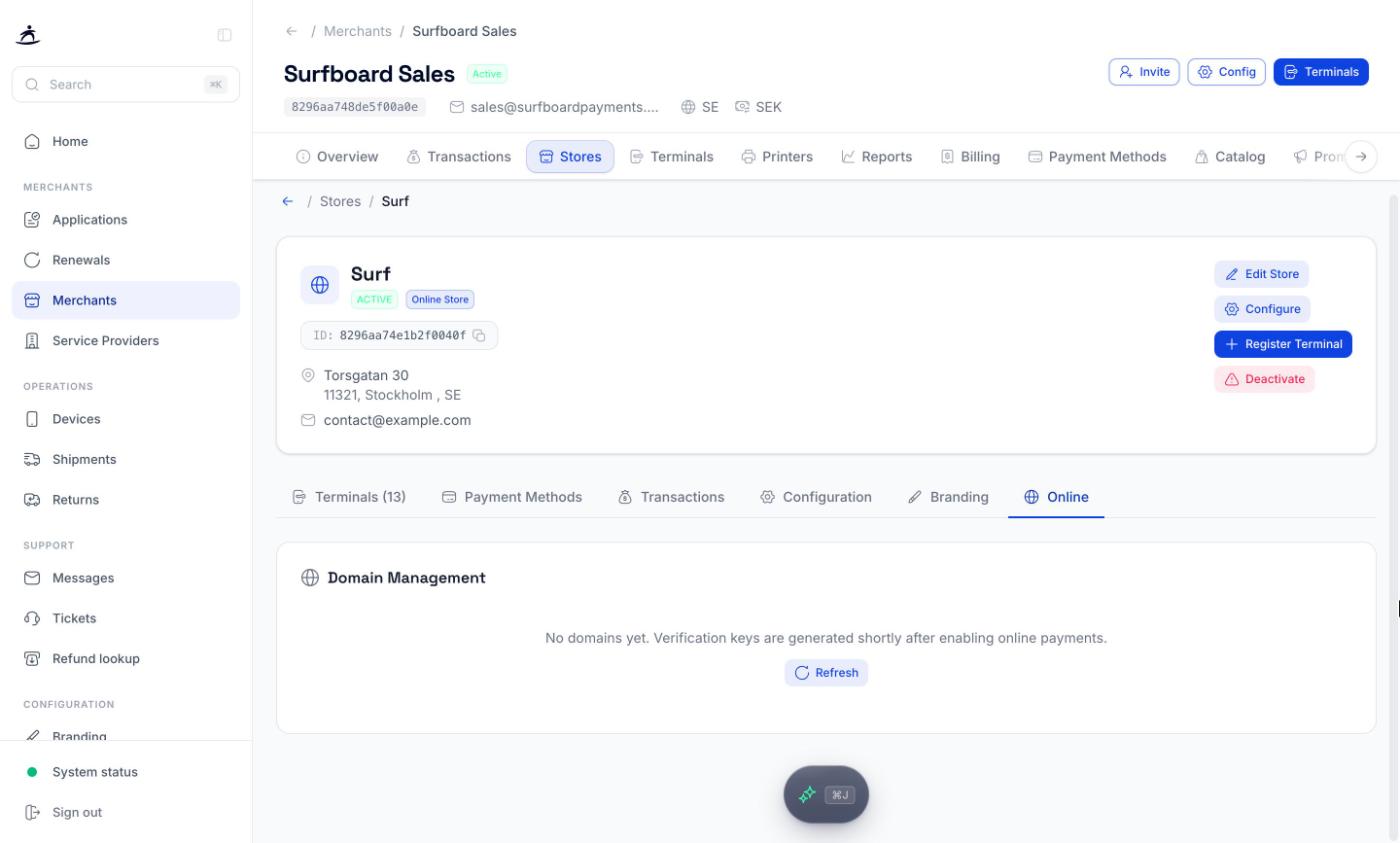
Online stores show Domain Management: each domain with its type, a Verified or Pending state, and the verification key. Add the key to the domain’s DNS, then click Verify. Verification keys are generated shortly after online payments are enabled; click Refresh if none are listed yet.
Stores without online payments show Online Payments instead. Fill in the Webshop URL, Terms & Conditions URL, and Privacy Policy URL (plus Payment Page URL for SDK setups and the optional Google Pay Merchant ID), then click Enable online payments. Domain verification keys are generated shortly after; add them to your DNS and verify the domains here.
Registering a terminal to a store
Click Register Terminal in the store header, or Register on the Terminals tab. First choose the type:
Physical terminal
For card terminals and printers.
- Choose Physical Terminal.
- Enter the Registration Identifier: the 6-digit code shown on the terminal screen during setup, or the serial number from the back of the device (SurfPad and printers). Spaces are removed automatically.
- Optionally give it a Terminal Name (up to 30 characters), such as Front Counter.
- Click Register Device.
Note: A terminal must be activated to the merchant before it can be registered. If it isn’t, the dialog says so and offers Activate terminal. See Terminal Management.
Online terminal
Only available when the store takes online payments. Otherwise the option says Requires online payments and offers Set up online payments.
Choose a mode:
| Mode | Use it for |
|---|---|
| Payment Page | A hosted checkout page managed by Surfboard |
| Self Hosted Page (SDK) | Your own checkout using the Surfboard SDK. Only offered when the store has a payment page URL |
| Merchant Initiated | Server-to-server payments without the cardholder present |
Click Register Terminal. If the store’s online onboarding isn’t finished, you’ll see Online payments aren’t ready for this store yet with a link to the Online tab.
After a successful registration, Register Another adds the next one and Done closes the dialog.