Refunds & Refund Lookup
Refund all or part of a purchase from the transaction page, and use Refund lookup to see whether a refund went through, failed, or is still on its way.
Overview
You can refund a merchant’s purchase directly from the partner portal, and you can check what happened to any refund, whoever started it. There are two places for this:
- The Refunds section on a purchase’s transaction page, where you create a refund.
- Support → Refund lookup, where you paste any ID from a sale or a refund and get the whole story.
Refunding a Purchase
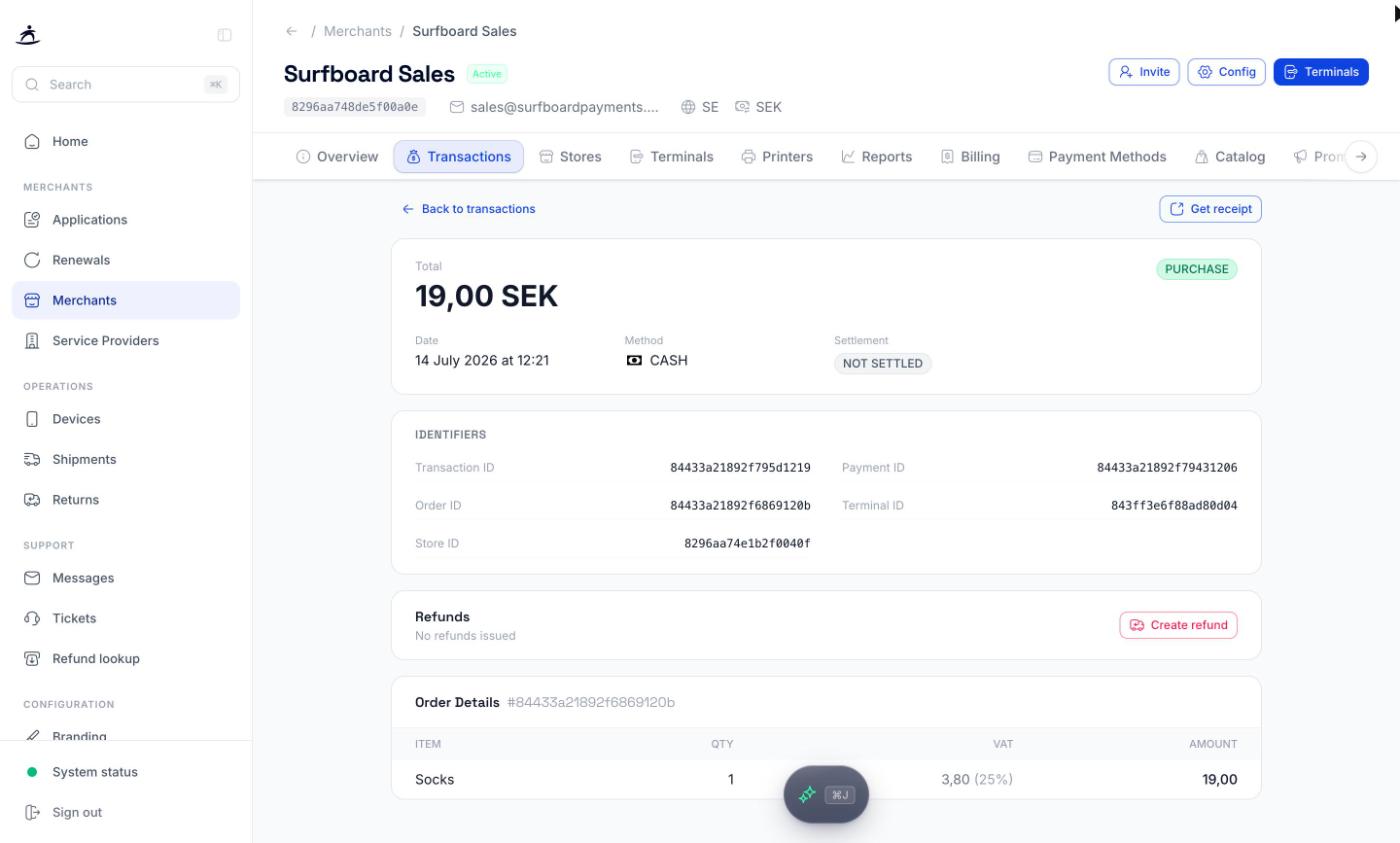
- Open the merchant from Merchants, go to Transactions and click the purchase.
- In the Refunds section, click Create refund.
The Initiate Refund dialog opens.
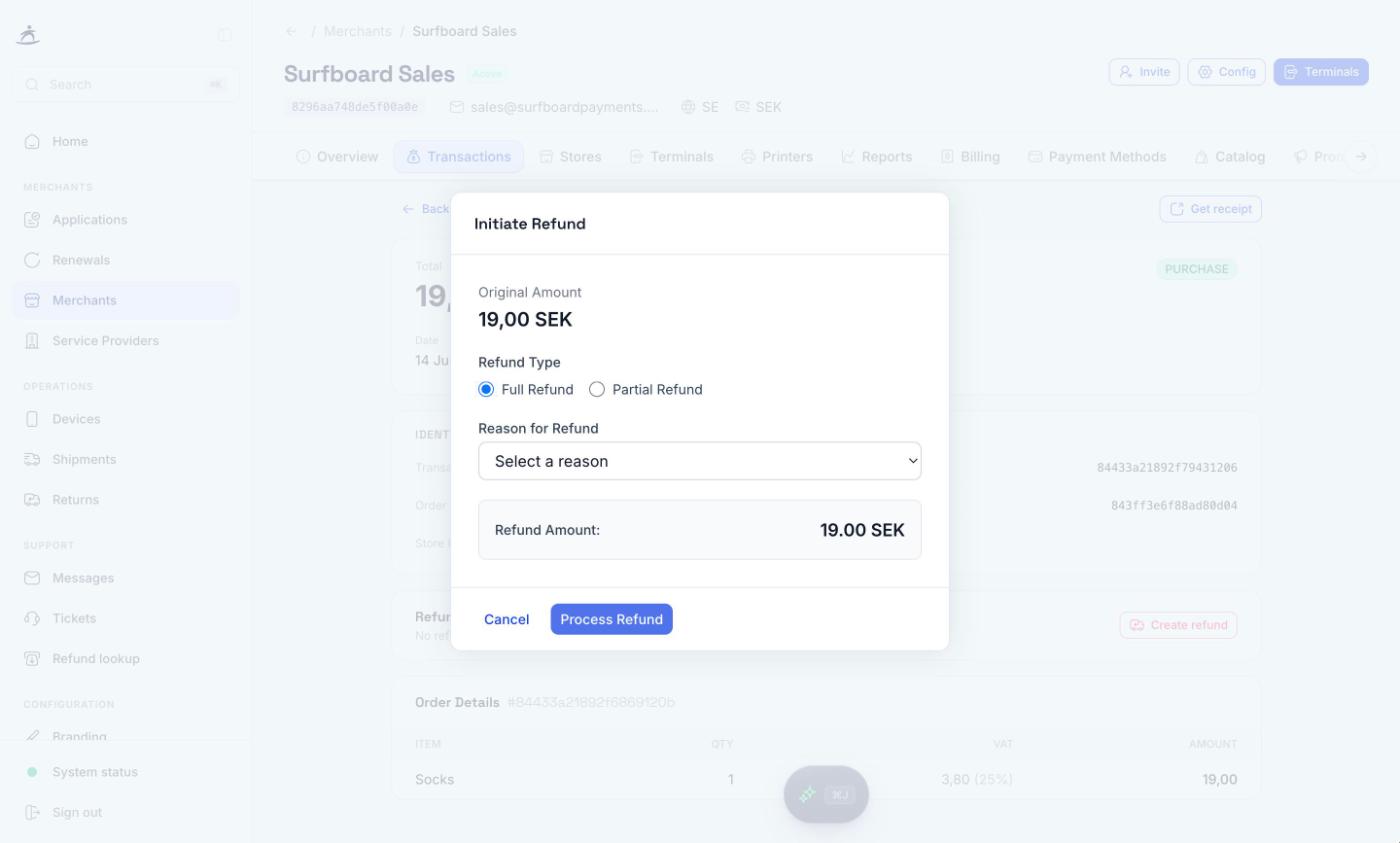
- Choose the Refund Type:
- Full Refund refunds what is left of the purchase.
- Partial Refund lets you either enter a Custom amount (up to the remaining amount) or Select items from the order, with the quantity per item.
- If the order had shipping, decide whether to Include Shipping.
- Pick the Reason for Refund: Customer initiated, Suspected malfunction, Suspected fraud, Duplicate transaction or Other. The reason is required; for Other, describe it under Specify Reason.
- If the order had adjustments such as a tip, decide whether to Include Adjustments.
- Check the Refund Amount and click Process Refund.
The dialog waits for the payment provider and tells you how it went:
| Result | What it means |
|---|---|
| Refund completed successfully. | The money is on its way back to the customer. You can open the Refund receipt from the dialog |
| The refund was not completed by the payment provider. | No money has been returned to the customer. Check the reason with Refund lookup before trying again |
| The refund is still being processed. | It can take a few minutes. Check back on the transaction page or in Refund lookup |
Note: The original amount, what has already been refunded and what remains are shown at the top of the dialog. You cannot refund more than the remaining amount.
Refund status on the purchase
After a refund, the Refunds section on the purchase lists every refund with date, order ID, status, amount and a link to its receipt. The heading line sums it up, for example:
- No refunds issued
- X SEK refunded
- X SEK pending / not settled
- Fully refunded — X SEK
Only settled refunds count towards the refunded total. Pending ones are shown separately.
To refund more of the same purchase, click Additional refund. Once a purchase is fully refunded the button disappears.
A purchase that was voided was never completed, so there is nothing to refund and no refund button is shown.
Refund Lookup
When a merchant says “the customer still hasn’t got their money back”, open Support → Refund lookup in the sidebar.
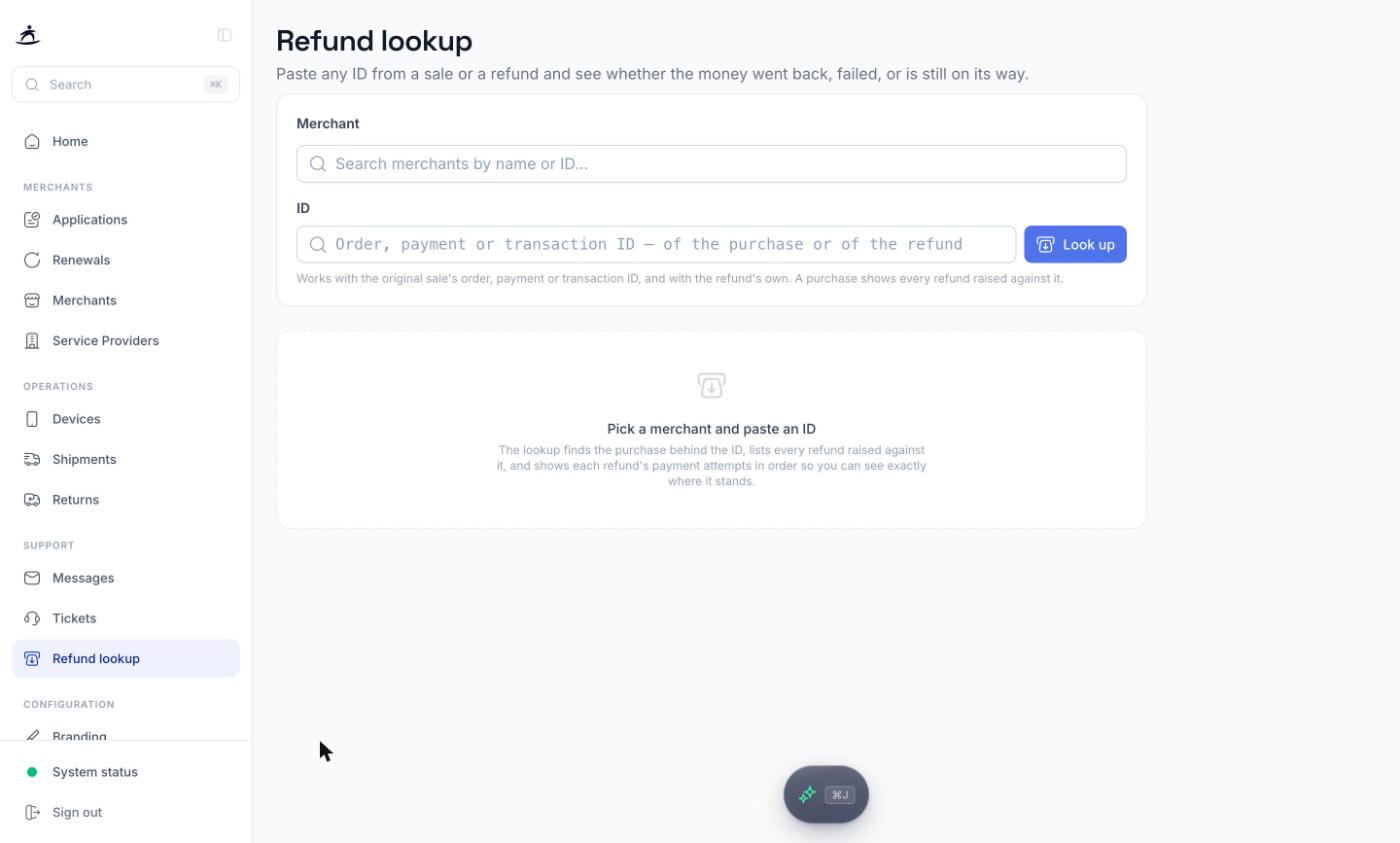
- Pick the Merchant.
- Paste an ID: the order, payment or transaction ID of either the original purchase or the refund itself.
- Click Look up.
IDs belong to a merchant, so the lookup only finds them under the right one. If nothing comes back, check the merchant and that the whole ID was copied.
Reading the result
At the top, a one-line verdict tells you where things stand, for example:
- This refund of X has settled.
- This refund failed — with the reason.
- This refund has not settled yet, with the state of its payment.
- No refunds have been raised against this purchase.
- Fully refunded: X has been returned.
- A count of settled, pending and failed refunds when there are several.
Below the verdict:
- Original purchase — order, amount, status, date and terminal, with Open transaction, and totals for settled, pending and failed refunds.
- Refunds — one card per refund with amount, outcome (Settled, Failed or Pending), reason and method. The ID you pasted is marked Your ID. Expand a card to see its Payment trail: every attempt in order, with status, method, amount, time, IDs and any failure reason, plus Open refund transaction.
When there is no refund to find
- No refund orders exist for this purchase means a refund was never created. If the merchant tried one, it stopped before a refund order was made, so check the terminal or the integration that started it.
- No payment has been recorded on this refund order yet means the refund was created but no payment has been attempted on it.
Tip: The page address includes the merchant and ID you looked up. Copy it into a support ticket or send it to a colleague and they land on the same result.
Related
- Transactions & Reporting — finding the purchase and its details
- Support Tickets — raise a ticket if a refund failed and you need help
- Refund an order — refunds over the API