Marketing Studio
Turn Surfboard products into on-brand social images with AI. Pick a format, choose the products, add direction, then refine the result and download it.
Overview
Marketing in the sidebar opens the Marketing studio. It creates social media and web images that feature Surfboard terminals and accessories, styled with your own brand colours, font and logo. Use it to announce a new terminal to your merchants, or to give them material for their own channels.
The page has two tabs: Create, where you set up and generate an image, and Library, where your creations are kept.
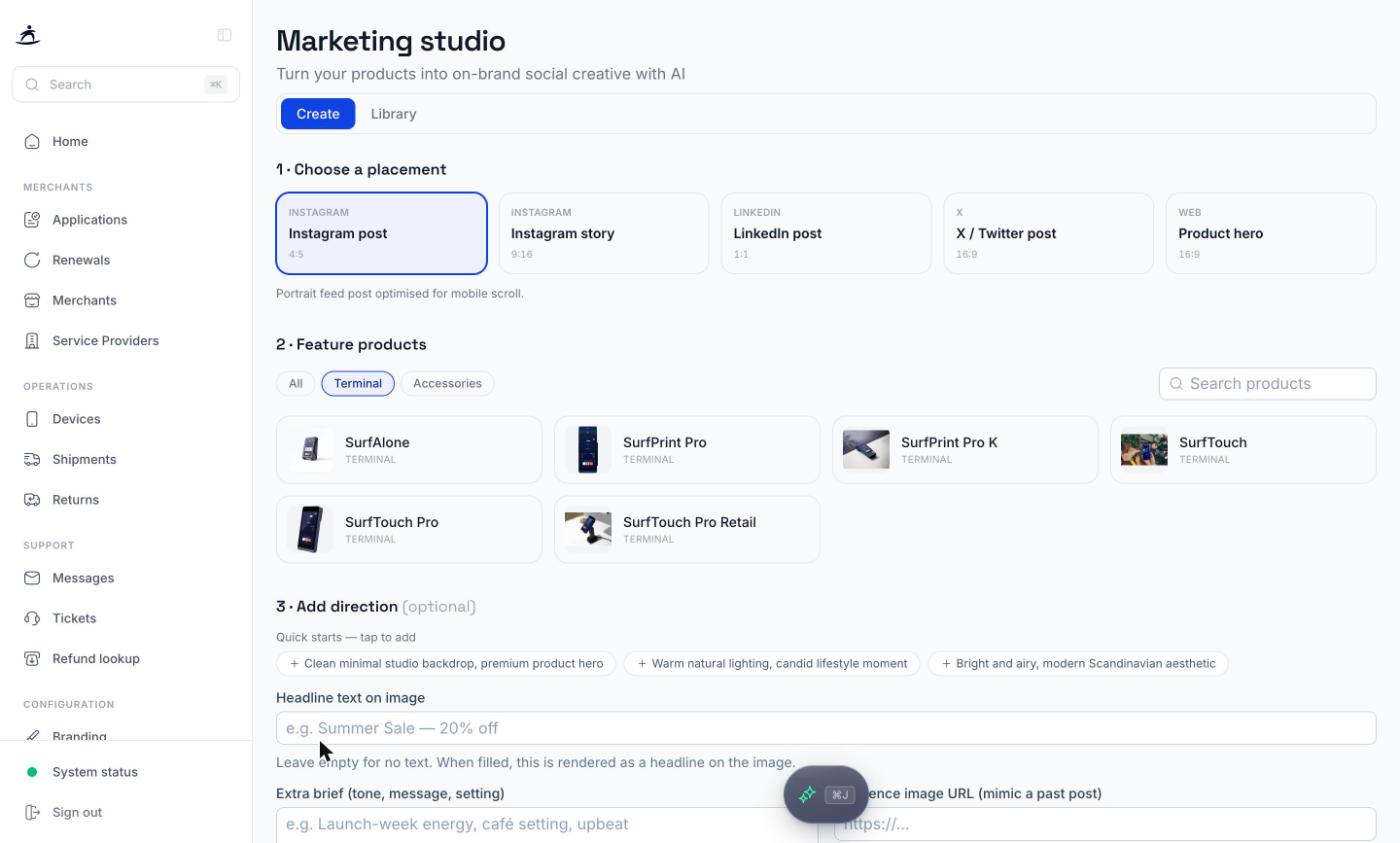
Create an image
1. Choose a placement
The placement sets the format and aspect ratio:
| Placement | Ratio |
|---|---|
| Instagram post | 4:5 |
| Instagram story | 9:16 |
| LinkedIn post | 1:1 |
| X / Twitter post | 16:9 |
| Product hero (web) | 16:9 |
2. Feature products
Pick one or more products to show. Filter with All, Terminal or Accessories, or use Search products. You need at least one product before you can generate.
3. Add direction (optional)
- Quick starts — tap a suggestion such as a clean studio backdrop or a lifestyle setting to add it to the brief.
- Headline text on image — for example “Summer Sale — 20% off”. Leave it empty for an image without text.
- Extra brief (tone, message, setting) — anything else the image should convey.
- Reference image URL (mimic a past post) — a link to an earlier post whose style you want to follow.
- Add our logo to the image (bottom-right) — shown when your branding has a logo. If it’s missing, add a logo on the Branding page first.
Click Generate. Colours, font and logo come from your partner branding automatically.
Refine the result
When an image is ready, it opens in a workspace where you can:
- Download the image.
- Show prompt to see the instructions used, and Copy them.
- Refine with a written change, for example adding a headline, then Apply change.
- Annotate: drag a box over the part you want changed, describe the edit, and click Apply edits.
- Switch between earlier versions in Version history (v1, v2 and so on).
New creation starts over with a blank setup.
Library
The Library tab lists everything you have generated, with Edit to reopen an image in the workspace and Delete to remove it.
Note: The library is stored in this browser only. Your teammates don’t see your creations, and they won’t appear on another computer or browser. Download any image you want to keep. Delete takes effect immediately, without a confirmation.
Related
- Branding & Receipts — the colours, font and logo the studio uses
- Catalog & Promotions — promotions shown on terminal screens and receipts