Terminals
Register, monitor, and manage every payment terminal in your fleet, from SurfTouch Pro and SurfPad to Tap to Pay on iPhone and online checkouts.
Overview
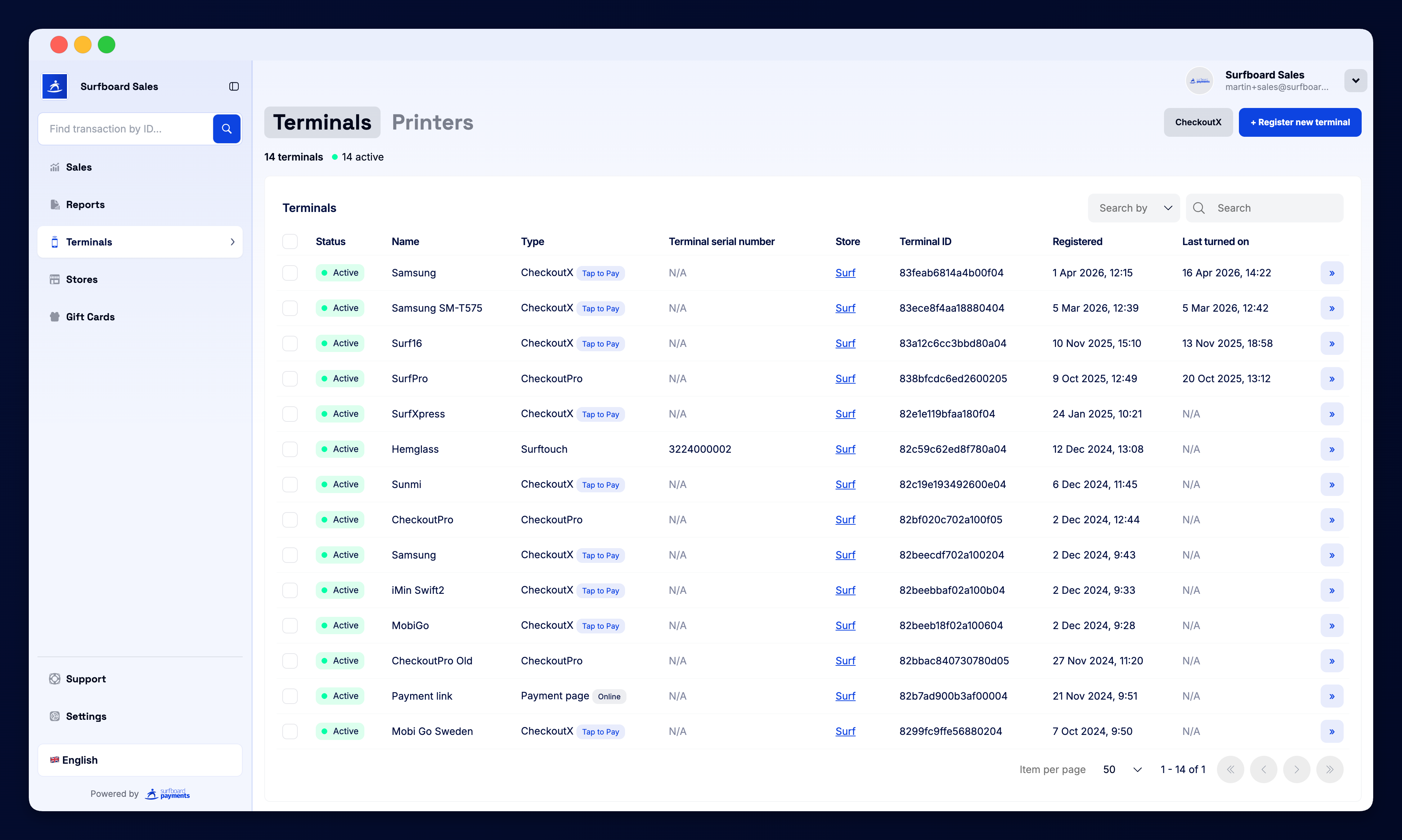
The Terminals section is where you see every device that can accept a payment for your business — card terminals, smartphones running Tap to Pay, online checkouts, and ECR-attached devices. Each terminal is tied to a store.
Tabs
The page is split into three tabs:
- Terminals — physical and software terminals (card terminals, Tap to Pay phones, online endpoints)
- Printers — networked receipt printers
- CheckoutX — soft-POS Tap to Pay terminals running Surfboard’s CheckoutX app
Counters at the top show how many terminals are active vs registered in total.
Terminal Table
Every row in the list shows:
| Column | What it shows |
|---|---|
| Status | Active, Registered, or Inactive |
| Name | Friendly name (you can rename any terminal) |
| Type | SurfTouch Pro, SurfPad, SurfprintPro, CheckoutX (Tap to Pay), Online, etc. |
| Terminal serial number | Manufacturer hardware serial |
| Store | Which store the terminal belongs to |
| Terminal ID | Internal unique reference |
| Registered | When the terminal was first paired |
| Last turned on | Last activity heartbeat |
Click Details » on any row to open the terminal’s settings.
Registering a New Terminal
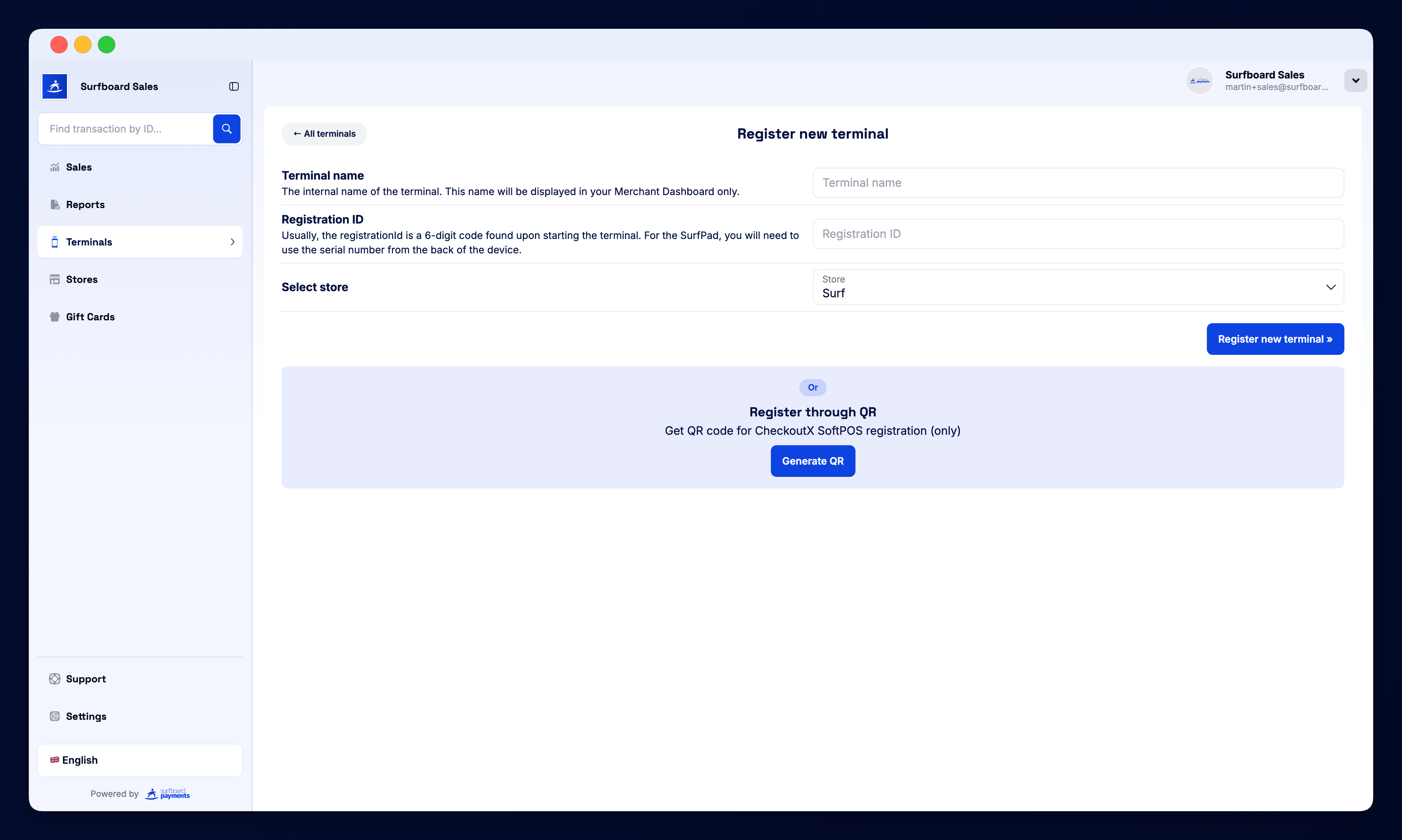
Click + Register new Terminal in the top-right corner. You then choose:
- Terminal type — SurfTouch Pro, SurfPad, SurfprintPro, Tap to Pay (CheckoutX), Online, or Custom
- Store — which store the terminal belongs to
- Pairing method — QR code, activation code, or serial number
For physical terminals, you scan a QR code on the device screen. For Tap to Pay phones, you install the CheckoutX app from the App Store / Play Store and pair using the activation code.
Terminal Detail Page
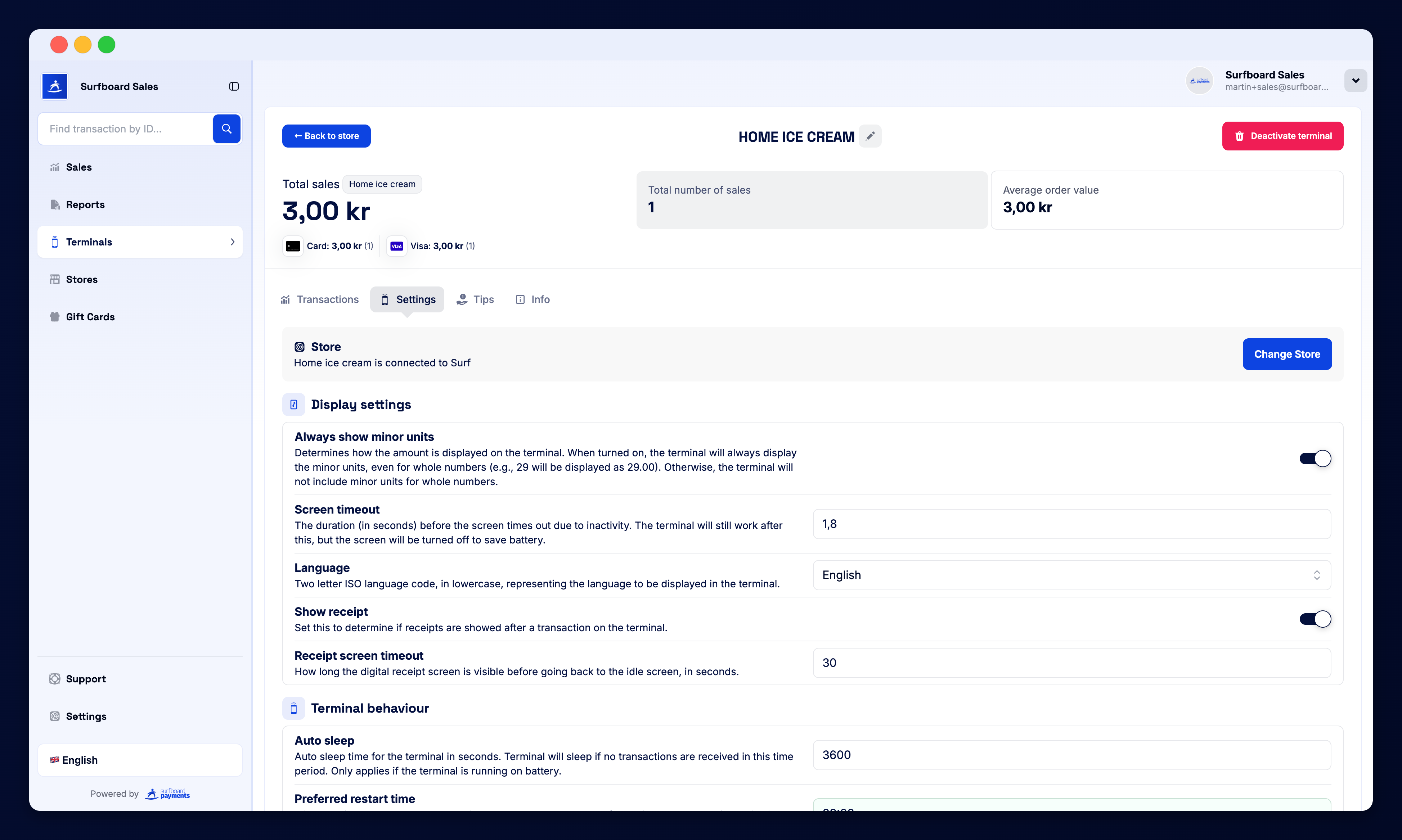
Opening a terminal gives you:
- Status & last seen — whether it’s online and when it last connected
- Software version — payment app build, with one-click update if newer is available
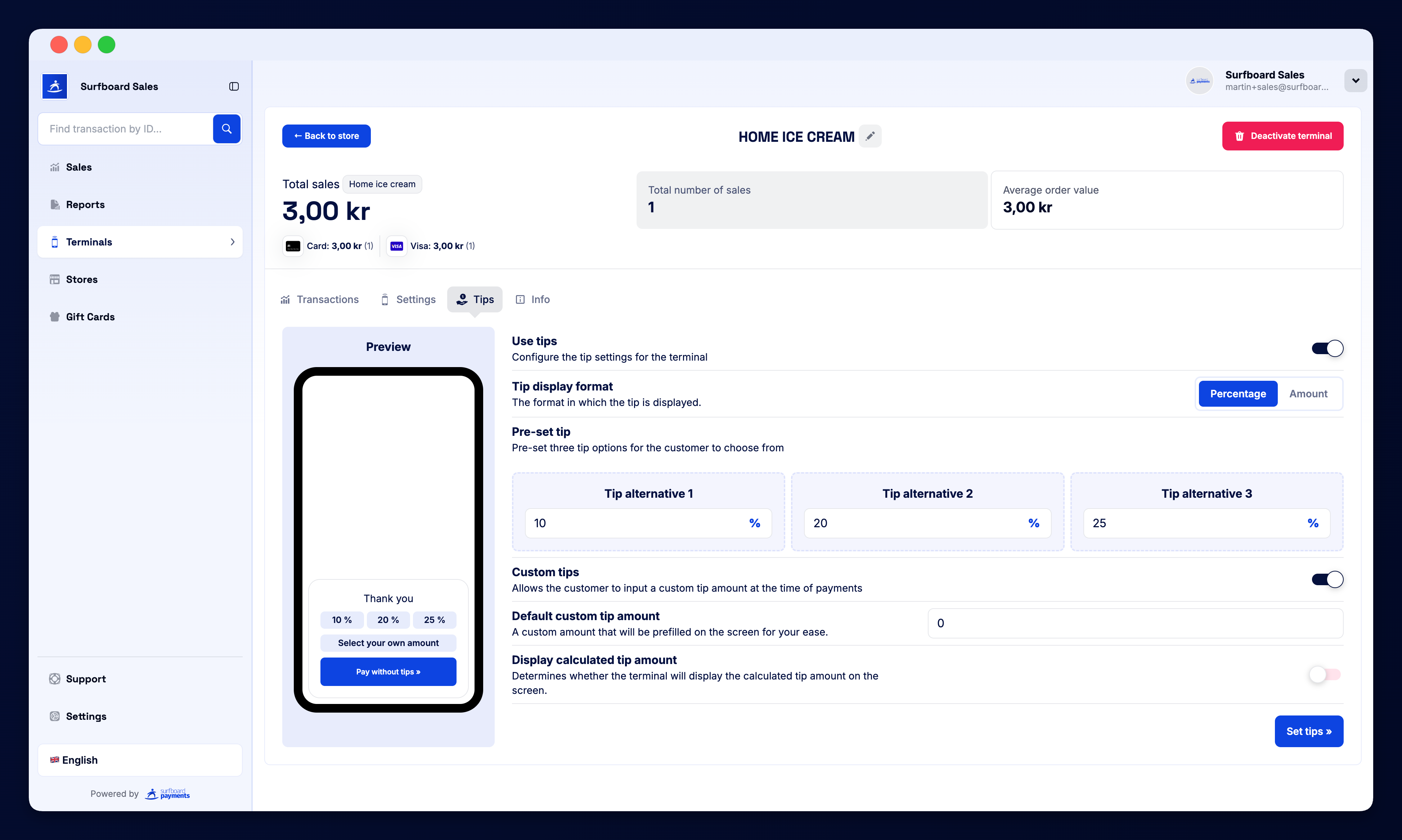
- Configuration — tipping behaviour, receipts, language, currency, ECR connection
- Recent transactions — the last sales taken on this device
- Move terminal — reassign to a different store
- Deactivate — retire the device
Online Terminals
“Online” terminals represent your online checkout endpoints. There are two types:
- Payment page — hosted Surfboard checkout pages opened via a link
- Merchant initiated — server-to-server payments triggered by your application
These show up in the same list so you have a unified view of every payment endpoint.
Tap to Pay (CheckoutX)
Tap to Pay terminals are smartphones (iPhone or Android) running the CheckoutX app. They show up alongside hardware terminals so you can manage your entire fleet — physical and software — in one place.
Tips
- Use clear naming (e.g. “Front register”, “Bar 1”) to keep the list tidy
- The Last turned on column is the fastest way to spot a stale or disconnected terminal
- All software updates can be pushed remotely from this page — no need to physically touch the device