Terminal Settings & Tips
Configure how your terminals behave (display, receipts, language, lock screen, refund PIN and network) and set up tipping, for one terminal, several at once, or a whole store.
Overview
You can change how your terminals behave straight from the portal: what the screen shows, the language, receipts, the lock screen, the refund PIN, the network, and tipping. There are three places to do it:
- One terminal: the terminal’s Settings and Tips tabs.
- Several terminals: select them in the terminal list and use the settings icon.
- A whole store: the store’s Settings tab.
Saving settings and tips is for admins only. Users can see the settings but can’t save them.
After you save, the portal shows Settings saved: “The terminal checks for new settings every 30 seconds, so the change can take up to 30 seconds to show on the device.”
Settings for one terminal
Open Terminals, click a terminal, and go to the Settings tab.
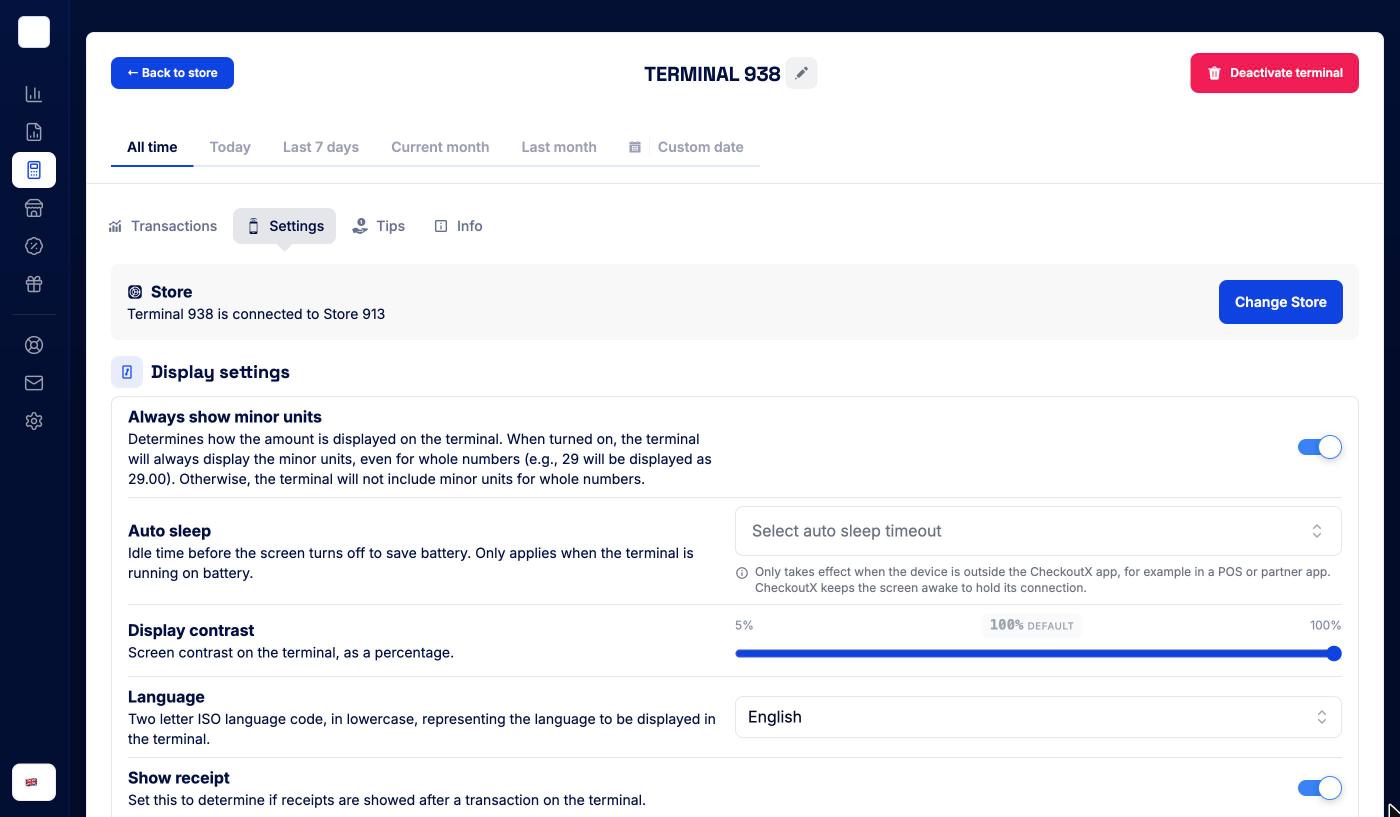
At the top, the Store box shows which store the terminal belongs to, with Change Store. See Terminals.
The device settings below are shown for Surfboard’s Android card terminals. Which rows you see depends on the model; some only appear on SurfPad.
Display settings
| Setting | What it does |
|---|---|
| Keyboard backlight | SurfPad only. Turns the keypad backlight on or off |
| Show status bar | SurfPad only. Shows the status bar at the top of the terminal screen |
| Always show minor units | Always shows decimals, even for whole amounts (29 is shown as 29.00) |
| Auto sleep | How long the terminal can be idle before the screen turns off to save battery: from 15 seconds to 30 minutes. Only applies on battery, and only outside the CheckoutX app (for example in a POS or partner app) |
| Display contrast | Screen contrast from 5% to 100%. The default is 100% |
| Language | The terminal’s language: English, Svenska, Dansk or Suomi |
| Show receipt | Whether the digital receipt screen appears after a payment |
| Receipt screen timeout | How many seconds the receipt screen stays up before the terminal goes back to idle. Shown when Show receipt is on |
Terminal behaviour
| Setting | What it does |
|---|---|
| Auto-lock timeout | Seconds of inactivity before the payment app locks itself. Only applies when the lock screen is on with a PIN. It doesn’t turn the screen off |
| Preferred restart time | SurfPad only. The terminal must restart at least once every 24 hours, and installs updates when it does. Pick a time (HH:MM) when the store is closed |
| Chip read delay | SurfPad only. Delay in milliseconds before the card is read |
Network settings
| Setting | What it does |
|---|---|
| WiFi and WiFi Password | SurfPad only. The WiFi network to join. Find WiFi lists the networks the terminal can see |
| Preferred internet connection | GSM (mobile data) or WiFi |
OS settings
| Setting | What it does |
|---|---|
| Open POS on reboot | Opens the POS app automatically after the terminal restarts |
| Enable lock screen and Lock screen PIN | Locks the terminal behind a PIN |
| Enable PIN code for refunds and Refund screen PIN | Asks for a PIN before a refund can be made on the terminal |
Click Update
Tips on one terminal
Go to the terminal’s Tips tab.
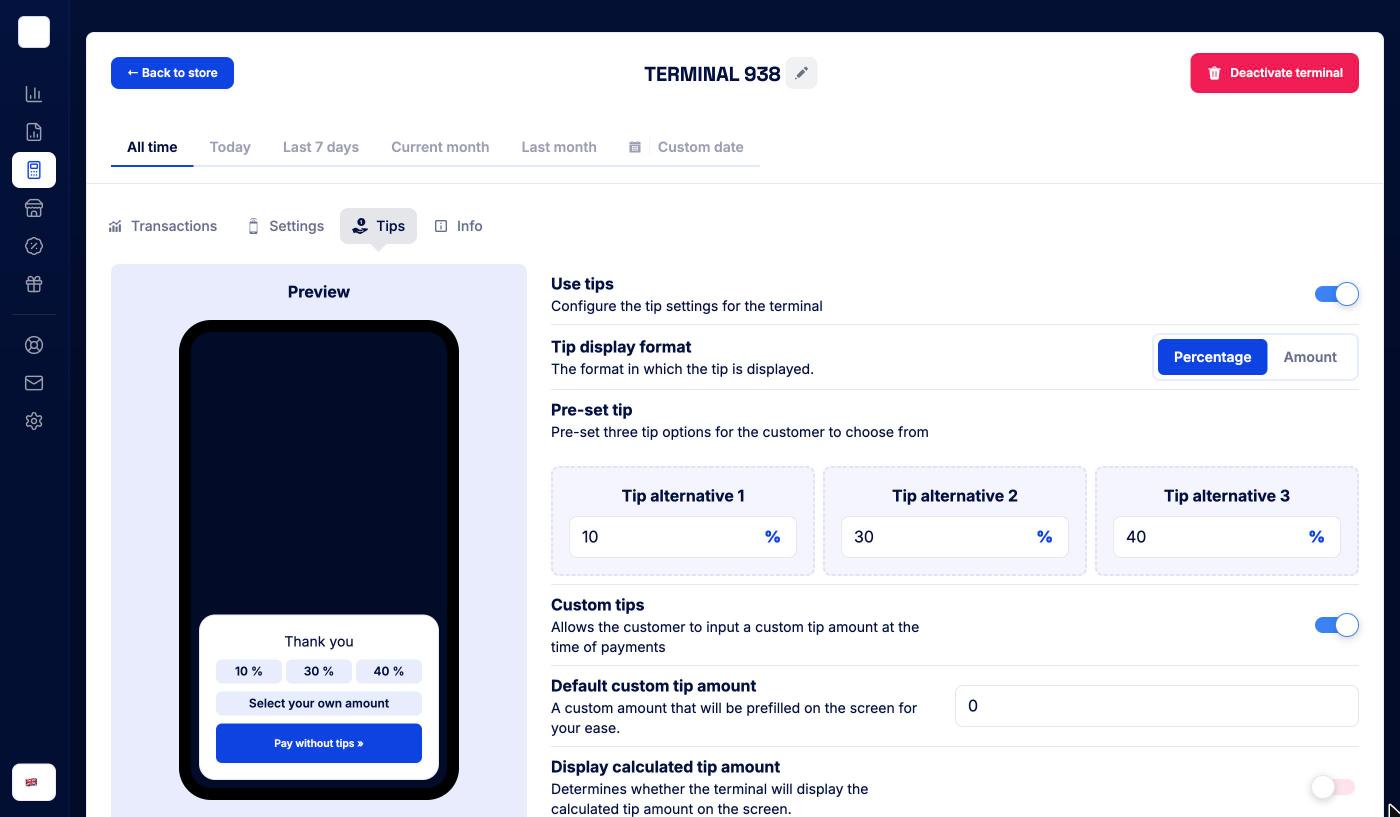
- Turn on Use tips.
- Under Tip display format, choose Percentage or Amount.
- Under Pre-set tip, fill in Tip alternative 1, 2 and 3: the three choices the customer sees.
- Turn on Custom tips if customers should also be able to enter their own amount. Default custom tip amount pre-fills that screen.
- Turn on Display calculated tip amount to show the tip amount on the terminal.
- Click Set tips ».
The Preview on the left shows what the customer will see: your three alternatives, Select your own amount and Pay without tips ».
To turn tipping off, switch off Use tips and click Update ».
Changing several terminals at once
- Open Terminals and tick the checkboxes next to the terminals you want to change.
- Click the settings (gear) icon in the bar above the list.
- The Settings drawer says “Set configuration for N terminals”. Change the settings you need and save.
The same settings apply to every selected terminal. Terminals without a serial number (for example online terminals) are skipped.
Settings for a whole store
Open the store and go to its Settings tab. Below the store details you’ll find the same terminal settings, with Update Store », and a tips section (“Configure the tip settings for the store”) with its own preview.
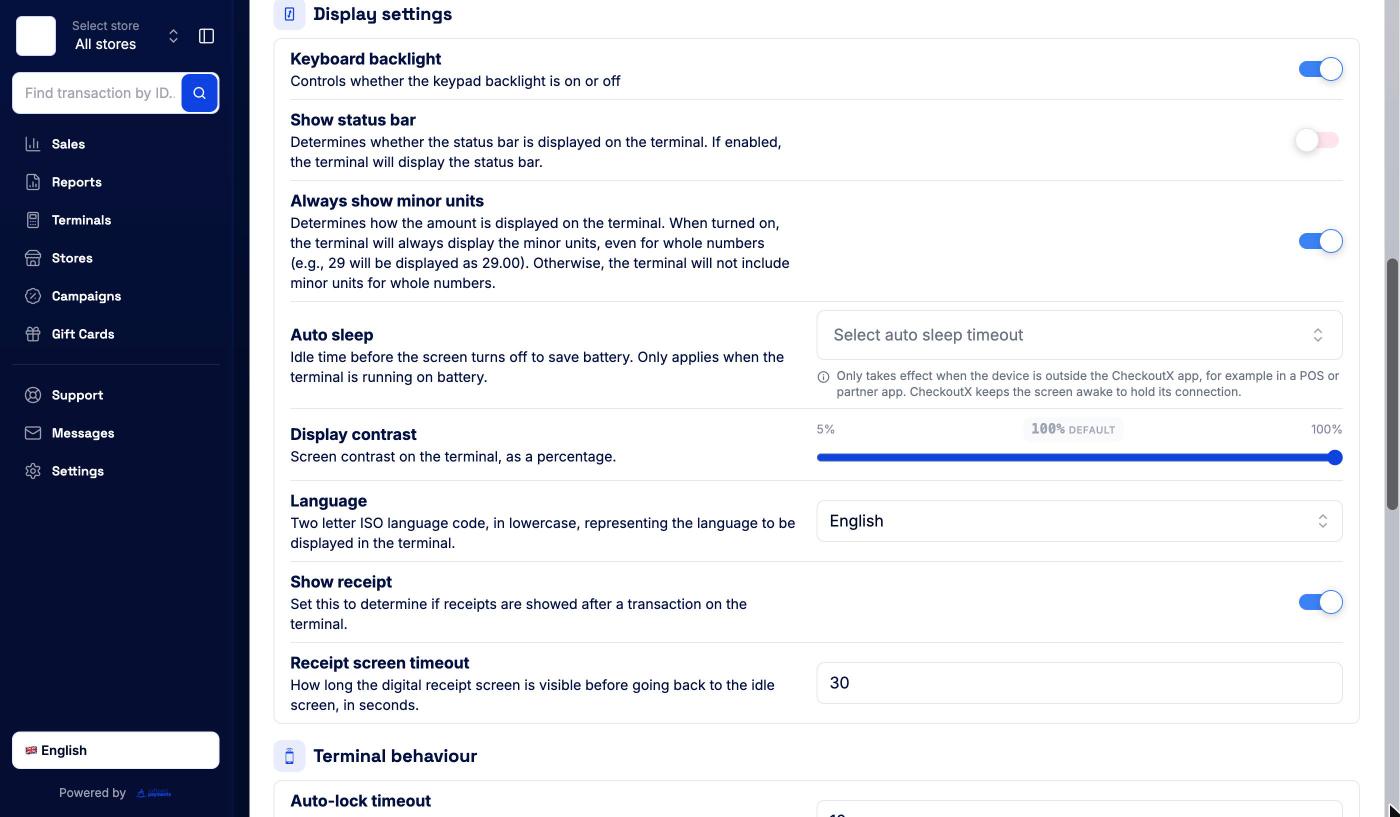
The terminal settings only appear when the store has terminals. Use this when all terminals in a store should behave the same way, and a terminal’s own Settings and Tips tabs when one device needs something different.