Stores
Create stores, verify your webshop domain, and manage everything that belongs to a store: sales, terminals, products, payment links, cash registers, campaigns, storefront, branding and settings.
Overview
A store is a place where you take payments: a shop, a restaurant, a kiosk, or a webshop. Every terminal belongs to a store, and products, payment links, cash registers, campaigns and branding are all organised per store.
Open Stores in the sidebar to see them all. If you have more than one store, you can also pick one in the Select store switcher at the top of the sidebar. The sidebar then shows that store’s own sections (Overview, Terminals, Products, Payment links, Cash register, Brand, Settings) and an All stores link back.
The store list
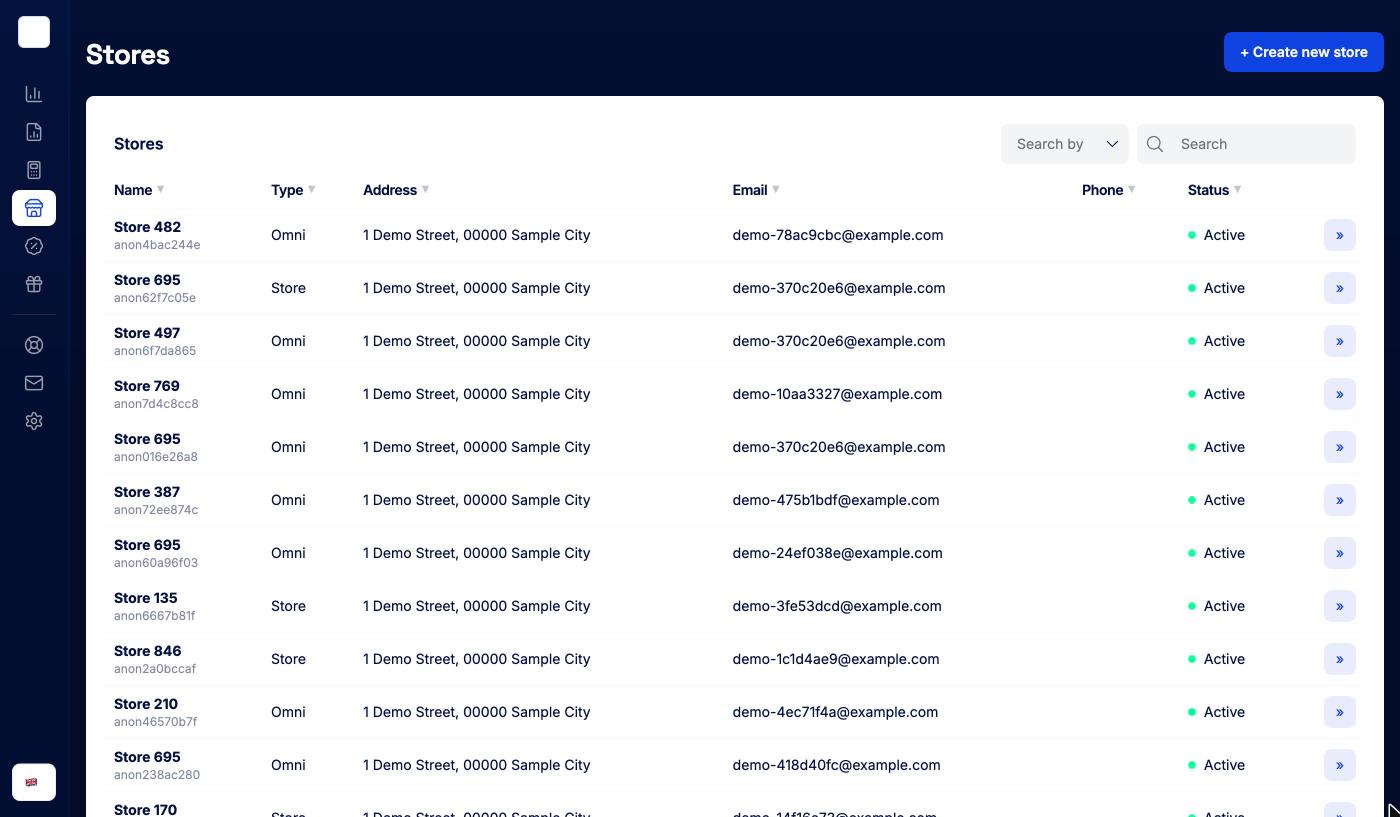
| Column | What it shows |
|---|---|
| Name | Store name, with the store ID underneath |
| Type | Omni for stores that also take online payments, Store for in-person only |
| Address | Street and city |
| The store’s contact email | |
| Phone | The store’s phone number |
| Status | Whether the store is active |
Search with Search by and the search box, sort by clicking a column header, and click » to open a store.
Creating a store
Admins can create stores. Click + Create new store.
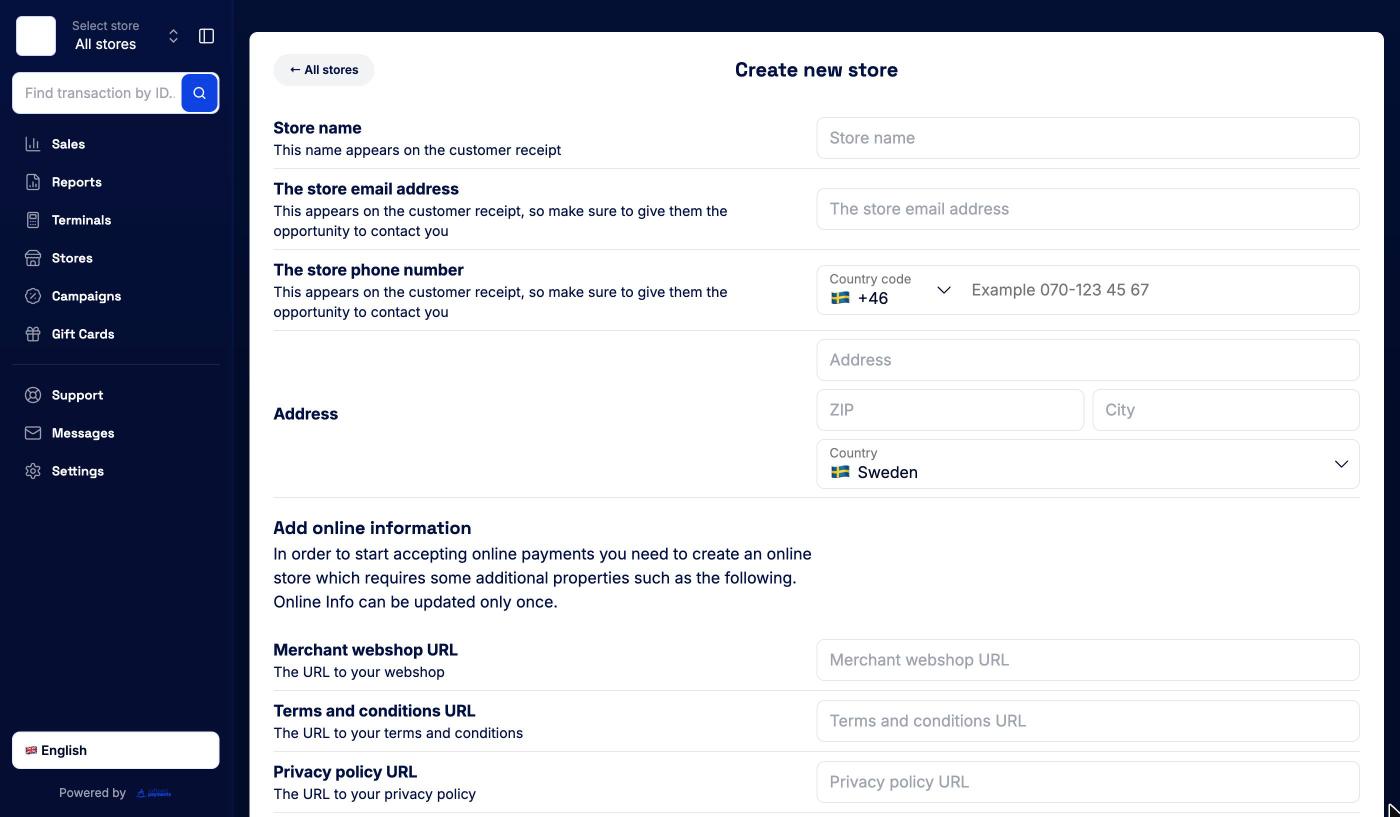
| Field | Notes |
|---|---|
| Store name | Appears on the customer receipt |
| The store email address | Appears on the customer receipt |
| The store phone number | Pick the country code, then enter the number. Appears on the receipt |
| Address, ZIP, City, Country | The store’s address |
Add online information is optional. Fill it in if the store will take online payments (payment links or a storefront):
| Field | Notes |
|---|---|
| Merchant webshop URL | Your webshop’s address |
| Terms and conditions URL | Link to your terms |
| Privacy policy URL | Link to your privacy policy |
All three URLs must start with https://, and if you fill in one, you need to fill in all of them. Online information can only be set once, so double-check the links before you save.
Click Create new ».
Verifying your domain
If you added a webshop URL, the portal may take you to Verify your domain after creating the store. It shows a domain key. Add it as a TXT record in your domain’s DNS settings, so we can confirm that you own the domain. Use the copy button next to the key, then click Back to stores. If you need help with the DNS record, contact support@surfboardpayments.com.
The store page
Click a store to open it.
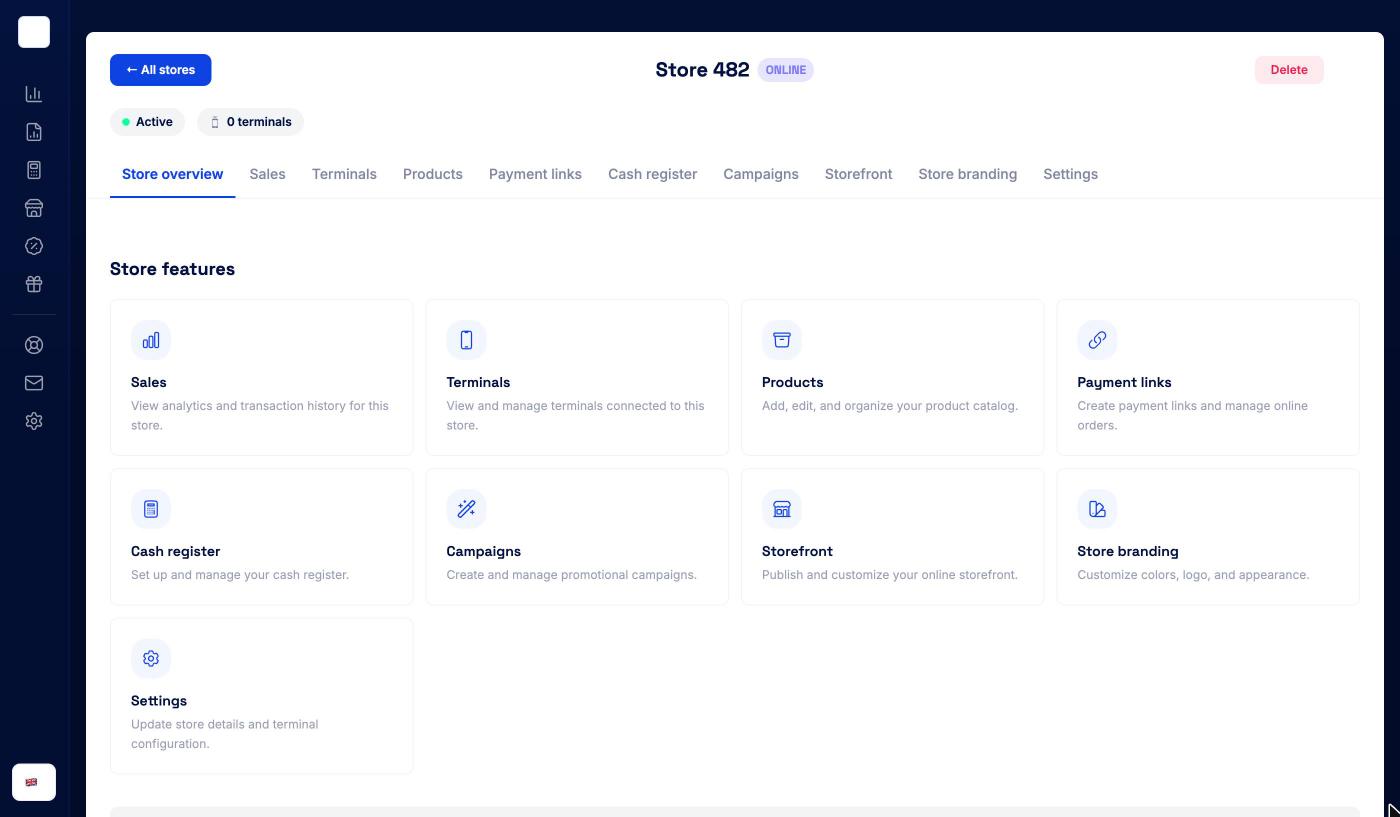
The header shows the store name, an ONLINE badge if the store takes online payments, its status and how many terminals it has. ← All stores takes you back to the list.
The Store overview tab shows the store’s all-time sales tiles, a Store features card for each section of the store, and the store’s address on a map. The tabs across the top are:
| Tab | What it’s for |
|---|---|
| Store overview | Sales totals and shortcuts to the store’s features |
| Sales | Sales for this store only |
| Terminals | The store’s terminals, and + Register new to add one. See Terminals |
| Products | The store’s product catalogue. See Products & Catalog |
| Payment links | Links and online orders for this store. See Payment Links |
| Cash register | Cash registers on this store’s terminals. See Cash Register |
| Campaigns | Campaigns that run in this store. See Campaigns |
| Storefront | Your online shop. Only shown for stores with online information |
| Store branding | Colours, logo and fonts for this store |
| Settings | Store details, online information, and terminal settings and tips for the whole store |
Not every account has every tab. Products, Payment links, Cash register and Campaigns only appear if they’re enabled for your account.
Store sales
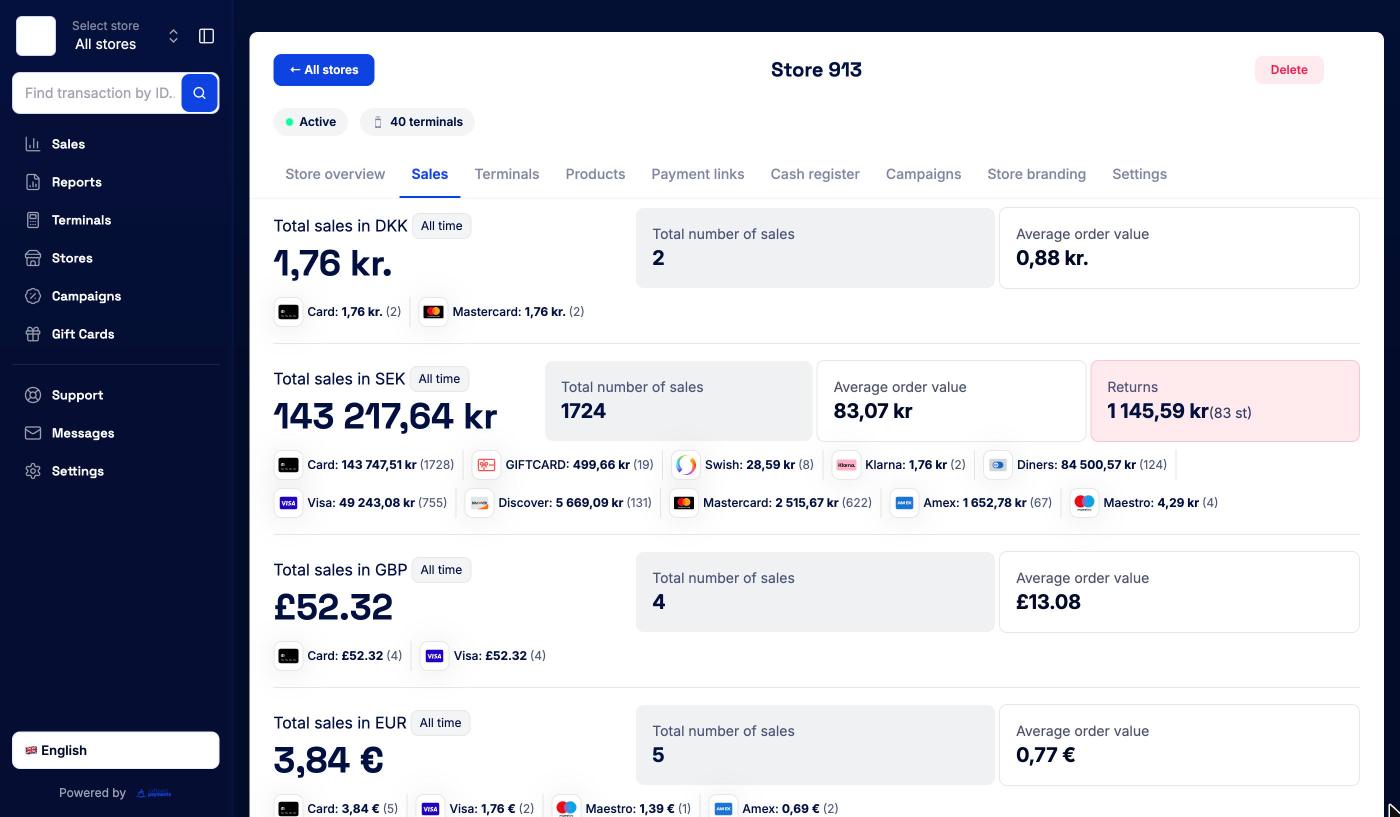
The Sales tab shows the store’s totals per currency: total sales, number of sales, average order value and returns, with a breakdown per payment method and card brand. Pick a period at the top (All time, Today, Last 7 days, Current month, Last month or a custom date). The transaction list below works like the one in Sales, without the store column. Select transactions to create a PDF report of them.
Storefront
Stores with online information can publish a simple online shop that sells the store’s products.
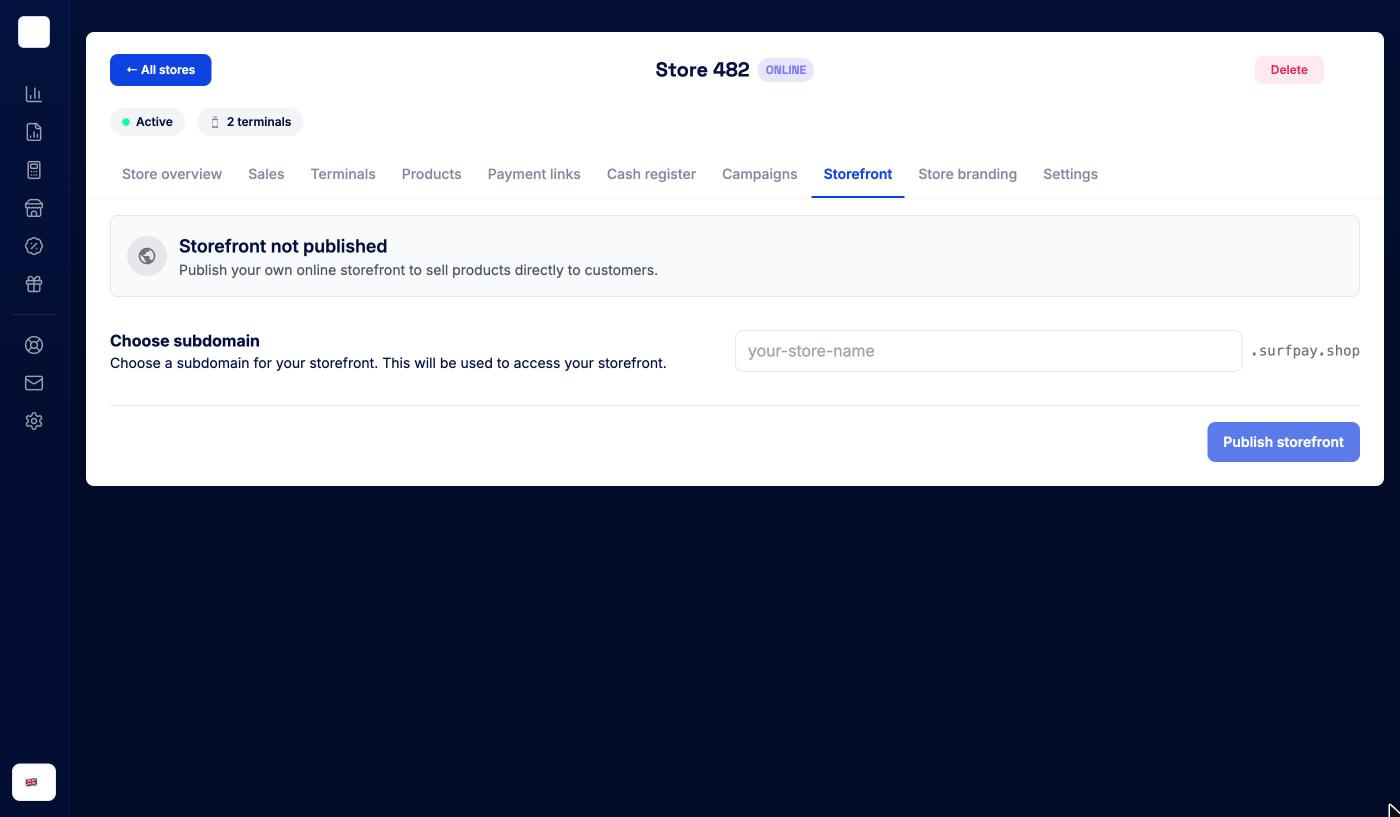
- Open the store and go to the Storefront tab.
- Under Choose subdomain, type a name. Your shop will live at
<name>.surfpay.shop. The portal checks that the name is free and suggests alternatives if it isn’t. - Click Publish storefront (admins only).
Once published, the tab shows the storefront’s status, its address and when it was last deployed, with these actions:
- Visit store opens the shop.
- Create Product Link opens the Storefront Link Builder. Pick products, choose whether the link should Auto-redirect to payment, add an optional Promo code, and copy the link.
- Edit design and Edit products take you to the store’s branding and products.
- Unpublish (admins only) takes the shop offline after you confirm.
The products on the storefront come from the store’s catalogue. See Products & Catalog.
Store branding
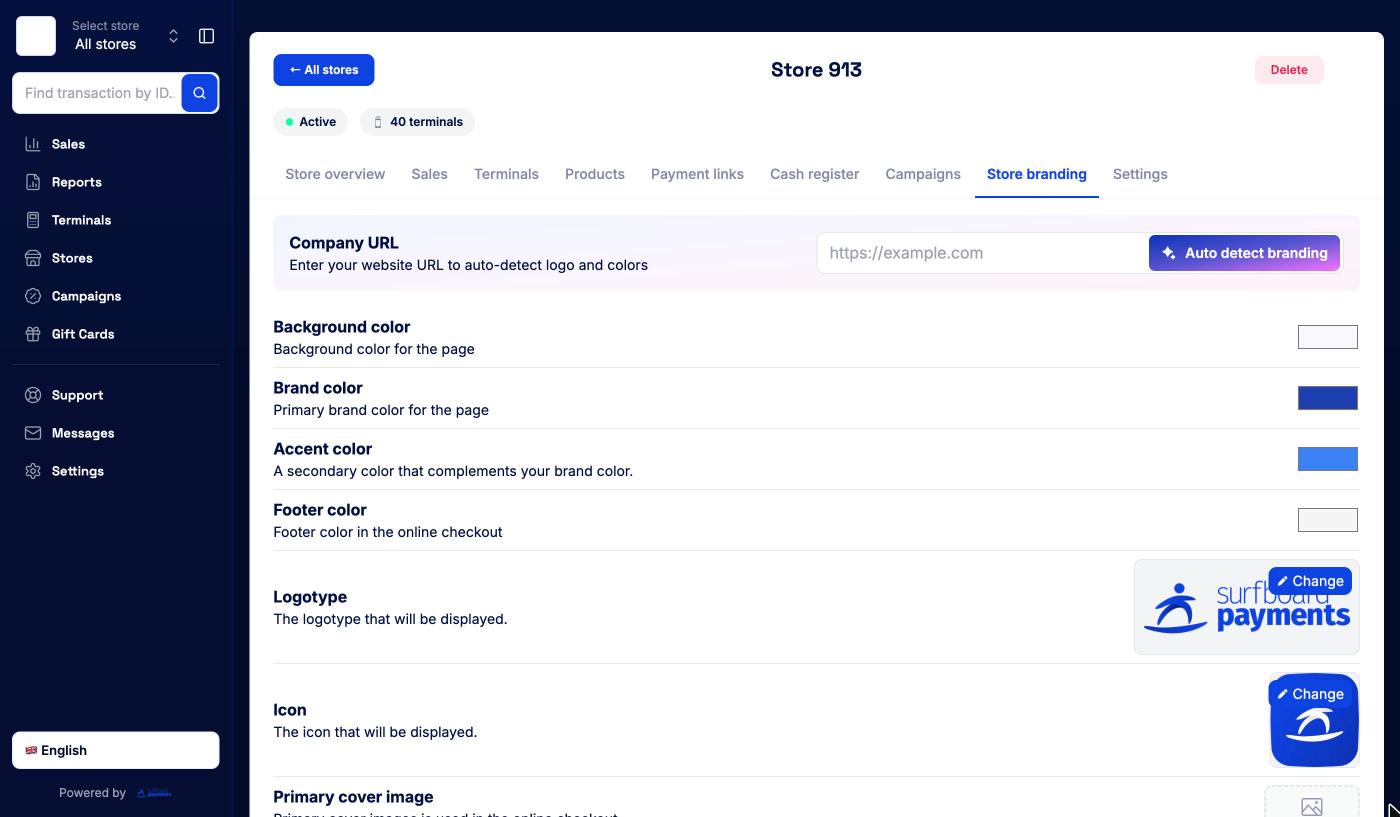
Branding controls how your checkout, payment page and storefront look for this store. Admins can change:
- Company URL with Auto detect branding: enter your website and the portal picks up your logo and colours for you
- Background color, Brand color, Accent color and Footer color
- Logotype and Icon
- Primary cover image, used in the online checkout
- Font type: Sans Serif, Serif or Monospace
- Shapes: Rounded, Square or Circle buttons
Click Update
Store settings
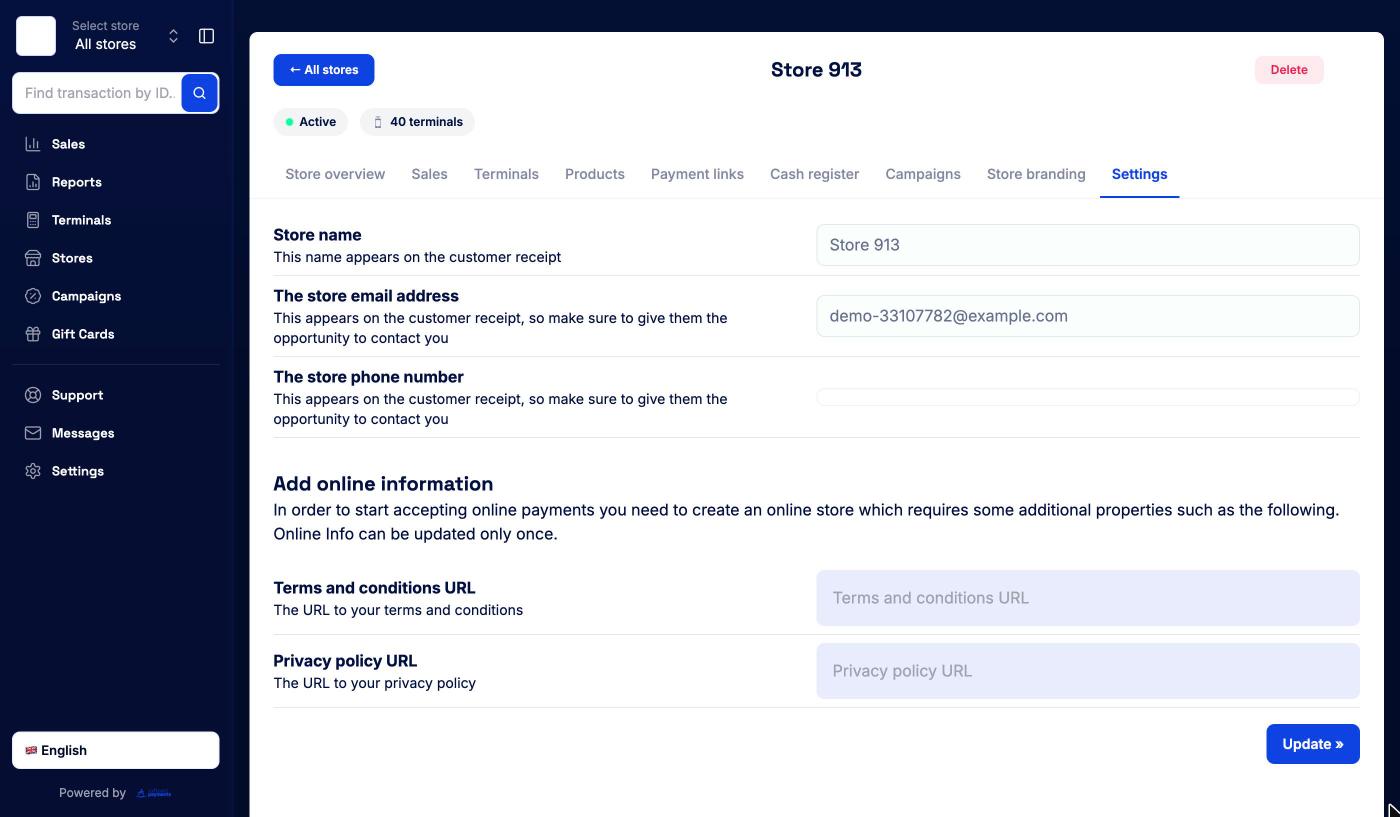
The Settings tab shows:
- Store name, The store email address and The store phone number. These are shown read-only. If they need to change, raise a ticket from Support.
- Add online information, if the store doesn’t take online payments yet: Terms and conditions URL and Privacy policy URL, then Update » (admins only). Online information can only be set once.
- Terminal settings and tips for the whole store, if the store has terminals. See Terminal Settings & Tips.
Deleting a store
Admins see a Delete button in the store header. Click it, then confirm with Delete in the dialog that asks “Are you sure you want to proceed?”.