Cash Register
Turn a terminal into a certified cash register for the Swedish market: pick the terminal, accept the pricing, choose where reports go, and register the cash register with Skatteverket.
Overview
Swedish rules require merchants to register their cash register with Skatteverket. The Cash register feature turns one of your terminals into a cash register: it keeps the journal, produces the daily X and Z reports, and gives you the details you need for the registration.
Cash register is set up per terminal and is managed from the store the terminal belongs to. Not every account has it. If you don’t see a Cash register tab on your store page, it isn’t enabled for your account.
The Cash register tab
Open Stores, click the store, and go to Cash register.
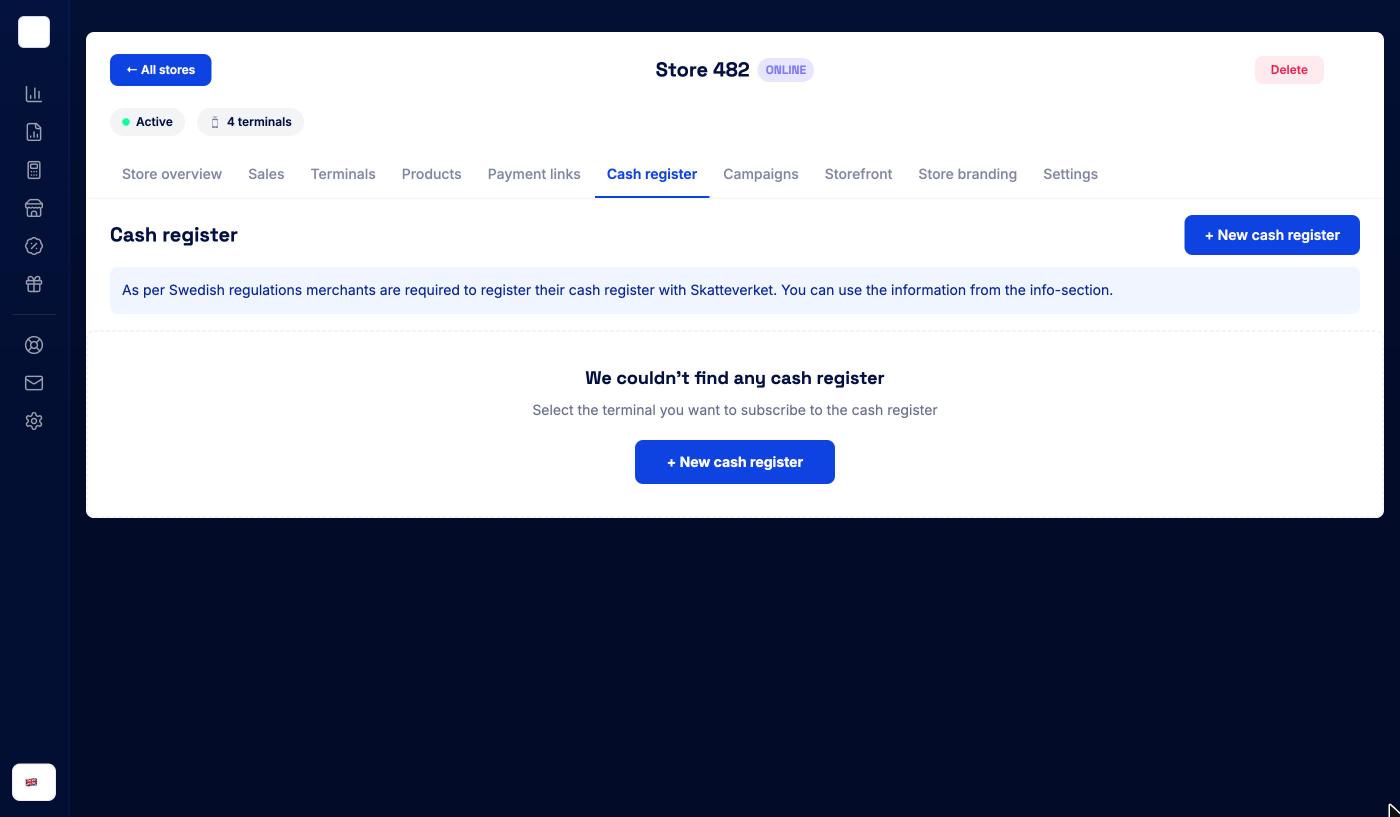
The tab shows the reminder that cash registers must be registered with Skatteverket, and a list of the store’s cash registers with their Name, ID and Terminal. Click a row to open the cash register. If the store has none yet, click + New cash register.
Setting up a cash register
Setup takes four steps. ← Back to store at the top lets you leave at any time, and ← Back goes to the previous step.
1. Select terminal
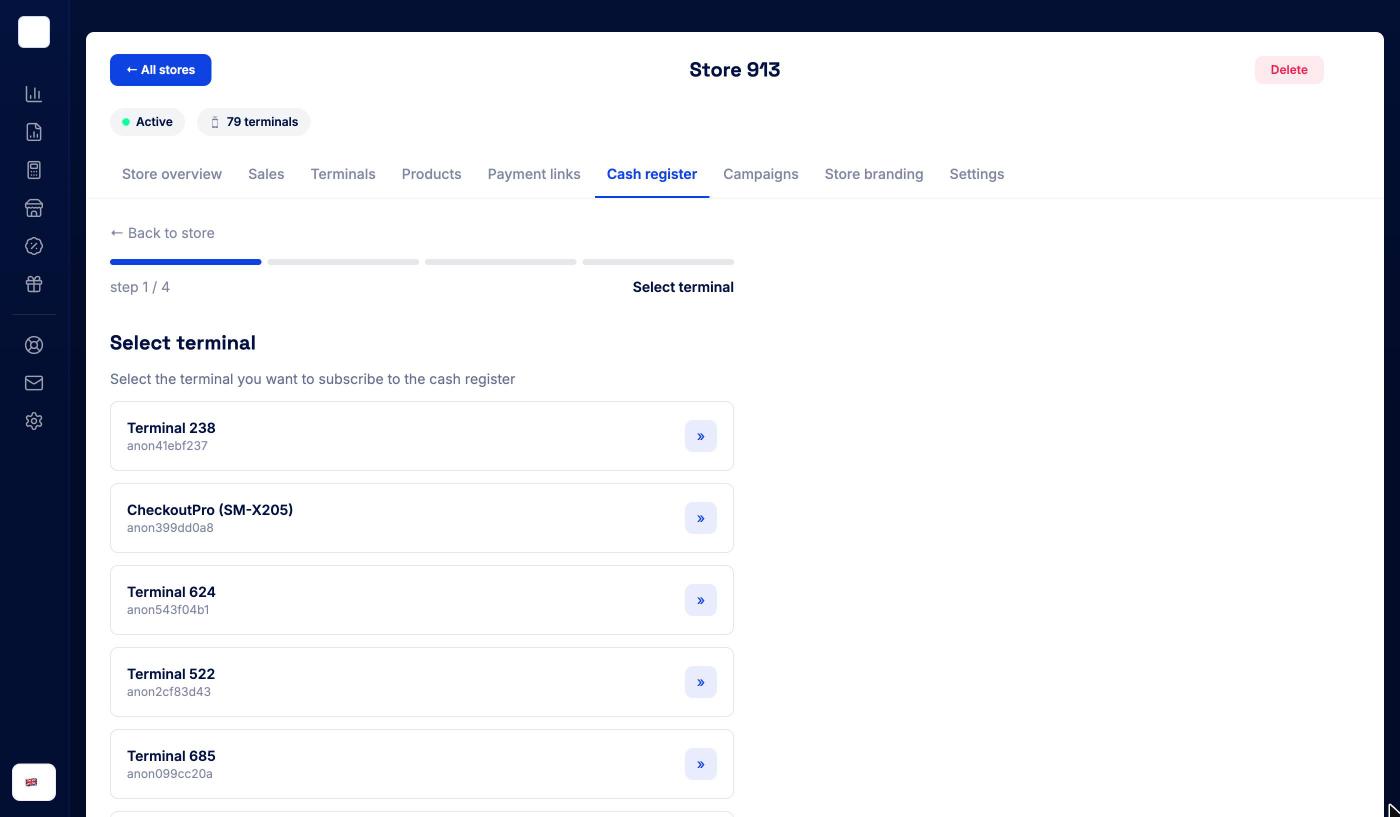
“Select the terminal you want to subscribe to the cash register.” Click » next to the terminal. Terminals that already have a cash register are marked Cash register active and can’t be picked again.
2. Review pricing
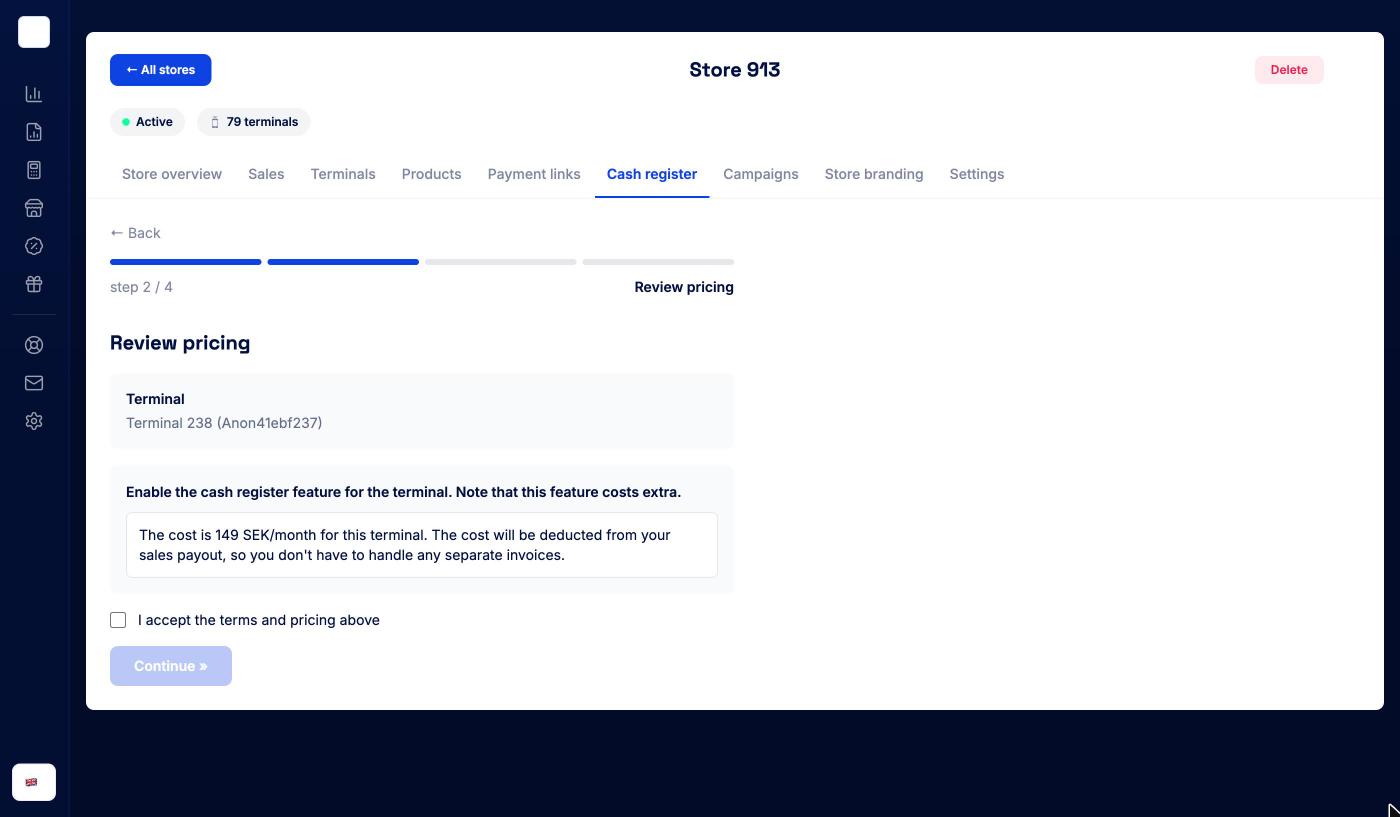
The cash register is an add-on with a monthly cost per terminal: “The cost is 149 SEK/month for this terminal. The cost will be deducted from your sales payout, so you don’t have to handle any separate invoices.” Tick I accept the terms and pricing above and click Continue ».
3. Configure cash register
Enter the email address that should receive the cash register’s reports, then click Enable cash register. Reports and receipts from the cash register are sent to this address.
4. Confirmation
The portal confirms “The cash register was successfully registered” and shows Register with Skatteverket with the registration reminder. Click See ECR info » for the details you need for the registration, or Back to store.
Registering with Skatteverket
Registering the cash register with Skatteverket is your responsibility as the merchant. Open the cash register and use the details on its Info tab, such as the Cash register name and Cash register ID, when you register.
The cash register page
Click a cash register on the store’s Cash register tab. The header shows the cash register’s name, Back to cash register and Deactivate ECR.
| Tab | What it’s for |
|---|---|
| Transactions | Sales on the cash register for a period you pick: All time, Today, Last 7 days, Current month, Last month or a custom date |
| Reports | The cash register’s reports |
| Settings | Who receives the cash register’s reports by email |
| Info | The cash register’s details for the Skatteverket registration |
Report emails
On Settings, Add Email for ECR Reports lets you choose who receives the daily reports (X-day, Z-day and journal memory). Enter an address, click + Add another email for more, remove one with the button next to it, and click Save emails.
The cash register’s reports also show up on the Reports page, and the email subscriptions for them are listed under Settings → Notifications. See Settings.
Deactivating a cash register
Admins can click Deactivate ECR. Confirm by typing delete in the dialog. The cash register stops, and its page shows “The ECR has been deactivated”.