Support
Raise a support ticket with Surfboard, follow its progress and reply in the thread. Or ask the support chat, call us, and browse the FAQ.
Overview
The Support page is where you get help from Surfboard. Open it from Support in the sidebar. It has two tabs:
- My tickets: raise a support ticket and follow it until it’s solved. This is the default tab.
- Chat & FAQ: ask the support chat a question, call us, or look up an answer in the FAQ.
My tickets
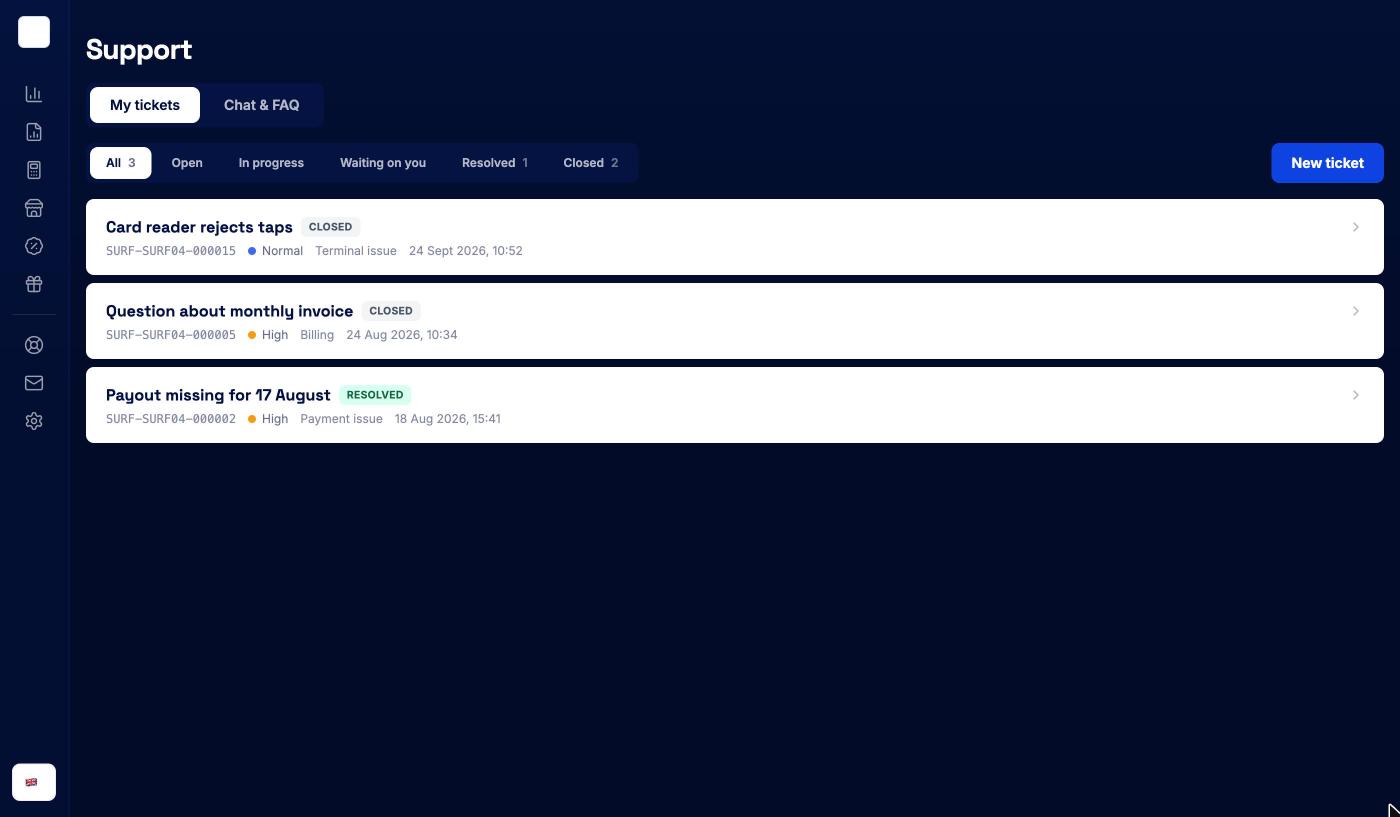
The list shows the tickets raised from your merchant account. Each row shows the ticket title, its status, its reference (for example SURF-SURF04-000015), its priority, its topic and when it last changed. Click a row to open the ticket.
The tabs above the list filter by status. The number next to each tab is how many tickets have that status.
| Status | What it means |
|---|---|
| Open | The ticket has been raised and is waiting for Surfboard support |
| In progress | Surfboard support is working on it |
| Waiting on you | Surfboard support needs something from you. Open the ticket and reply |
| Resolved | Surfboard support considers the issue solved |
| Closed | The ticket is closed and can’t be replied to |
If you have more tickets than fit on the page, click Load more at the bottom.
Raising a ticket
Click New ticket.
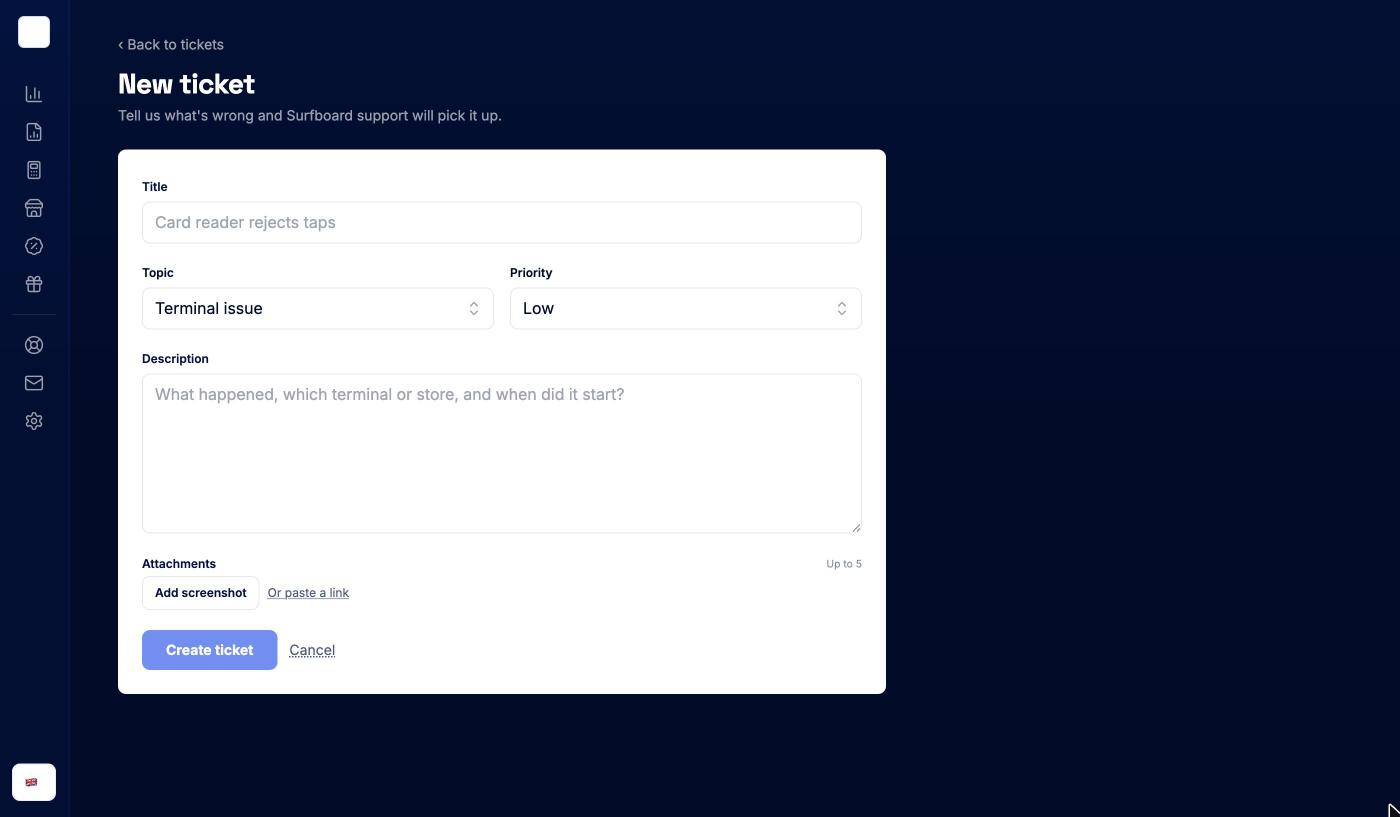
| Field | What to enter |
|---|---|
| Title | A short summary, for example Card reader rejects taps |
| Topic | Terminal issue, Payment issue, Account issue, Integration, Billing or Something else |
| Priority | Low, Normal, High or Urgent |
| Description | What happened, which terminal or store, and when it started |
| Attachments | Up to 5. Click Add screenshot to upload an image (up to 5 MB each), or Or paste a link to add a link instead, for example to a larger file or a video |
Click Create ticket. The ticket opens and Surfboard support picks it up. Click Cancel to go back without creating it.
Tip: Include IDs where you have them: the transaction ID from the transaction page, or the terminal’s serial number from its Info tab. It saves a round trip.
If a screenshot is larger than 5 MB, the form tells you to add it as a link instead.
Following up on a ticket
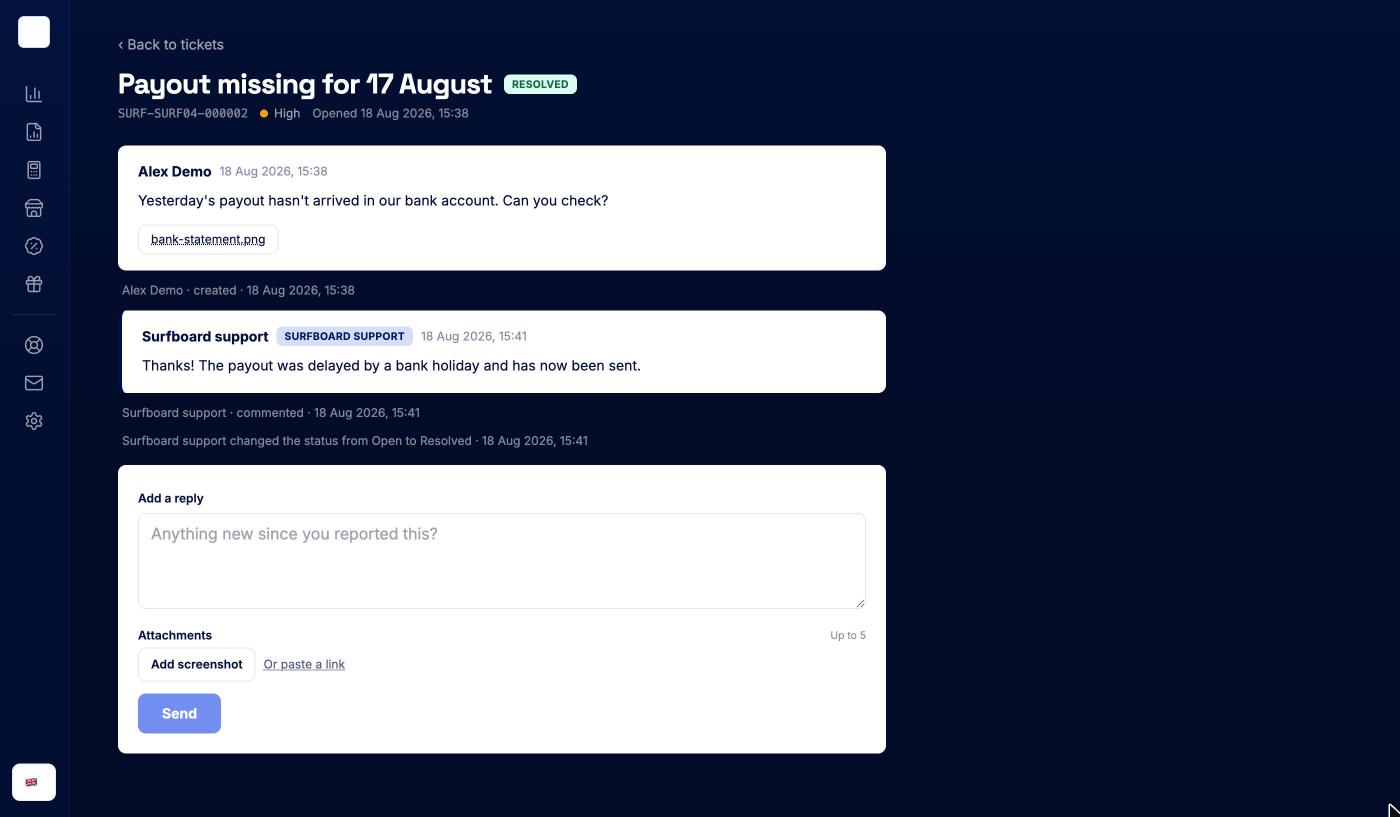
The ticket page shows the title, status, reference, priority and when the ticket was opened. Below that is the thread: your messages, replies from Surfboard support, and activity lines such as status changes.
To add something, write in Add a reply (Anything new since you reported this?), attach screenshots or links if needed, and click Send. When a ticket is Waiting on you, a reply is what moves it forward.
A closed ticket says This ticket is closed. Create a new one if it comes back. Raise a new ticket if the problem returns.
Click ‹ Back to tickets to return to the list.
Chat & FAQ
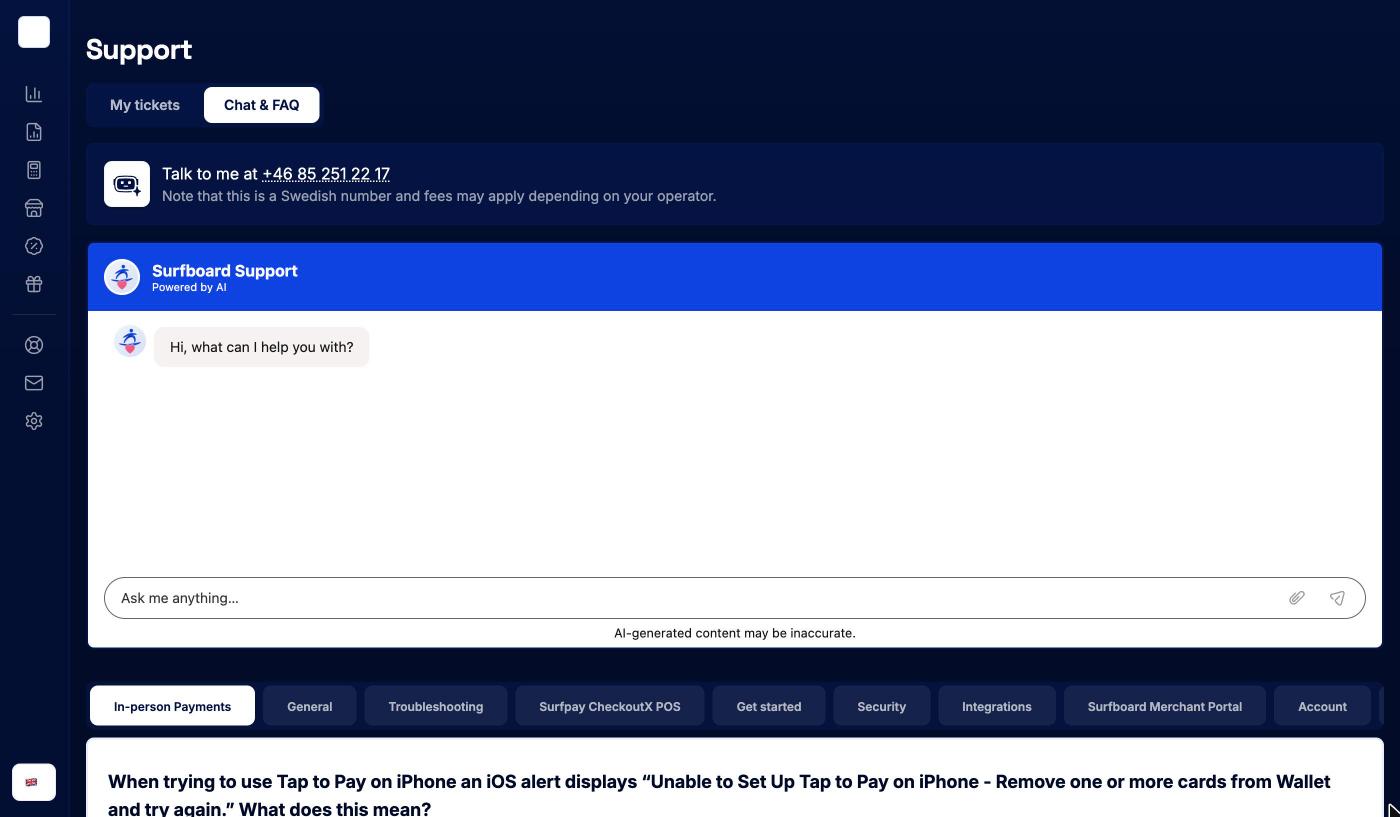
The Chat & FAQ tab gives you three ways to find an answer yourself:
- Phone: Talk to me at +46 85 251 22 17. This is a Swedish number, so call charges from your operator may apply.
- Surfboard Support chat: type your question in Ask me anything… and the support assistant answers in the chat. Its answers are AI-generated and may be inaccurate, so double-check anything important, or raise a ticket.
- FAQ: pick a category under the chat, such as In-person Payments, Troubleshooting or Account, to see common questions and answers. Read more opens the full article in a new tab.
If the chat or FAQ doesn’t solve it, switch to My tickets and raise a ticket.