Refunds & Voids
Refund all or part of a purchase from its transaction page, void a same-day payment instead of refunding it, cancel a refund made by mistake, and follow a refund until it completes.
Overview
You refund or void a payment from its transaction page. Find the sale under Sales, or paste its ID into Find transaction by ID… at the top of the sidebar, and open it.
There are three ways to give money back:
| Option | When it’s offered | What happens |
|---|---|---|
| Void this payment | A card payment made today, not yet refunded, before 23:00 UTC | The whole payment is cancelled before it settles. No refund is created. |
| Create refund | Any other purchase | A refund (a return transaction) is sent back to the card, in full or in part |
| Void refund | An online card refund made today by mistake, before 23:00 UTC | The refund is cancelled before it settles, so the money isn’t sent back |
Admins and Users can both refund and void. See User Levels.
Voiding a payment made today
If the payment was made today, the Refunds section on the transaction page shows Void this payment:
This payment was made today, so it can be voided until time — reversing it in full instantly, with no refund needed.
- Click Void this payment.
- Confirm with Yes. The confirmation warns: “Void this payment in full? This instantly reverses the entire payment and cannot be undone.”
A void always cancels the full amount. To give back only part of the payment, refund it instead. The void option disappears at 23:00 UTC on the day of the payment, and once the payment has been refunded.
Refunding a purchase
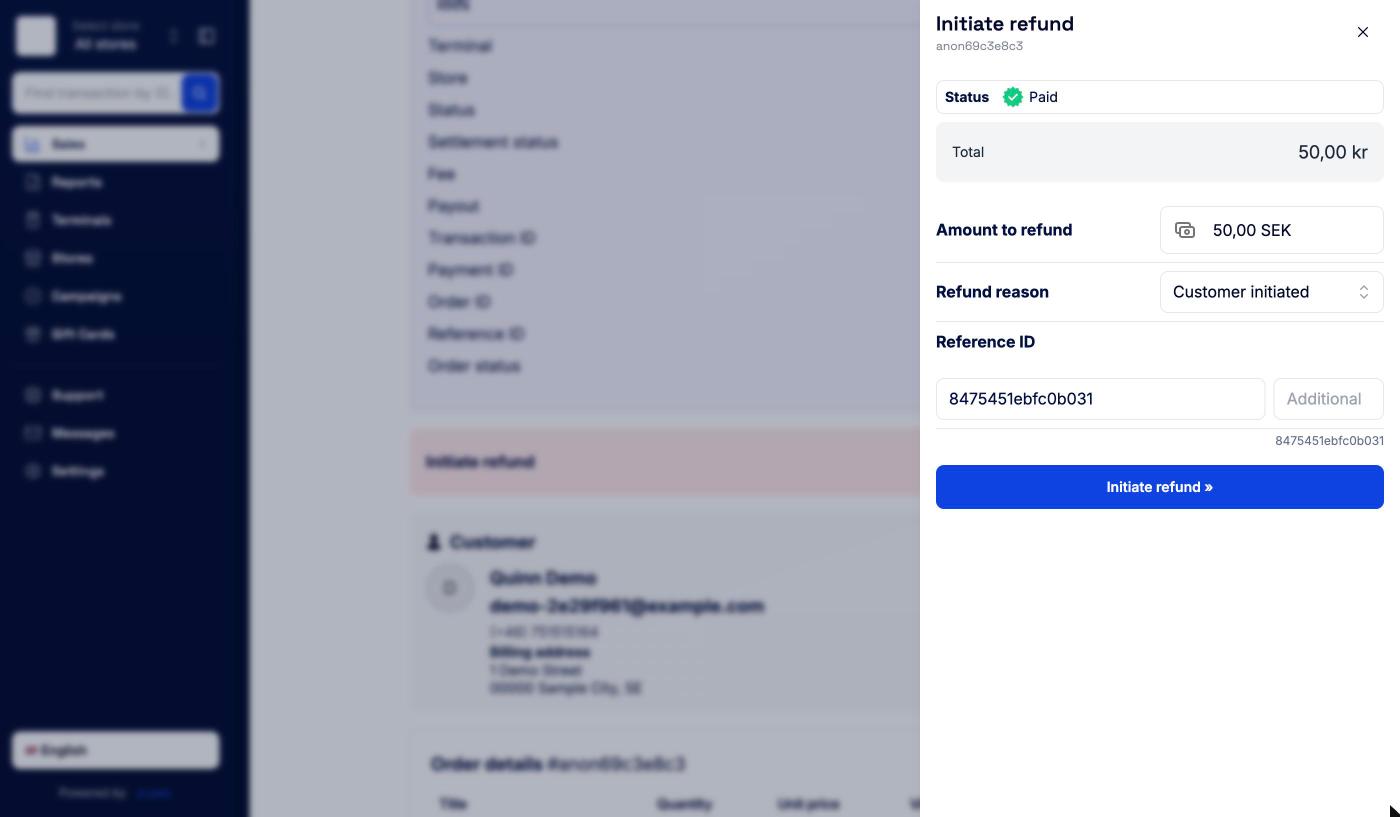
- On the transaction page, find Initiate refund and click Create refund.
- The drawer shows the payment’s Status and Total. If the purchase has been refunded before, it also shows Already refunded and Remaining.
- Enter the Amount to refund. It starts at the full remaining amount. Lower it for a partial refund. You can’t refund more than what remains.
- Pick a Refund reason: Customer initiated, Suspected malfunction, Suspected fraud, Duplicate transactions, or Other. If you choose Other, describe it under Define refund reason.
- Check the Reference ID. It’s prefilled from the original order. Use the Additional field to add your own suffix, for example a return number. The combined reference is shown underneath.
- Click Initiate refund », then confirm with Yes in the “Are you sure you want to proceed?” dialog.
You can refund a purchase several times, as long as the total stays within the original amount.
Tips and other adjustments
If the order has adjustments, such as a tip, the drawer breaks the total down into Order amount, each adjustment, and Total. The amount field then refers to the order amount.
- For a full refund, switch on Include adjustment in refund to give back the tip as well.
- For a partial refund, the switch is hidden. Adjustments can’t be refunded in part.
Changing the amount between full and partial resets the switch to off. Check it again before you confirm.
Following a refund
Once you’ve confirmed, the refund appears under Refund information on the purchase, with its date, amount, and order ID. Its status updates on its own for about a minute:
| Status | Meaning |
|---|---|
| Completed | The refund went through. View return transaction » opens the return. |
| Refund is being processed | Still on its way. This can take a while. Don’t start a new refund for the same purchase. |
| Refund failed | The refund couldn’t be completed. Try again, or open a ticket under Support. |
The return also appears in your Sales list as a Return with a negative amount.
When a refund can’t go through as normal
The original terminal is deregistered
A card refund runs on a terminal. If the one that took the payment has been deregistered, you’ll see Terminal is deregistered: “This refund can run on any registered terminal. Select one below and retry.” Pick another terminal under Select terminal and click Retry refund. The retry starts the refund right away, without asking you to confirm again.
If you have no registered terminals at all, register one first. See Terminals.
The purchase is older than three months
The portal can’t refund purchases older than three months. You’ll see This refund can’t be processed automatically, with the option to Create a support ticket. The ticket is filled in with the details you entered, and Surfboard processes the refund for you. Once it’s created, View ticket takes you to it under Support.
Refunds handled in another system
For some merchants connected through a partner’s checkout system, refunds are made in that system instead. In that case the refund button is disabled, and a message on the transaction page tells you where to refund.
Voiding a refund made by mistake
If you refunded an online card payment by mistake, you can cancel the refund on the same day. Open the refund (the Return in Sales). If it can still be cancelled, you’ll see Stop this refund? with a Void refund button:
If this refund was initiated by mistake, you can still void it until time. After that the refund settles and can no longer be reversed.
Click Void refund and confirm. The confirmation reads: “This will cancel the refund and the customer will not receive the money back. Continue?”
The option is only offered for completed refunds of online card payments, until 23:00 UTC on the day of the refund. After that, the refund is final.