Get Started Wizard
A guided, chat-style setup for new accounts: add your branding, register your first terminal, set up tips, run a test payment and add your first products.
Overview
Get Started is a guided setup for new accounts. It works like a chat: the assistant asks one thing at a time, you answer with a button or a short form, and it sets up the portal for you as you go.
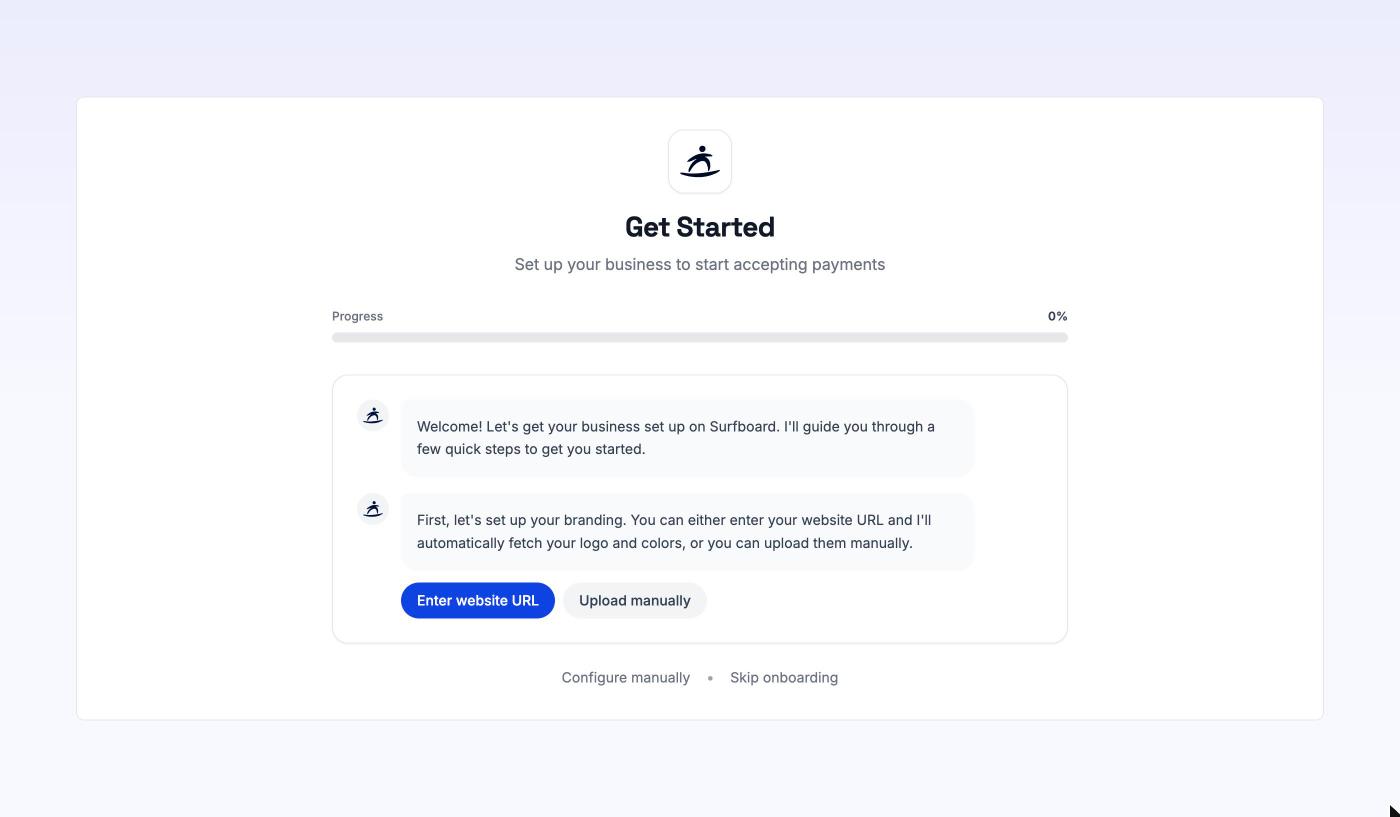
The page is titled Get Started with the subtitle Set up your business to start accepting payments. A Progress bar shows how far through setup you are, as a percentage.
When you’ll see it
The portal opens Get Started automatically the first time you log in, if your account has no transactions and no terminals yet. It isn’t in the sidebar. To come back to it later, go to /get-started in the portal.
The steps
1. Branding
The assistant starts by setting up your logo and colours. These are used on your receipts, payment pages and online checkout.
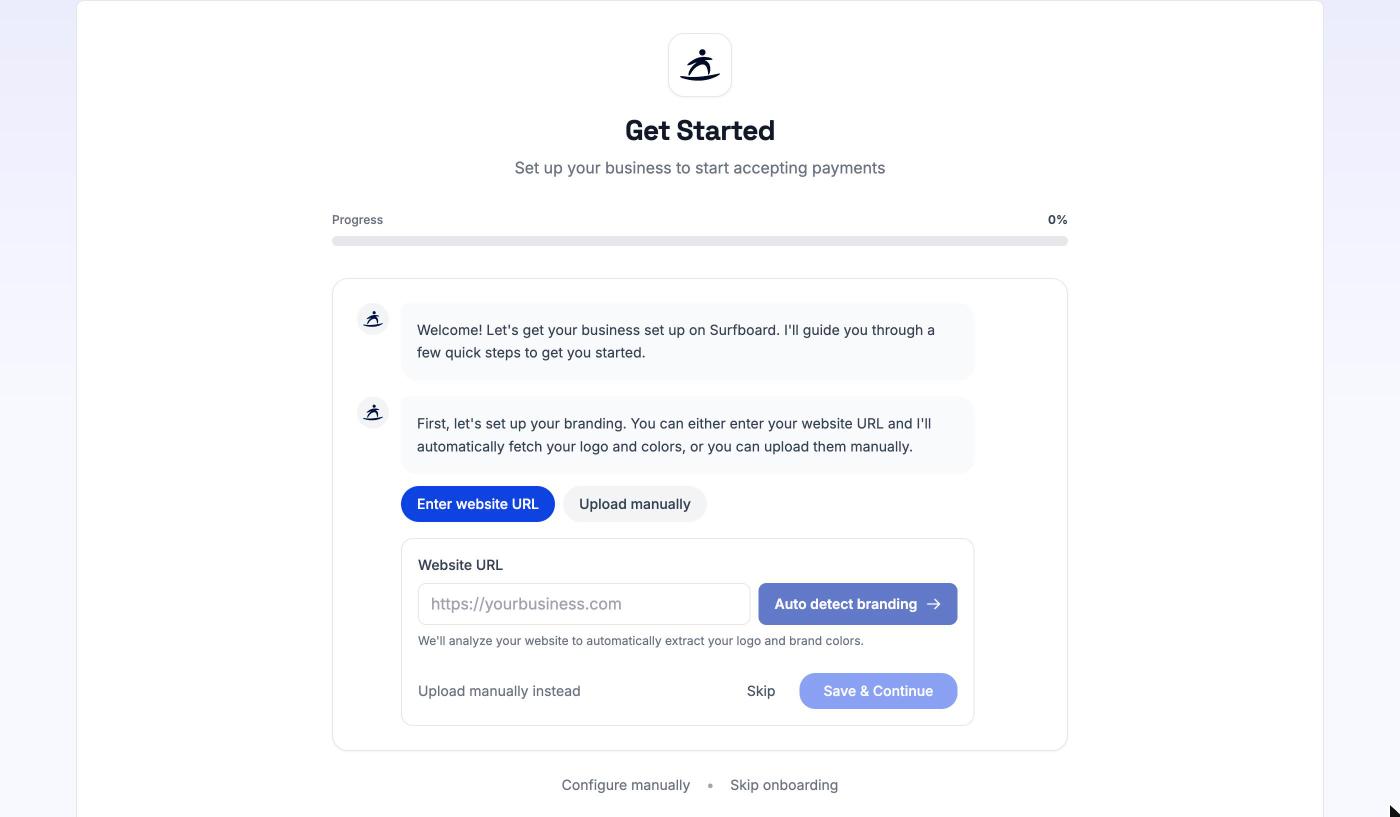
Choose one of two ways:
- Enter website URL: type your website address (for example
https://yourbusiness.com) and click Auto detect branding. The portal reads your website and picks out your logo and brand colours. - Upload manually: drag and drop your logo, or click to browse. Images up to 5 MB.
You then see a Branding Preview. If no logo was found, the assistant offers to use your icon as the logo instead. Under Customize Colors you can adjust the Brand color, Background color and Accent color before you click Save & Continue. Click Skip if you’d rather do this later from Settings.
2. Your first terminal
Next, the assistant asks whether you want to register a terminal. Click Register Terminal, or Skip for now.
To register, pick the store, give the terminal a name (for example Front Counter) and enter the registration ID shown on the terminal. Alternatively, under Register with QR Code, click Generate QR and scan the code with the terminal. See Terminals for the details of each method.
Once the terminal is registered, the assistant asks Would you like to enable tips?
- Yes, set up tips: choose the Tip display format (Percentage or Amount), set three tip levels and decide whether customers can enter a custom tip. Click Save Tips.
- No, thanks moves on without tips. You can set them up later. See Terminal settings & tips.
3. Test transaction
Depending on your setup, the assistant may offer to check that everything works with a test payment. It first asks Is your terminal ready?. Answer Yes, it’s ready or Not yet.
- Send Test Transaction sends a small payment to the terminal. The test payment is voided afterwards, so no money is taken.
- If your terminal runs on its own rather than connected to a till system, the portal instead waits for you to take a real sale on the terminal and shows Listening for transactions….
You can stop with Cancel test or skip the step with Skip test.
4. Products
If your account has product access, the assistant then helps you add your first products. You have three options:
- Create Product: enter a product name, price and description, then click Create & Continue.
- Import CSV: upload a spreadsheet of products.
- Scan Menu: upload a photo of your menu and let the portal read the products from it.
Click Skip for now to move on. See Products & Catalog for how each option works.
Done
When every step is complete, you see You’re all set!. Click Go to Dashboard to start using the portal.
Leaving the wizard
Two links sit below the chat:
- Configure manually opens a dialog that explains you can set everything up yourself from the portal. Click Go to Dashboard to leave, or Cancel to stay.
- Skip onboarding marks setup as finished and takes you to the dashboard straight away. There’s no confirmation step.
Anything you skip can be done later from the regular pages: branding under Settings or a store’s Store branding tab, terminals under Terminals, and products under Products & Catalog.